27 EN
5.5 Finish Map
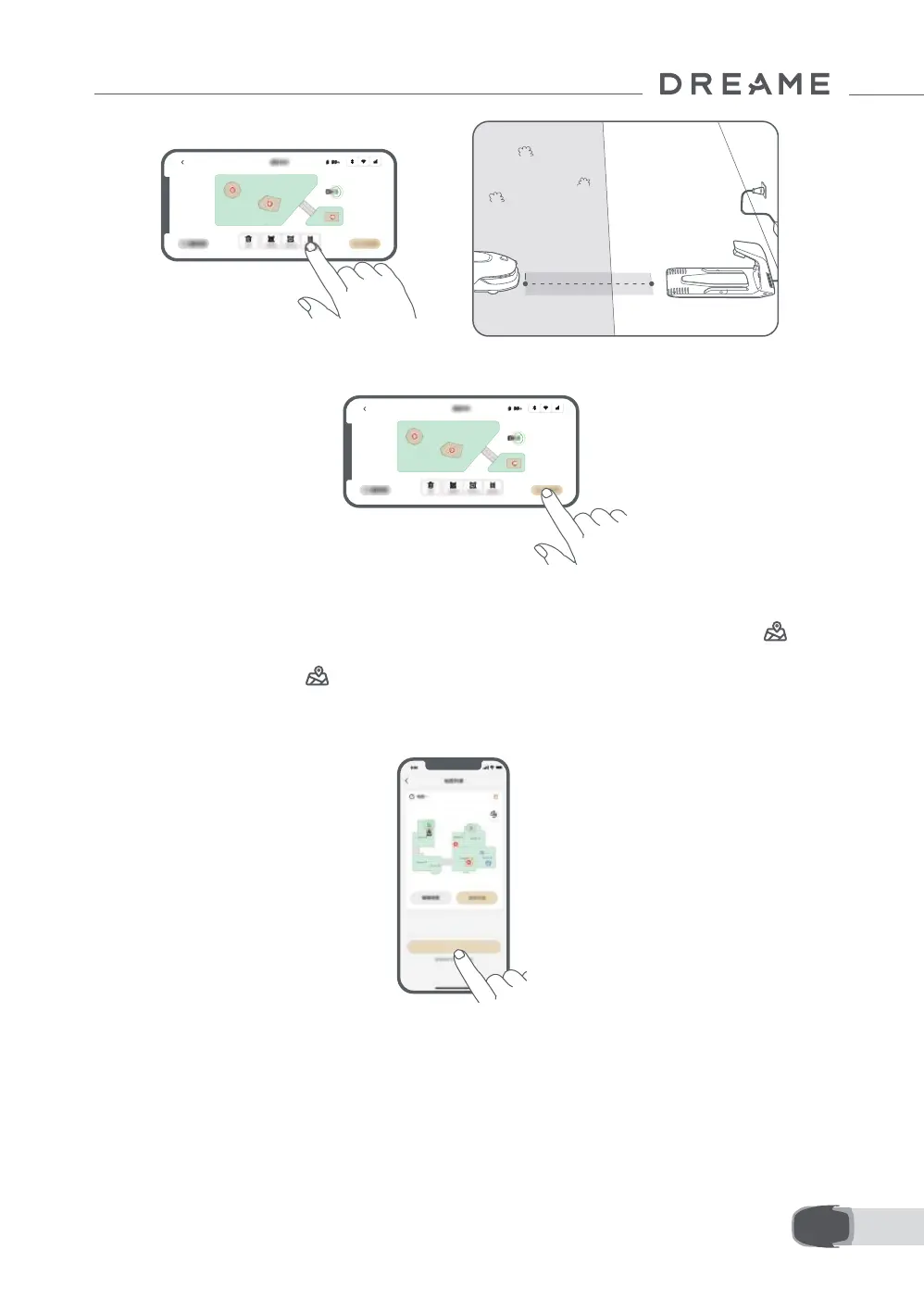
Tap Finish Map when work areas, paths and no-go zones are completed.
5.6 Add a Second Map
If there is no path between your front and back gardens, you can create a second map. After completing
the rst map, tap Add Map to continue creating the second one. Alternatively, you can navigate to >
Map Editing and tap Add Map after mapping is complete. Once you have nished the second map, you can
switch between maps through > Map Editing.
Note: After switching the map, the schedules and mowing settings of the current map will be applied.
Note: You can purchase an additional charging station to install in the second map for greater convenience.
With a separate charging station installed in the second map, you only need to move the robot manually
between two maps.
6.1 Start Mowing for the First Time
6 Operation
Tips before mowing:
• Use a push mower to mow the grass to a height of no more than 10 cm.
• Clear the obstacles including debris, leaf piles, toys, wires and stones from the lawn. Make sure no children
or pets are on the lawn when the robot is mowing.
• Fill in the holes in the lawn.
• Set your mowing preferences in the app in advance (such as mowing eciency, mowing height and
mowing direction).
Add map



 To Next Page