26EN
• To Separate and Combine Zones
To divide a zone into smaller ones or to merge zones that were divided using the app into a larger one, go to
> Map Editing > Zone settings and tap Separate or Combine in the app.
5.4 Set Path
For isolated zones, please create a path to connect them. Isolated zones without a path will be inaccessible
to the robot.
Note: By default, the robot only moves along the path without mowing the grass.
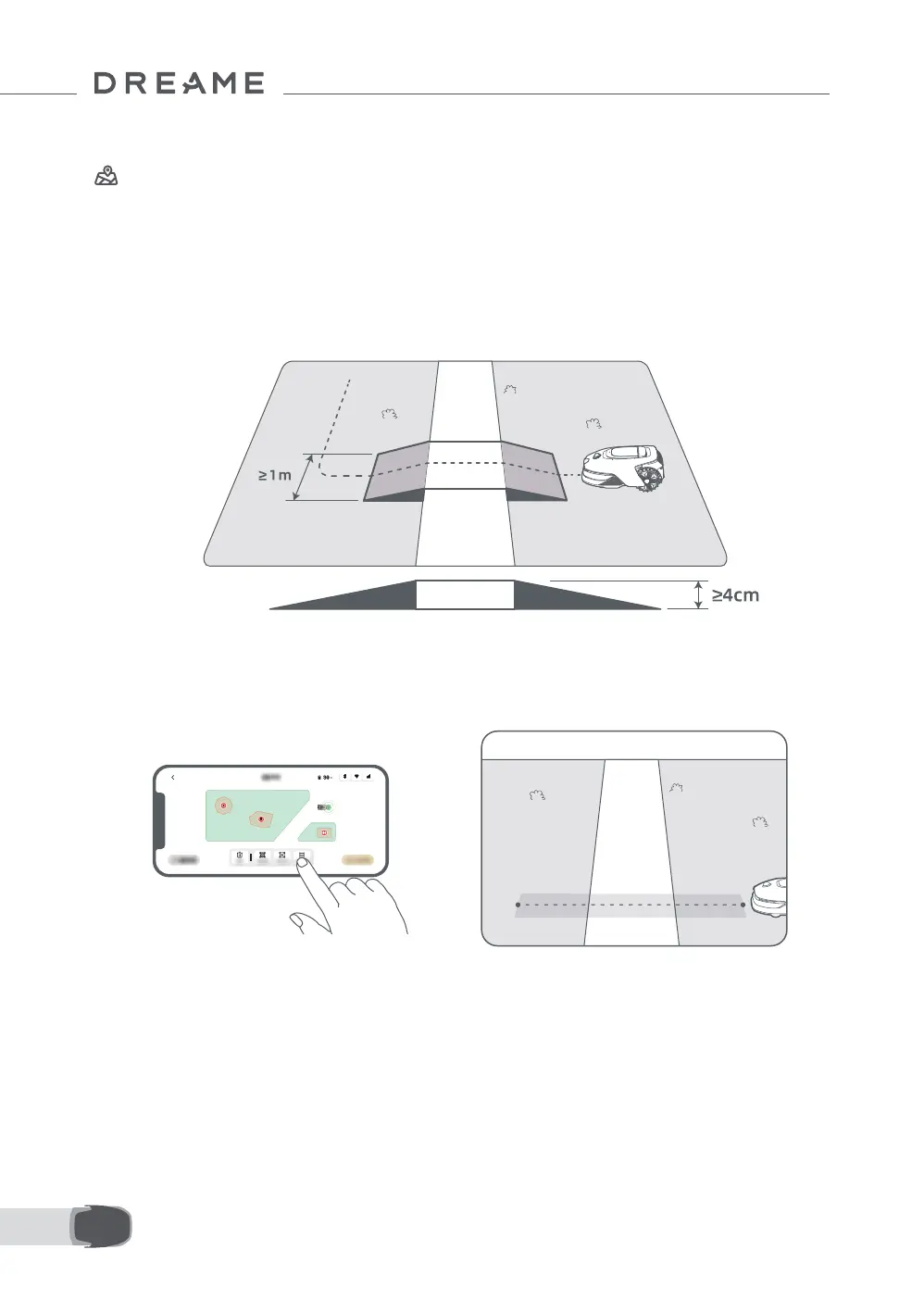
Important: If your lawn is divided by passages higher than 4 cm, place an object with a slope equal in
height to the passage (such as a ramp).
• To Connect Two Isolated Work Zones
For isolated areas, please create paths to connect them, otherwise they will be inaccessible to the robot. Tap
Path to create a path.
Important: Make sure the beginning and end of the path are in the work area.
• To Connect the Work Area and the Charging Station
If your charging station is not in the work area, a path should be created to connect it to the work area. Tap
Path to create a path that allows the robot to return to the charging station.
Important: Ensure that one end is inside the work area, and the other end is right in front of the charging
station. It's advisable to align the path with the charging station.
Important: When creating paths to connect the work area and the charging station, do not remotely dock
the robot in the charging station. Otherwise, the LiDAR may be blocked, which can cause the mapping to fail.


 To Next Page