21 EN
3. Follow the in-app instructions to complete the Wi-Fi network connection.
Important: Please use a single-band network of 2.4 GHz frequency or dual-band network of 2.4/5 GHz
frequency.
Important: Make sure your Wi-Fi network doesn't have a rewall and isn't encrypted. Otherwise, the
network setup may fail.
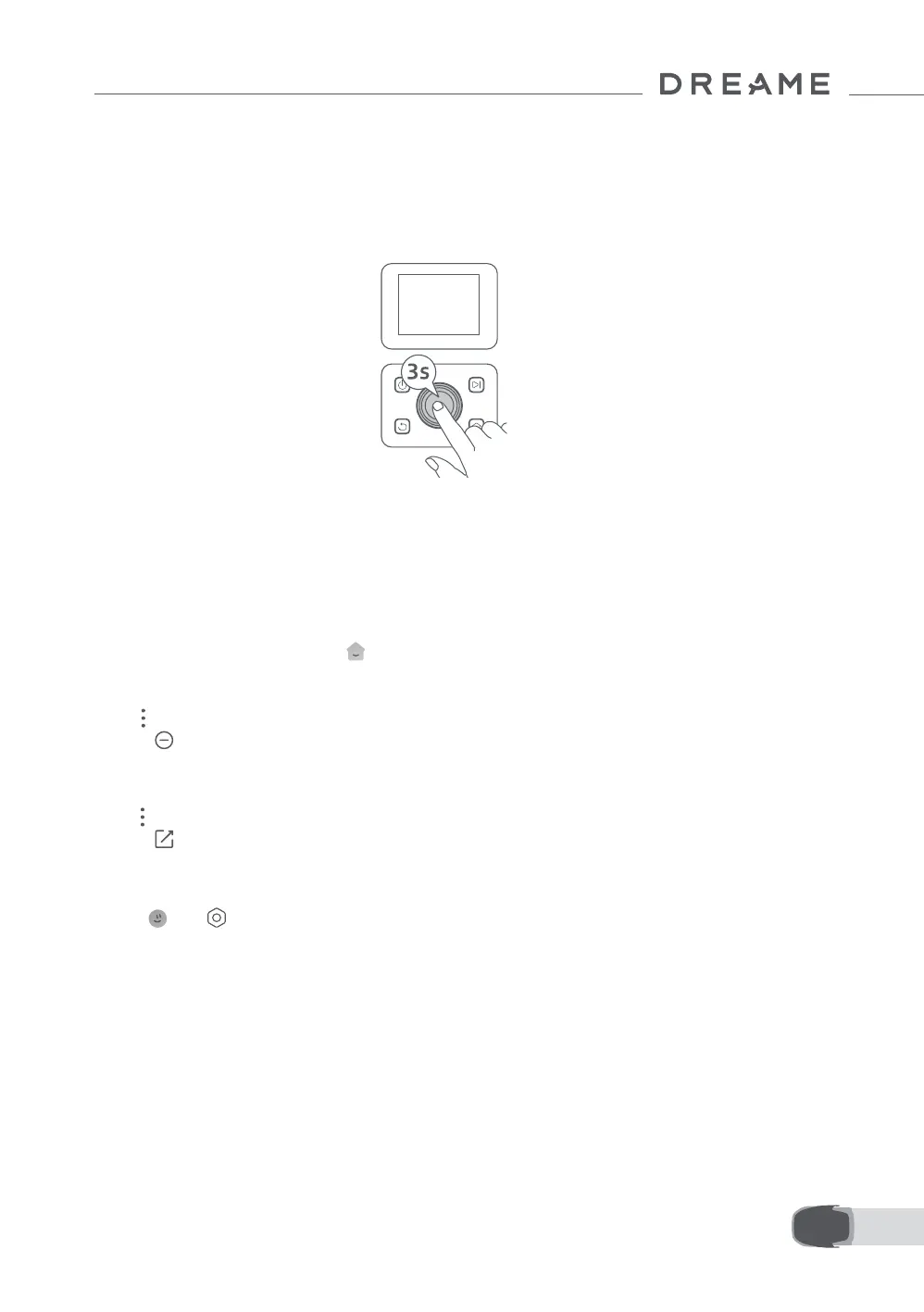
4. Press and hold the knob on the control panel for 3 seconds. The robot will enter Bluetooth pairing mode.
5. Follow the in-app instructions to complete the pairing.
How to unbind the robot?
How to log out of your Dreamehome account or delete it?
How to share your robot?
The robot is automatically bound to the Dreamehome account once pairing is successful. Each device can
only be bound to one account. It cannot be bound to another account at the same time.
To pair the robot with a new account, you need to unbind it rst. To unbind it:
1. Open the Dreamehome app. Go to Device.
2. If you have multiple robots bound to your Dreamehome account, swipe left or right to access the page of
the robot you want to edit.
3. Tap in the upper right corner.
4. Select Delete.
1. Go to Me > > Account.
2. Select Log Out or Delete Account.
1. Tap in the upper right corner.
2. Select Device Sharing.


 To Next Page