This document is a user guide for the DRONE XC dash camera, detailing its features, installation, setup, and various functionalities.
The DRONE XC is an advanced dash camera designed for vehicle monitoring and control. It offers both standalone operation and integration with compatible Firstech remote start or security systems, providing comprehensive vehicle tracking, security, and media recording capabilities.
Important Technical Specifications:
- Image Resolution: 2K QHD (1440p) Front Camera
- Live Stream Resolution: 540p
- Video Channels: Up to 2, including front camera
- Frames/sec: 30fps
- Image Sensor: Sony STARVIS
- File Format: .mp4
- Connectivity: LTE, Wi-Fi, GPS
- Audio: Microphone, Internal Speaker
- Recording Modes: Driving, Event, Parking with Motion, Parking with Timelapse, Parking with Alerts
- Security Sensors: Shock, Tilt, Glass-Break, Motion, Door, Hood, Trunk
- Storage: 64GB Micro SD Card (Upgradeable to 512GB)
- Installation Methods: Standalone or Data-to-Data
- Dimensions: 71mm (width) x 38mm (height) for the front camera; 107mm (width) for the overall unit.
Usage Features:
Installation and Compatibility:
The DRONE XC can be installed in two modes:
- Standalone Mode: Functions as an LTE/Wi-Fi dash cam with GPS tracking for speed, location, and battery voltage monitoring. Requires constant power (12v), ground, and ignition connections.
- Data-to-Data Mode: Connects to a compatible Firstech remote start or security system (Compustar, Arctic Start, Nustart, FTX, iDatastart) for unlimited-range vehicle control and monitoring. Requires constant power (12v) and ground connections, and connects to the RS-232 data port of the Firstech module.
Setup and Account Registration:
Users download the DroneMobile App from the App Store or Google Play. First-time users must create an account by tapping "Register" on the login page. This involves entering the DroneMobile system serial number (found on a keychain tag, door jamb sticker, the dash cam itself, or the bill of sale) and personal information. A confirmation email is sent to set up a secure password.
DroneMobile Plan Selection:
The DRONE XC includes a Free 30-Day Premium Trial offering Vehicle Control, Security, GPS Tracking, remote live streaming, and cloud storage. Users can purchase a subscription (Basic, Premium, Premium Plus, Ultimate, Streaming, Streaming Plus) via accounts.dronemobile.com to ensure uninterrupted service. Plans vary in features such as live streaming data, cloud storage, and advanced GPS tracking.
Onboarding:
Upon first login, the DroneMobile App guides users through setting up their vehicle profile, account settings, and connecting to the dash cam's Wi-Fi.
Dash Cam Settings:
Accessed via the "Dash Cam" widget on the "Home" page or through Setup > Vehicles > [Select a Vehicle] > Dash Cam.
- Camera Settings: View camera previews for the front and optional IR1 interior camera.
- Connectivity: Set Wi-Fi SSID and password (for Streaming Plan users).
- Preferences:
- Audio Recording: Enable/disable microphone.
- Download Over Wi-Fi Only: Conserve cellular data for media downloads.
- Camera Sounds: Enable/disable sounds and adjust volume.
- Parking Mode: Enable/disable video recording while parked and select recording type (Event, Motion, Event & Motion, Timelapse & Event).
- Power Saving Mode: Conserve battery by temporarily turning off GPS and Wi-Fi; set activation battery level.
- Data Overlay: Select information to display on video recordings.
- Sensors: Adjust sensitivity for Driving Sensor (1-5), Parking Sensor (1-5), Shock Sensor (1-7), Tilt Sensor (1-2), and Window Break Sensor (1-9).
Basic App Functions:
Home Page:
Displays various widgets with key vehicle information. Widgets can be customized via the "Edit" button. Information includes car battery voltage, driving distance, system status, module type, cell strength, and firmware version.
Tracking Page:
Pinpoints vehicle location(s). Users can utilize geofences and Points of Interest (POIs) to receive location-based alerts.
Controls Page:
Sends commands to the vehicle (e.g., Lock, Unlock, Start/Stop, Trunk, Panic, Aux 1). Buttons can be customized and arranged.
Activity Page:
A history log of dash cam media, events, and trips.
- Gallery: View, favorite, and download media from the dash cam. Video recordings are marked with a "Video" icon.
- Feed: Lists all events and alerts. Tapping an event provides more details.
- Trips: Records every drive. "Premium Plus" plans or higher offer detailed trip reporting with breadcrumbing, turn-by-turn updates, and location-based alerts (requires ignition on/off detection).
Setup Page:
Configures all DroneMobile account, hardware, and app settings, including account info, vehicle management, sharing, geofences, security (Face/Touch ID), preferences (2-Way Confirmation, Auto-Refresh), voice assistants (Amazon Alexa, Google Assistant), and help resources.
Recording Modes:
- Driving Mode: Records video when the vehicle is in motion and ignition is on. Records a separate 1-minute video clip for any shock/impact detected. Sensitivity can be adjusted from 1-5.
- Parking Mode: Records 1-minute video clips when parked and ignition is off. Trigger options include:
- Event: Records when an event is detected.
- Motion: Records when motion is detected.
- Event & Motion: Records when an event or motion is detected.
- Timelapse & Event: Continuously records 1-minute video clips at 2 frames per second and when an event is detected. (Note: This option consumes more power and may deplete the battery in 1-2 days if the vehicle is not driven daily).
- Parking sensitivity can be adjusted from 1-5.
- Manual Recording: Initiate a 1-minute manual recording by pressing the "record" button on the Drone XC dash cam.
Live View:
Allows viewing a live video feed from the vehicle.
- Live View via LTE (Requires a "Streaming" plan): Navigate to the "Dash Cam" widget, set "LTE" as connection type, and tap the thumbnail. If live view fails due to technical error or insufficient data, users can retry or upgrade their streaming plan.
- Live View via Wi-Fi: Requires being inside the vehicle due to limited Wi-Fi range. Navigate to "Dash Cam" widget, set "Wi-Fi" as connection type, and tap the thumbnail. Users may need to turn on the dash cam's Wi-Fi by pressing its Wi-Fi button. If connection fails, ensure you are in the vehicle, power cycle the dash cam's Wi-Fi, or power cycle the dash cam itself.
- Live View Controls: Includes connection indicator (Wi-Fi or LTE), recording indicator, switch camera view (front/interior/rear), full screen toggle, mute microphone, snapshot (photo capture), panic (trigger alarm), and end live view.
Gallery:
Accessible from the "Activity" page or "Dash Cam" widget.
- Cloud: Stores events and live streams automatically backed up via LTE.
- SD Card: Stores local media (drives, parking mode timelapses, snapshots, driving/parking events). Requires being in the vehicle and connected to the dash cam's Wi-Fi.
- Media Download Queue: Shows the progress of items being downloaded.
- Filters: Refine media items by source (Cloud/SD Card), date (Last 7 Days, Last 30 Days, Custom), vehicle, media type (Events, Live Stream, Parking Incidents, Snapshot), and media tag (Expiring Soon, Starred).
- Via LTE on the "Gallery" (Streaming plans only): Select "Cloud" as source, tap the "More Actions" icon on a thumbnail or in the media player, and select "Download." Requires DroneMobile App permission to access the photo library. Downloaded items appear in the "Media Download Queue."
- Via LTE on the "Feed": Tap on an event with video, then tap the thumbnail to open the "Media Player." Tap "More Actions" and "Download."
- Via Wi-Fi on the "Gallery": Select "SD Card" as source, connect to the dash cam's Wi-Fi, then download media as described above.
- Via Micro SD-Card: Remove the security screw and cover, push the Micro-SD card to eject it, and insert it into a compatible computer.
Maintenance Features:
Firmware Update:
Firmware updates ensure the hardware works with the latest software and security features. Updates are announced via pinned messages on the "Home" page, push notifications, and email. If not on a DroneMobile subscription, users must manually update firmware via the "Update Dash Cam" page in settings.
Troubleshooting:
- Wi-Fi Issues: If the camera's Wi-Fi is not connecting, ensure it's turned on, and try toggling it or power cycling the dash cam. Note that other Wi-Fi based products (CarPlay/Android Auto) can impact performance.
- Gallery/Media Issues: If videos are not showing in the gallery, ensure the correct filter is selected and you have a "Streaming" plan. Cloud media may not be visible if not uploaded. "SD Card" content requires connecting to the dash cam's Wi-Fi.
- Miscellaneous Issues: If the serial number is lost, check the keychain tag, door jamb sticker, the dash cam's label, or the bill of sale.
Warranty:
The DRONE XC comes with a 1-Year Manufacturer's Warranty covering malfuntioning or defective hardware. The warranty starts from the installation date by an authorized dealer. It is non-transferable and applies only to the original purchaser. Full warranty terms are available on the DroneMobile website.

 Need help?
 General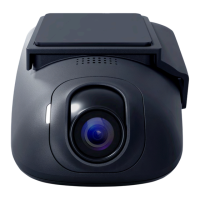

 To Next Page