11 | Troubleshooting
11.1 | Wi-Fi Issues
The Wi-Fi connection from my smartphone to Drone XC ends after iOS prompts me to use cellular.
When prompted to use cellular, press the “Stay on Wi-Fi” button. If you switch to cellular, the Wi-Fi connection to your Drone XC
will end.
I can’t connect to Drone XC’s Wi-Fi because of wireless CarPlay/Android Auto.
Connect while the engine is o
ff. Most smartphones “prefer” CarPlay/Android Auto over other 3rd party devices, and there is no
way to override this while the engine is on.
11.2 | Gallery/Media Issues
I can’t download Drone XC videos to my phone.
In order to download media, you will need to give the DroneMobile App permission to access your photo library. You can do so
by tapping “Allow” when prompted in the DroneMobile App or by visiting your smartphone settings.
For detailed instructions on how to download media, please reference 9 | Downloading Media.
Why don’t I see my videos in the gallery?
Make sure you have the correct
fi
lter selected. The “Cloud”
fi
lter will display events (if enabled) and live streams captured on your
dash cam. This requires a “Streaming” plan. Please note, some media will not be visible in the gallery until it has uploaded to the
cloud. You will receive a noti
fication once new media becomes available in the cloud.
The “SD Card”
fi
lter will display all drives, parking mode timelapses (if enabled), snapshots, and driving/parking events. In order
to view “SD Card” media, you will need to connect to your Drone XC’s Wi-Fi.
11.3 | Miscellaneous Issues
Where is my serial number?
At the time of installation, your authorized DroneMobile installer should have provided you with a few materials where you can
locate your DroneMobile system’s serial number)
● Keychain Tag - DroneMobile systems come with a keychain tag that your DroneMobile installer should have attached to
your keychain or remote fob. This keychain tag has your system's serial number and barcode, which you can easily scan
from the DroneMobile app.
● Door Jamb Sticker - As a backup, your DroneMobile installer may also place a sticker with your system's serial number
to the driver's side door jamb, which is the area that connects your door to the vehicle body.
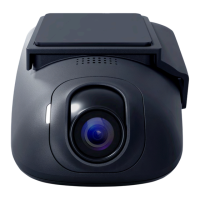
● On the Drone XC Dash Cam itself - All Drone XC Dash Cams have a label with your system’s serial number. Remove the
dash cam from the mounting bracket to access the label.
● Bill of Sale - As a last resort, check your bill of sale from your DroneMobile retailer, as your serial number may have
been included on that document as well.


 To Next Page