(Please note: Other Wi-Fi based products like “Wireless CarPlay” or “Wireless Android Auto” can signi
ficantly impact
Wi-Fi performance of the dash cam. If you are having issues connecting, or staying connected to the dash cam’s Wi-Fi,
please connect while the ignition is off.)
7.3 | “Live View” Controls
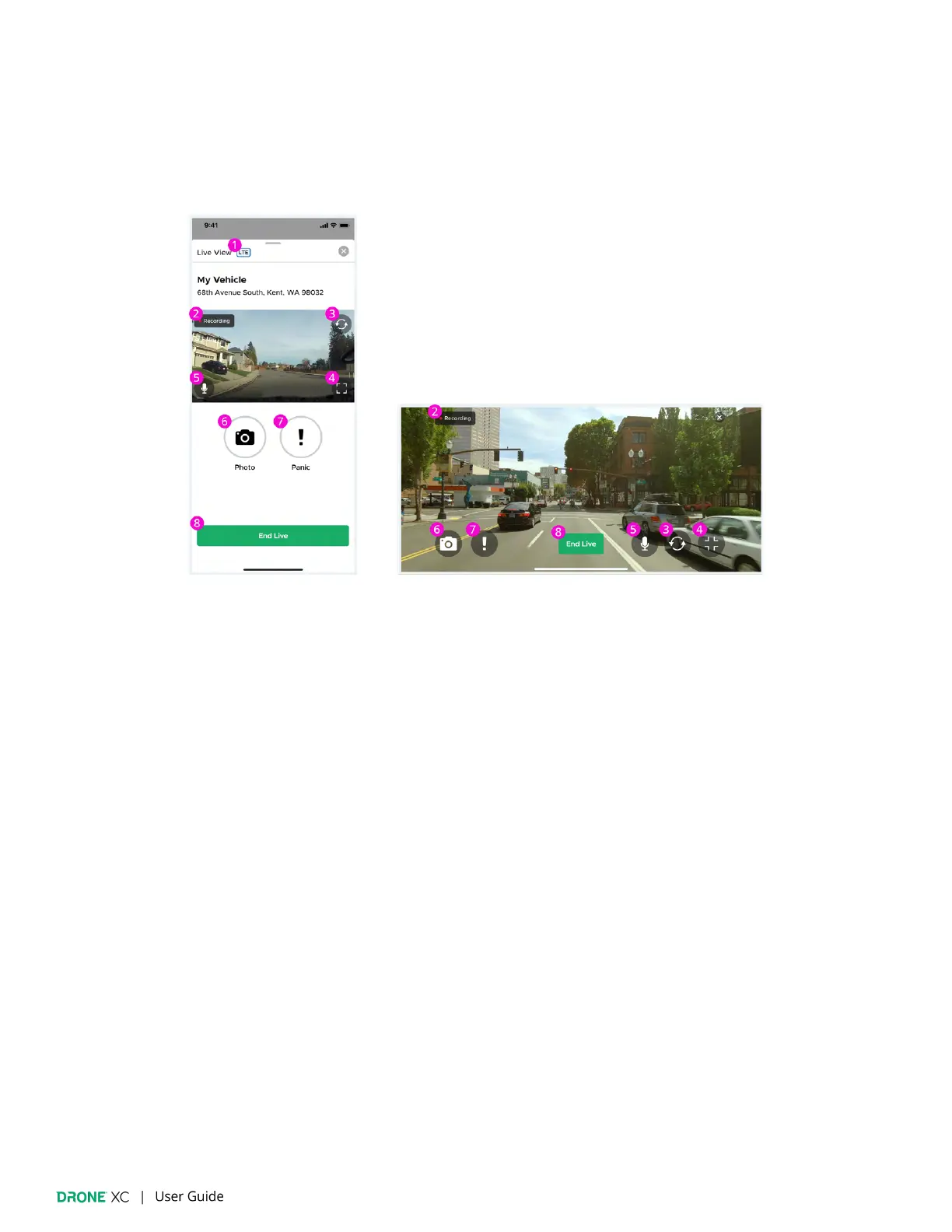
Live View Live View (Full Screen)
1. Connection Indicator - Displays whether “Live View” is being accessed via Wi-Fi or LTE
2. Recording Indicator - LTE streams are recorded and saved to the cloud for 7 days unless favorited.
3. Switch Camera View - switch from front cam to interior/rear cam (if installed)
4. Full Screen - Rotates video between portrait and landscape view
5. Mute - Turns the microphone ON/OFF
6. Snapshot - takes a photo during “Live Stream” and saves it to your “Gallery”
7. Panic - LTE streams give you the ability to remotely trigger your vehicle’s alarm system
8. End Live - Close the “Live View” window by tapping the “End Live” button. You can also tap the “X” in the top right, or
swipe down on the window itself to end a “Live View” session.
(Please note: Minimizing the app or closing the “Live View” window will terminate the live view session. If you start a
new “Live View” session, you may have to wait 15-30 seconds.)


 To Next Page