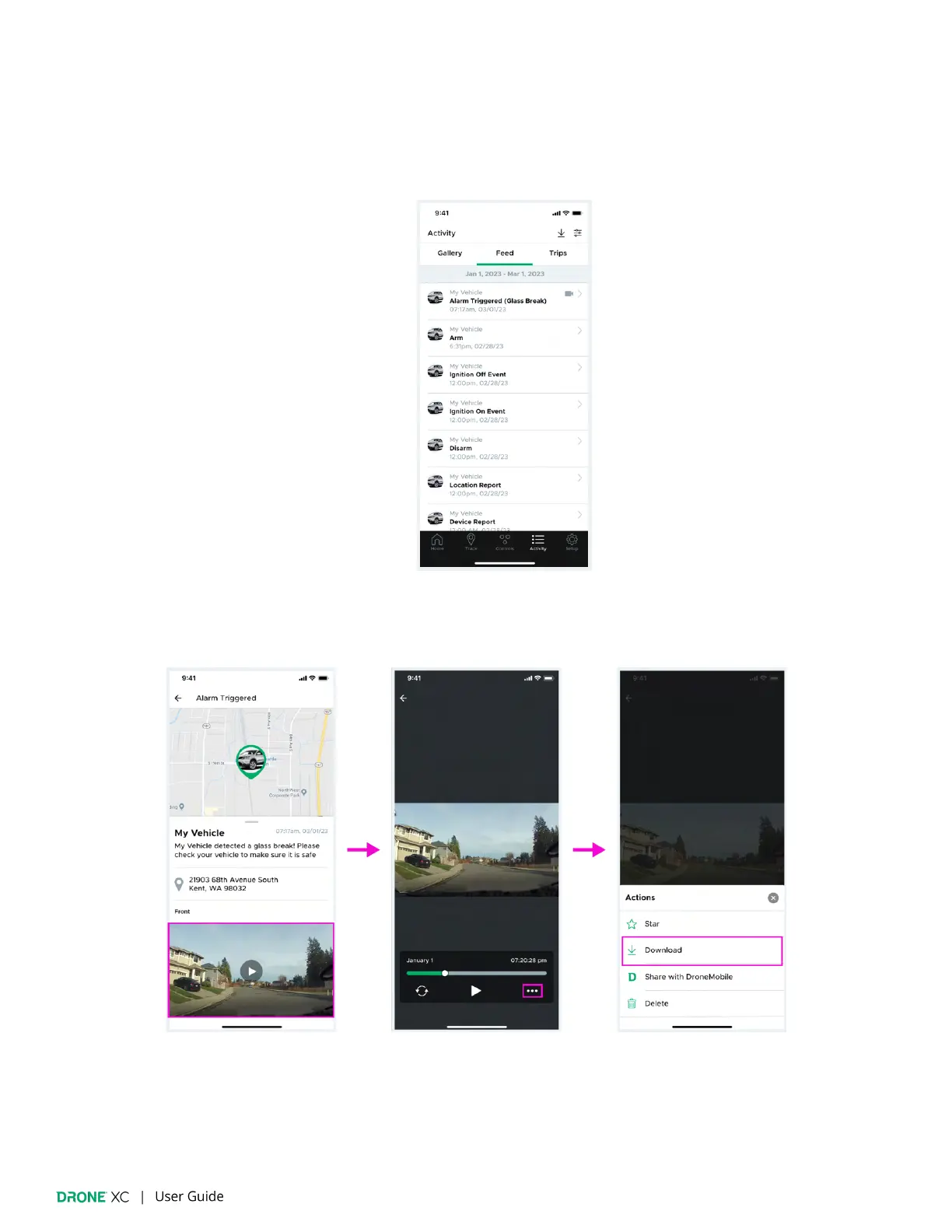
9.2 | Downloading Media via LTE on the “Feed”
(Please note: This feature is for customers with “Streaming” plans only.)
1. Navigate to the “Feed” tab on the “Activity” page. On the “Feed,” only alarm events will have video. Tap on the alarm event
with the media you would like to download. This will take you to the “Event Details” page.
2. On the “Event Details” page you will see a thumbnail for the media associated with that event. Tap the thumbnail to open the
“Media Player” page. From there you can tap on the “More Actions” icon, and tap “Download” on the pop-up that appears.
(Please note: If the media for that event has not yet been uploaded to the cloud, you can tap the thumbnail to request
the media over LTE.)


 To Next Page