Tamarisk
®
Camera Control Software User Guide
5.8 PIXEL MAP
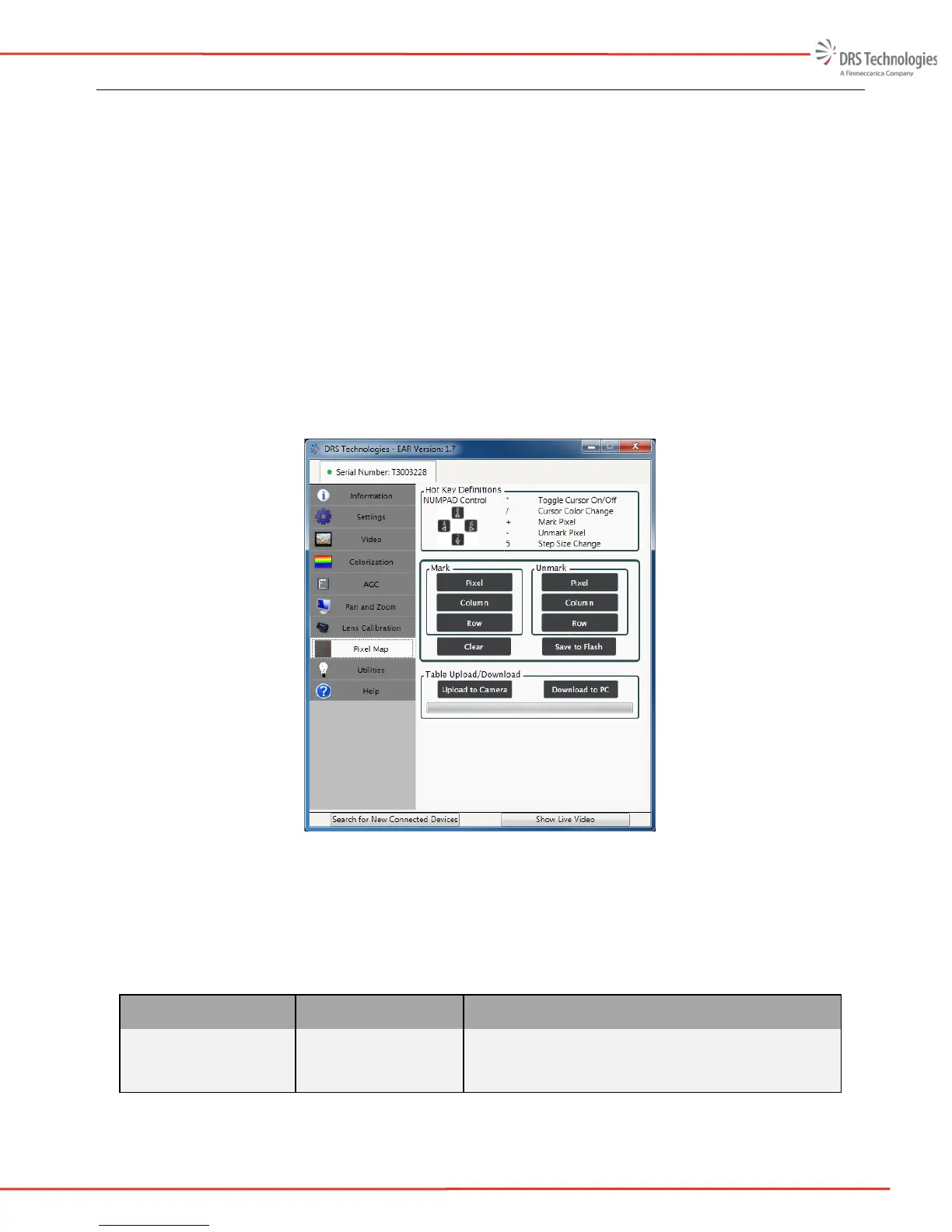
The Custom Pixel Map allows the user to mark and substitute pixels, rows, and columns. A keyboard
with a number pad is required to mark the pixels. Figure 48 illustrates the Custom Pixel Map Tab.
The hot keys are defined at the top. The hot keys allow the user to quickly maneuver around the
screen and mark and unmark pixels. The user also can mark/unmark pixel, column, and row by using
the defined buttons. The user can upload and download the Custom Pixel Map; this is useful if the
user wants to us an offline program or algorithm to mark pixels and then upload the Custom map
back to the PC.
To manually mark pixels, columns, and rows, the Custom Pixel Map must be selected as the active
windows application.
The Pixel Map Utility allows the user to mark/unmark pixels, rows, and columns and to upload/
download custom pixel maps via several user controls. The Pixel Map utility window is divided into
three task panes as shown in Figure 48. In this section, a reference table is first presented followed
by an explanation of each of the three task panes found in Pixel Map tab.
Figure 48: Pixel Map
Table 7: Pixel Map Utility Features provides an outline of the features/functions of the Pixel Map
Utility. A keypad is required to enter hotkeys. Even if a keyboard does not have a number keypad,
the keypad functionality is typically provided as part of a function “Fn” key.
Table 7: Pixel Map Utility Features
Item Description Function
Toggle Cursor On/Off
* hotkey
Toggles the cursor on and off. The cursor shows
the current location and which pixel, row, or column
will be replaced.


 To Next Page