Tamarisk
®
Camera Control Software User Guide
5.9.1 Firmware
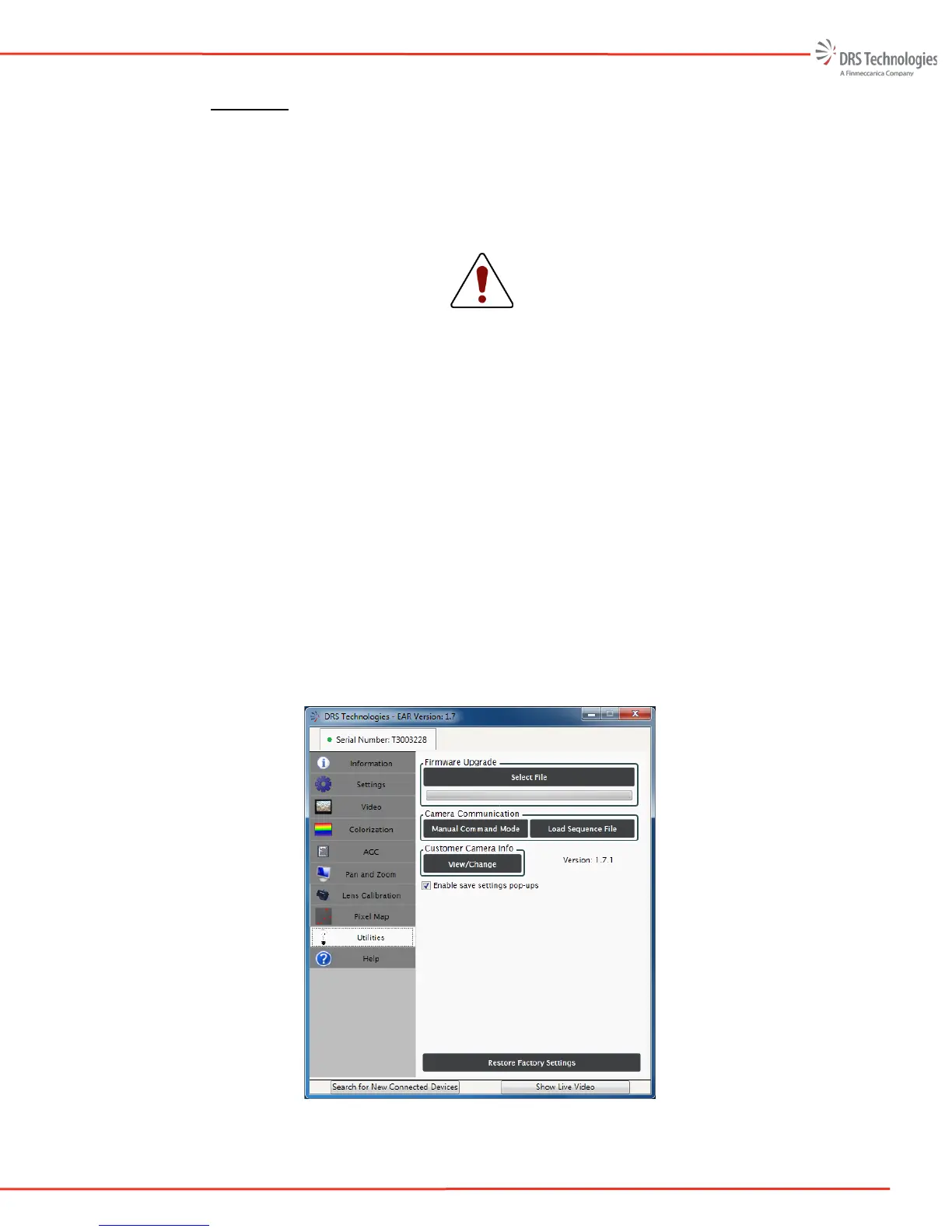
Updating/upgrading the camera’s firmware: simply click on Select File in the Firmware Upgrade
task pane. Choose the appropriate version of DRS supplied Firmware. The firmware file name
should look similar to the following:
Tamarisk [column size] CPU - X1.P1.01.13.13 FPGA - 01.00.0080.zip
Where column size is either 320 or 640 depending on your detector array
CAUTION
Only unaltered files provided by DRS are approved for upload. Use of any file to
the contrary may render the camera inoperable and void the camera warranty.
The user should not attempt to modify the file name or the contents of DRS
provided firmware, so doing may invalidate/corrupt the file. During the firmware
upgrade, the user should not power cycle the camera.
Once the firmware upgrade is complete, the user must power cycle the camera for the upload to
take effect. During the firmware upgrade, the user should not power cycle the camera. After the
firmware is uploaded and the camera has been power cycled, select “Search for New Connected
Devices” in the lower left hand corner of the Camera Control Software window and verify that the
firmware was correctly upgraded. On the Information tab, the CPU code version is displayed as
“Rel:” and the FPGA code version is displayed as “RTL Rel:”
While the upgrade is underway, a green progress bar is displayed (as shown in Figure 50). Once
completed, the user will see a pop-up message indicating that the upgrade is complete. If the
upgrade fails for any reason, an error message is displayed at the top of the Camera Control
Software screen.
Figure 50: Firmware Upgrade


 To Next Page