27
Layer
Layer
The layer mode of the piano allows you to select and play two different voices simultaneously in a
layer. This makes it easy to create exceptionally rich and thick tonal textures. The volume balance can
be set for the two voices.
PLAYING WITH THE LAYER VOICE
Select the main voice.
Select a voice in the normal way. (see the SELECTING VOICES section on page 25)
The default values:
1) Voice
2) Volume
3) Pedal
4) Octave
SLOW STRINGS
050
ON
0
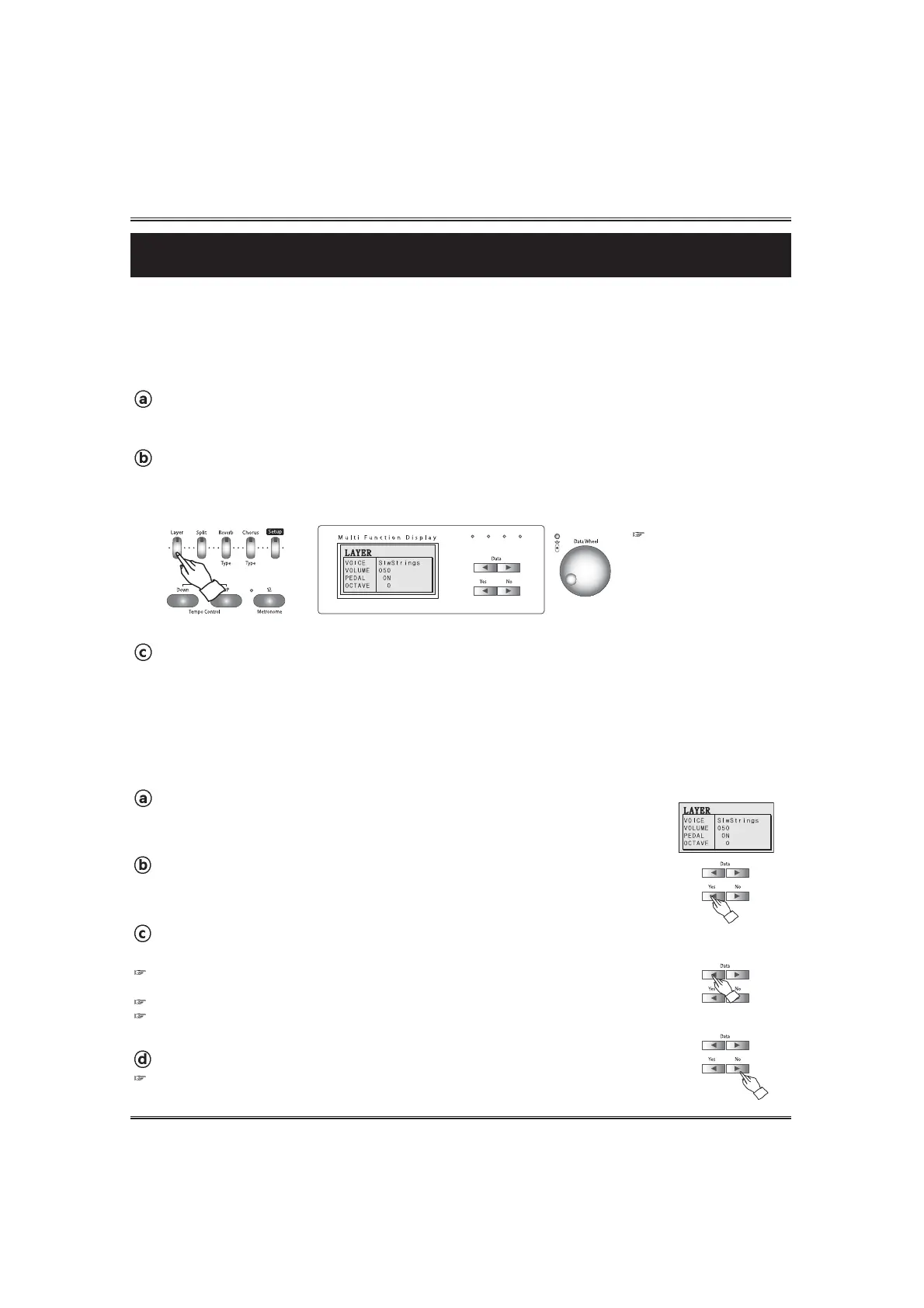
Call up the layer mode.
To call up the layer mode, press the LAYER button. Lamp lights and the layer is set on.
The layer pop-up display appears.
Select the layered voice.
Select a voice in the normal way. (see the SELECTING VOICES section on page 25)
ADJUSTING THE LAYER VOLUME
This determines the volume of the layered voice. There two ways to adjust layer volume.
A. Adjusting the LAYER VOLUME in the layer pop-up display.
Adjust the layer volume.
Adjust the layer volume by using the DATA buttons or the DATA wheel.
If you press both DATA UP and DOWN buttons at the same time automatically return to the
default Layer Volume(50). The range of volume is 0 ~ 100.
Hold the button for continuous decrementing or incrementing.
If the DISPLAY HOLD is on, the pop-up display does not return to main menu and the LCD screen
shows the current pop-up display.
Call up the layer mode.
To call up the layer mode, press the LAYER button. Lamp lights and the layer is set
on. The layer pop-up display appears.
Move the cursor to volume value in the layer pop-up display.
Press the YES button during the LCD screen shows the layer pop-up display.
The cursor goes to the volume value (default 50).
Return to the main menu.
Press the NO button.
Even if you don't press the NO button, the pop-up display automatically returns to the main
menu after 3 seconds. But if the Display hold is on, you should press the NO button to return to the
main menu.


 To Next Page