43
Auto Accompaniment
TEMPO CONTROL ADJUSTMENT
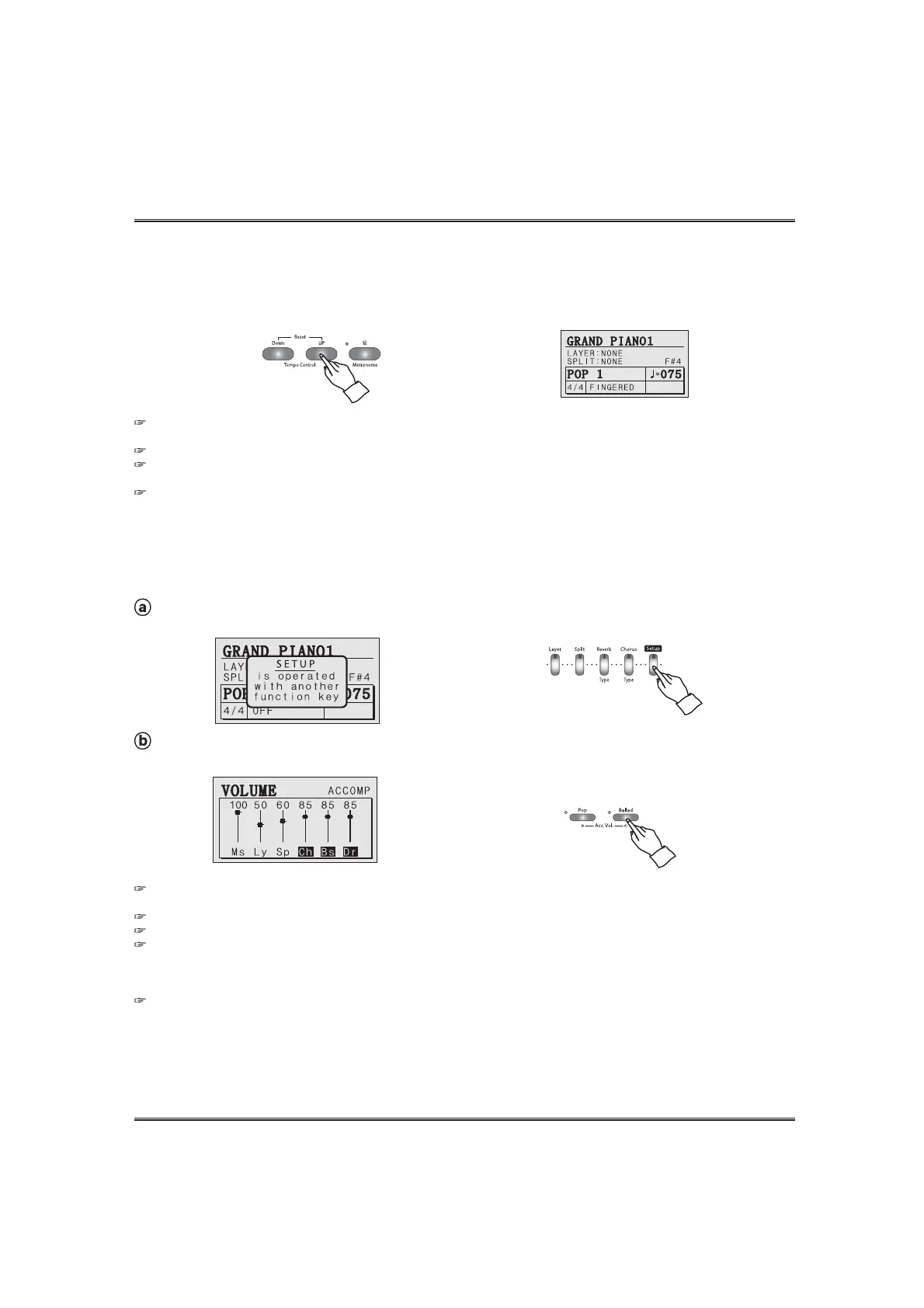
Whenever you select a different style, the preset tempo for that style is also selected, and the tempo
is shown on the Multi Function display after STYLE SELECT Pop-up display. (Unless you try changing
the style during playback, in which case the same tempo is maintained.)
Press the TEMPO buttons. ( You can show current tempo on the main display.)
You can press either TEMPO UP or DOWN button briefly to decrement or increment the tempo value by one, hold the
button for continuous decrementing or incrementing.
Tempo (Range: 40 ~ 250, Default setting: Differs depending on the style.)
Restoring the Default Style Tempo
You can restore the preset tempo for the selected Style at anytime by simultaneously pressing both TEMPO UP and DOWN buttons.
When the performance screen or a value is changed, the tempo may go slow .
Adjust the accompaniment volume.
Adjust the Accompaniment Volume by using the ACCOMP VOLUME UP and DOWN buttons .
ACCOMPANIMENT VOLUME ADJUSTMENT
Call up the SETUP mode.
Press and hold down the SETUP button. The setup pop-up appears in the LCD screen.
If you press both VOLUME UP and DOWN buttons at the same time automatically return to the default accompaniment
volume(85).
The range of volume is 0 ~ 100.
Hold the button for continuous decrementing or incrementing.
It's available to adjust each part volume of accompaniment independently.
Press the YES button on the accomp pop-up display.
The cursor moves on each part(or all parts) of the accompaniment. When pressing accomp volume up or down button, only the
selected part volume is adjusted.
The DATA buttons or DATA wheel can adjust the volume instead of the ACCOMP VOLUME UP and DOWN buttons in the
volume pop-up display.


 To Next Page