15
7 Common operation of the web screens
Installation and Operating Instructions CGLine+ Web-Controller 40071860236 (E) February 2019 www.eaton.com
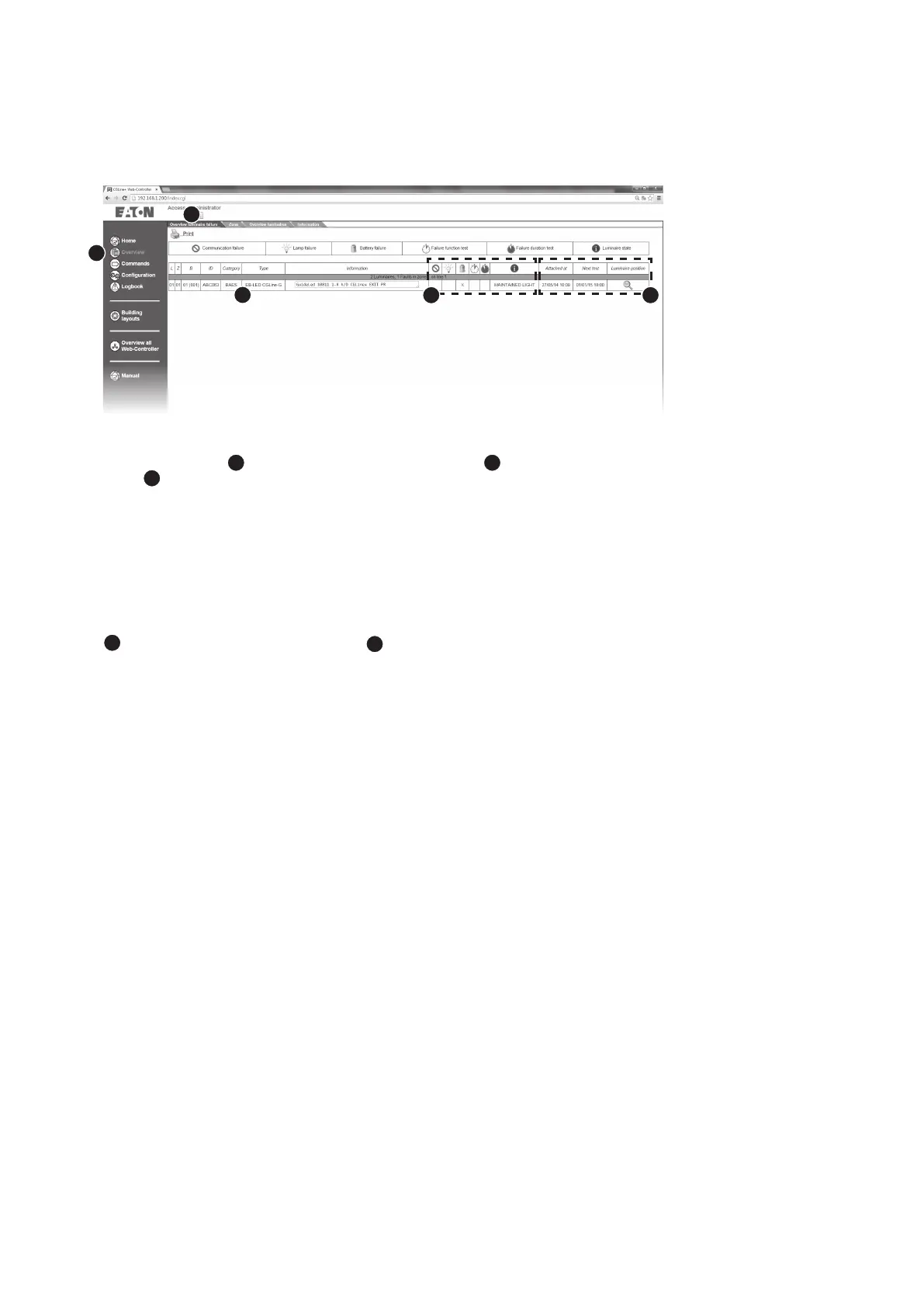
7.3 Overview of all faulty luminaires (complete overview)
Example shows one lumi-
naire failure with following
information:
n
Luminiare in Line 1
n
Luminaire in Zone 1
n
Luminaire address 1
(Lum1 in Zone)
n
Category: Exit sign
n
Type: EB LED CGLine
n
Information text (max. 20
chara.)
n
Batteryfailure
n
Luminaire in „maintained
light“
n
Luminaire was added in
the Web-Controller at this
date
n
Next FT or DT is on
01/01/2015 at 6:00 p.m.
n
With click on the magni-
fying glass, it is possible
to enter to the building
layout picture, if it is pre-
The menu “Oveview”
1
and the tab “Overview luminaire failure”
2
display all luminaires with
a fault
3
:
n
L = line no. 1-4
n
Z = zone 2-16
n
B = luminaire address 1-400
n
ID = 6-digit hex address for the luminaire, e.g. FE18AC
n
Category = category of the luminaire type (SL= Safety luminaire, RZ= Exit sign
n
Type = luminaire type, e.g. Guideled SL
n
Information = additional text for information which is entered in the CGVision or CGLine+ PC
software
4
: • Absent = communication fault
to the luminaire
• Safety Bulb = lamp error
• Battery = battery or charge error
• White clock = FT failure
• Blue clock = DT failure
• i = luminaire operation mode
1
2
3
5
: • Discover Date = date when the luminaire
was detected by the Web-Controller
• Next test = next automatic FT or DT
• Luminaire position = target designation of
luminaire
4 5




 To Next Page