PRINTING
4.1 Printing a file.
4.1.1 During Printing Settings.
The Eazao Zero only accepts and prints GCODE files. The included SD Card has simple
model GCODE available to get you started. See section
4.7 Creating and Printing your
own Models
on page 16 to load your own models.
1. Check the print bed has been levelled correctly.
2. Insert the included SD Card into the memory card slot next to the screen with the
lablel facting to the right as shown.
3. First of all, make sure that the pre-extrusion setting of the clay has been completed,
see page 9:
3.9 Clay Pre-extrusion.
4. Enter the Printing option and select print file.
5. Select the file you would like to print.
6. The printer will return to the status screen and the printer will automatically begin
printing the file.
NOTE:
* SD memory cards(up to 2GB) should be formatted to FAT32. If there is no SD card
inserted the Printing option will display no SD card no files will be available to print.
* If your file is not printing correctly, select 'Stop' from the screen. Ensure the extruder is
raised prior to removing the print off the print bed.
* Immediately turn off the machine if any of the motors are jamming of forcing against
the chassis.
* If you cannot access the Printing option, it is likely the SD card is not mounted
properly. Try removing and reinserting the SD card.
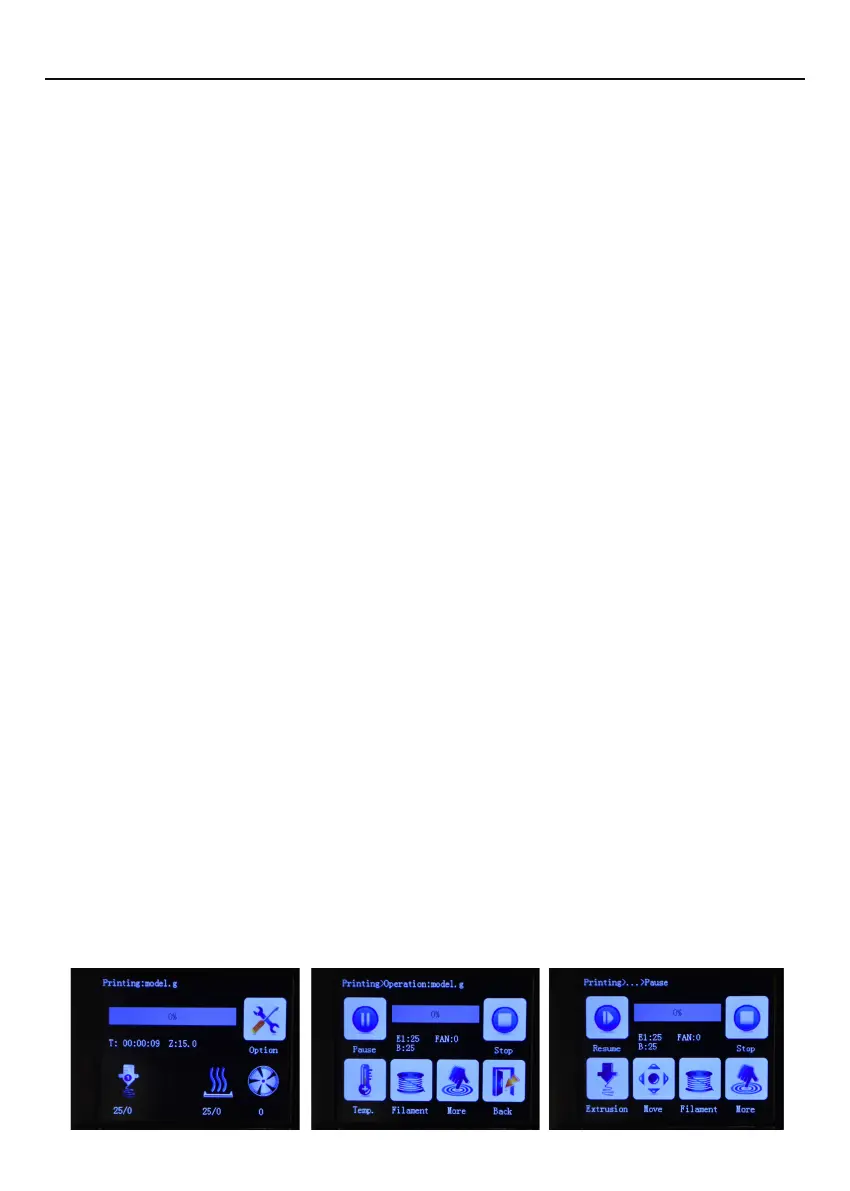
While printing, some settings can be modified. Selecting the option to access these
settings.
1.Pause print:
Pauses the print once the last GCODE instruction has completed (be
patient). Tap resume print to keep printing. You can select this option to suspend
printing and replace the cartridge (the electric putter needs to be returned at this time,
in the extrusion option, see here for operation:)
2.Stop print:
Stops the current print.
3.Restart after power failure:
If the power is interrupted or shut down during printing,
this interface appears after restart, please select "default" . You can choose to continue
printing or stop.
13


 To Next Page