PRINTING
4.7 Creating and Printing your own Models.
4.7.1 Saving files to SD Card.
4.7.2 Creating a GCODE file using Cura.
4.7.3 Installing Cura.
*Format new SD Cards up to 2GB to FAT32
*Save files only in the root directory on the SD Card.
*Ensure your models are saved as GCODE files. STL and other 3D file formats should be
converted or 'sliced' into GCODE before loading them on the SD Card. See the section
Creating a GCODE file using Cura for information on creating GCDOE files
A GCODE file provides the extrusion settings and movement information for your Eazao
Zero. A number of 'Slicer' software programs exist which convert a 3D model file into
a series of 3D printable layers. Cura is free open source slicer software relesed on the
AGPLv3 license. It is available on MacOS X and windows.
Eazao Zero supports a variety of slicing software, Cura, Slic3r and Simplify3d. Different
software has different advantages and disadvantages. Here is a tutorial on using CURA.
This version is cura 4.8.0 version.The pictures may be different for different versions, and
the text description shall prevail.
Set as shown below:
1.Install slicing software
Install the file located on your included SD Card or download software: Download the
adapted software according to your operating system.
It is recommended to download version 4.8.0:
https://ultimaker.com/en/products/
ultimaker-cura-software
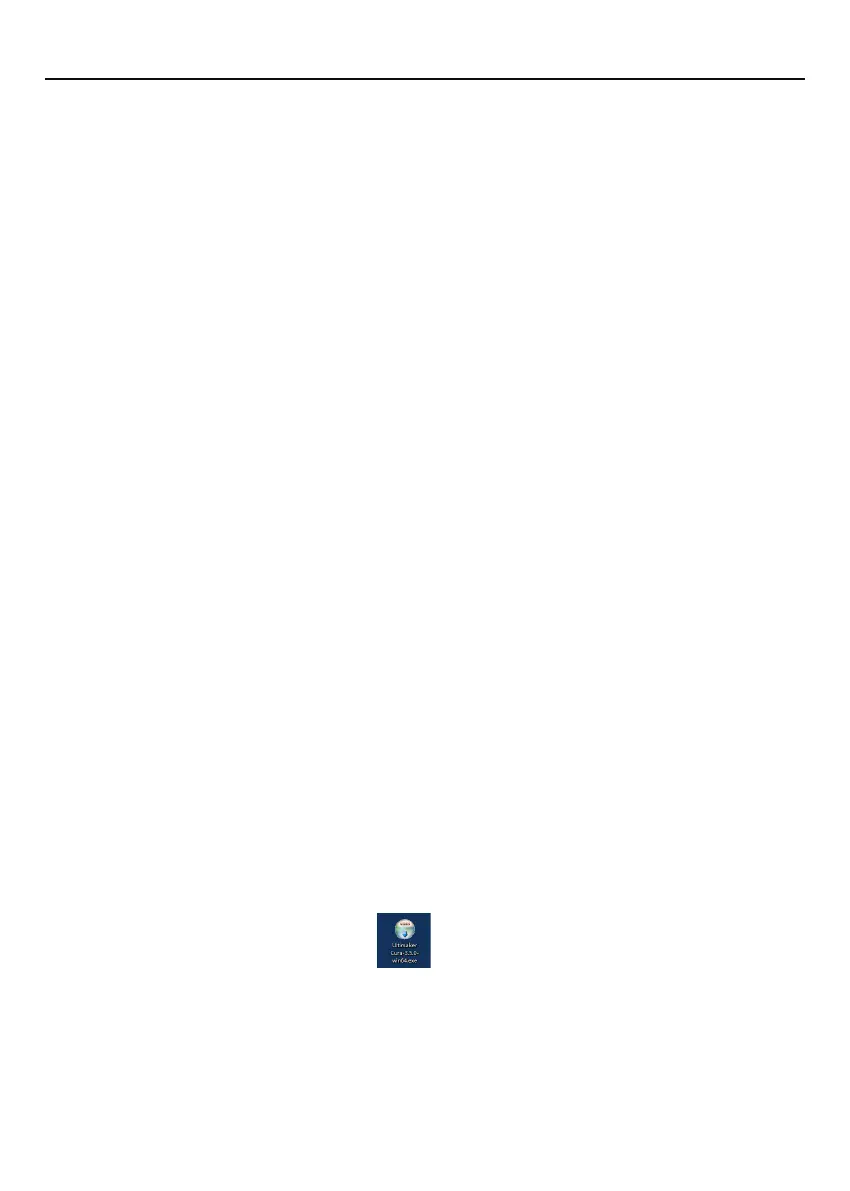
1.Double-click to install the software.
2.Select the installation directory, please keep the default, click Next.
3.Select the associated file format, it is recommended to keep the default, click Install.
16


 To Next Page