EBS-230 Printer User's Manual
22
___________________________________________________
20080512#1.0
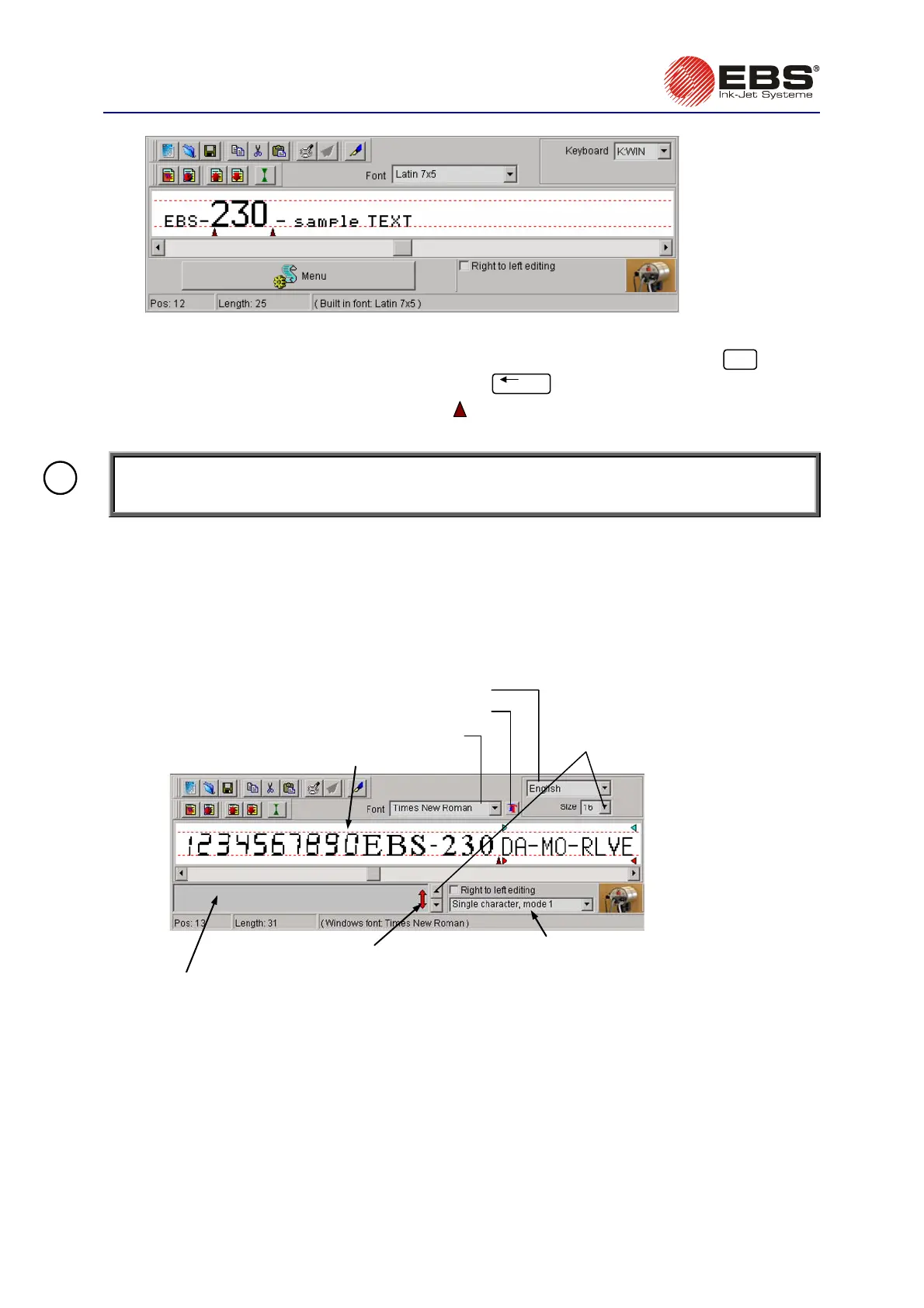
Fig. 3.3.5.3.
A font-change marker is stored in the text as a non-printing code and it increases the length of the text
by one. In order to delete a marker, place the cursor in front of it and press the
Delete
key or
alternatively place the cursor behind it and press the
BackSpace
key - see the indicator of the cursor
position within the text. If a font-change marker
is deleted, then characters following the deleted
marker have the same attributes as the text in front of the deleted marker had.
NOTE:
To change the font to a font with more vertical pixels (amount of dots) you need to adjust
(increase) the setting of the
Number of nozzles
parameter.
!
Using and Changing Windows
®
Fonts
You can also use Windows
®
fonts to create texts in your printer.
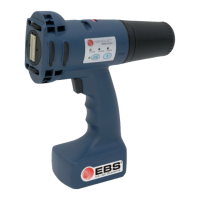
1. Move to the
Font
list and replace build-in font with one of fonts installed in your Windows®. You
can change the font
Size
and the keyboard "language" in Windows®. While increasing the text
height do not exceed
Hmax
[pix] line because otherwise the excessive top part of the text will be
cut off.
other parameters of Windows
®
fonts
change the
font size
change the font
the line indicating
the maximum print height H
max [pix]
character insertion mode
for Windows® fonts
excessive-font-size indicato
change Windows
®
keyboard language
if you use Windows
®
fonts type in
characters in this widow
Fig. 3.3.5.4.
2. Move the cursor to the position where you want to start a text and type in the text. You can
change the font at any time.
3. There are three character insertion modes you can use:
Single character, mode 1, Single character, mode 2, Multi character. Each of them matches
Windows® font characters with the capabilities of your printer in a different way according to the
font type, language and character insertion mode (the
Right to left editing parameter).


 To Next Page