EasyManua.ls Logo

ECOWITT HP2551CA - User Manual

ECOWITT HP2551CA
90 pages
Print Icon
To Next Page IconTo Next Page
Loading...
1
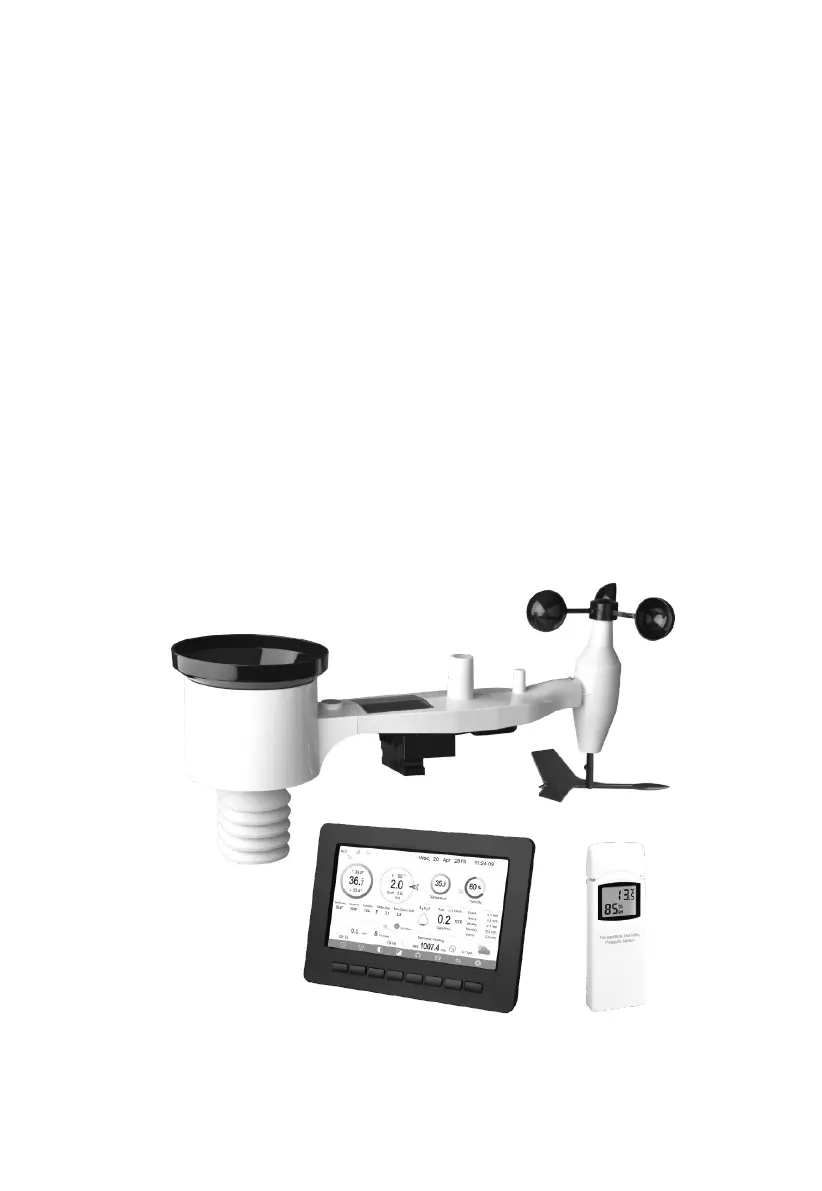
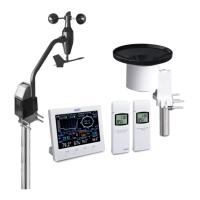
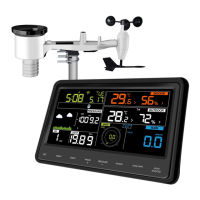
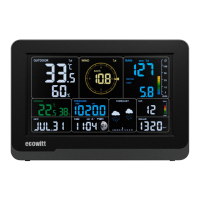
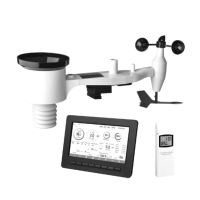
PROFESSIONAL WIFI WEATHER STATION
Operation Manual
Model: HP2551
Thank you for purchasing this Professional WIFI Weather Station! This
device provides accurate weather readings and is Wi-Fi capable to stream
data from the weather station to Internet based weather services.
This manual will guide you, step-by-step, through setting up your weather
station and console, and understanding the operation of your weather station.
Use this manual to become familiar with your professional weather station
and save it for future reference.

Table of Contents

Questions and Answers

  • R
    robertwallsAug 4, 2025
    How to fix ECOWITT HP2551CA Weather Station no WiFi connection?
    • S
      Sean WeissAug 4, 2025
      To troubleshoot a missing WiFi connection, check the following: 1. Look for the WiFi signal strength symbol on the display. If wireless connectivity is successful and reporting to Wunderground.com, the WiFi icon will be displayed on the home page. 2. Ensure your modem WiFi settings are correct, including the network name, password, and security settings.
  • J
    James WilsonAug 10, 2025
    Why does my ECOWITT Weather Station temperature sensor reads too high in the day time?
    • D
      dwarnerAug 10, 2025
      If your temperature sensor reads too high during the day, make sure that the sensor array is not too close to heat generating sources or structures such as buildings, pavement, walls, or air conditioning units. You can also use the calibration feature to offset installation issues related to radiant heat sources.
  • T
    Tanya MoralesAug 14, 2025
    What to do if ECOWITT Weather Station rain gauge reports rain when it is not raining?
    • A
      andre37Aug 14, 2025
      An unstable mounting solution may cause the rain gauge to incorrectly register rainfall. Ensure you have a stable, level mounting solution.
  • C
    Cheryl ScottAug 20, 2025
    Why is my ECOWITT HP2551CA data not reporting to Wunderground.com?
    • D
      davisheatherAug 20, 2025
      There are several reasons why your data might not be reporting to Wunderground.com: 1. Double-check that your password is correct. It is the same password you use on Wunderground.com, and it cannot begin with a non-alphanumeric character. 2. Verify that your station ID is correct, paying close attention to the capitalization and avoiding mixing up the letter 'O' with the number '0'. 3. Ensure that the date and time are correct on the console to avoid reporting old data. 4. Confirm that your time zone is set properly. 5. Check your router firewall settings, as the console sends data via Port 80.
  • V
    Veronica WagnerAug 25, 2025
    What to do if my ECOWITT Weather Station outdoor sensor array does not communicate to the display console?
    • A
      Anne OliverAug 25, 2025
      The sensor array may have initiated properly and the data is registered by the console as invalid, and the console must be reset. To resolve this, press the reset button for 3 seconds to completely discharge the voltage. Then, remove the batteries and wait one minute while covering the solar panel to drain any remaining voltage. Finally, put the batteries back in and resync with the console by powering down and up the console with the sensor array about 10 feet away.
  • S
    Shelby WrightAug 30, 2025
    What to do if ECOWITT HP2551CA Weather Station wireless remote (thermo-hygrometer) is not reporting in to console?
    • G
      Glenn BoothAug 30, 2025
      If the wireless remote is not reporting to the console and you see dashes on the display, consider these solutions: * Move the sensor assembly closer to the display console, keeping in mind that the maximum line of sight communication range is about 150m. * Install a fresh set of batteries in the remote sensor(s). * Ensure the remote sensors are not transmitting through solid metal or earth barriers. * Move the display console away from electrical noise generating devices like computers and TVs.

Summary

Safety and Initial Setup

Warnings, Cautions, and Unpacking

Safety guidelines, package contents, and initial checks before setup.

Component Overview

Details of display console, indoor, outdoor, and optional sensors.

Installation and Configuration

Sensor Assembly and Mounting

Steps for assembling outdoor sensor, setting up indoor sensor, and mounting.

Console Setup and Settings

Configuring console display, history, Wi-Fi, servers, alarms, and calibration.

Support and Reference

Maintenance and Troubleshooting

Routine maintenance, and solutions for common operational problems.

Specifications and Glossary

Technical specifications for sensors and power, and definitions of terms.

ECOWITT HP2551CA Specifications

General IconGeneral
BrandECOWITT
ModelHP2551CA
CategoryWeather Station
LanguageEnglish

Related product manuals