EasyManua.ls Logo

ECOWITT HP3500 - User Manual

ECOWITT HP3500
88 pages
Print Icon
To Next Page IconTo Next Page
Loading...
1
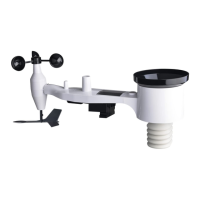
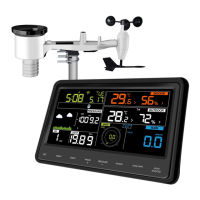
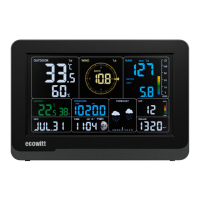
TFT COLOR DISPLAY WIFI WEATHER
STATION
Operation Manual
Model: HP3500
Thank you for purchasing this TFT Color Display Weather Station! This
device provides accurate weather readings and is Wi-Fi capable to stream data
from the weather station to Internet based weather services.
This manual will guide you, step-by-step, through setting up your weather
station and console, and understanding the operation of your weather station.
Use this manual to become familiar with your professional weather station
and save it for future reference.

Table of Contents

Questions and Answers

  • R
    Raven MolinaAug 1, 2025
    How to fix ECOWITT Weather Station no Wi-Fi connection?
    • H
      Heather ClarkAug 1, 2025
      First, check for the Wi-Fi symbol on the display console. If the Wi-Fi icon isn't displayed, ensure the console's external power adapter is plugged in and functional, as Wi-Fi use requires more energy than batteries alone can provide. Also, make sure your Wi-Fi supports 2.4 GHz signals (801 type B, G, or N) and that you've configured the correct SSID and password. Note that the console does not support 'captive Wi-Fi' networks.
  • W
    William WallaceAug 9, 2025
    Why is my ECOWITT Weather Station data not reporting to Wunderground.com?
    • F
      Frank CollierAug 9, 2025
      First, verify that your station ID is correct, noting that the station ID is all caps. A common mistake is confusing a capital letter 'O' with a zero ('0') or vice versa. Next, confirm that your password (also known as 'key') is correct. An incorrect password can cause you to report data for a point in the past or future, preventing it from displaying where you expect.
  • J
    Jacqueline LoveAug 18, 2025
    Why is the time incorrect on my ECOWITT HP3500?
    • S
      Susan DudleyAug 18, 2025
      Ensure your time zone and daylight saving time settings are correct. This is necessary even when connected to the Internet via Wi-Fi. If you are not connected to the Internet via Wi-Fi, you may also have to manually set the correct time.
  • J
    Joel SimmonsAug 22, 2025
    What to do if my ECOWITT HP3500 display console brightness is weak?
    • M
      matthew14Aug 22, 2025
      Adjust the brightness using the setup functions or place the console in a darker location.
  • P
    Paul WrightAug 27, 2025
    Why does relative pressure not agree with official reporting station on my ECOWITT HP3500?
    • J
      James GrossAug 27, 2025
      Make sure you are not looking at absolute pressure, especially if your station is not near sea level. Check at different times due to possible delays in updates to the official station. You may also redo the pressure calibration procedure.
  • B
    bclementsNov 4, 2025
    Why does my ECOWITT HP3500 have intermittent problems with outdoor sensor reception on console?
    • C
      Crystal LopezNov 4, 2025
      Intermittent reception issues can stem from signal quality problems due to electrical interference or location-related factors, such as obstacles along the line of sight. To troubleshoot: * Install a fresh set of batteries in both the remote sensor array and the console. For cold weather, use lithium batteries. * Ensure the power adapter isn't too close to the console and that the console isn't near electrical noise-generating devices like TVs or computers. * Move the sensor and console closer together, but not closer than 5 ft. * Check for metal barriers like aluminum siding or metal wall framing along the line of sight. Relocate the sensor and console as necessary to avoid obstacles. You may also need to move the outdoor sensor higher or closer, depending on natural barriers. ...
  • J
    Jessica LopezNov 13, 2025
    What to do if my ECOWITT HP3500 outdoor sensor is not reporting to the console?
    • B
      Brian CarterNov 13, 2025
      First, check that the outdoor transmission LED on the bottom of the sensor is flashing approximately every 16 seconds. If it's not flashing, ensure the batteries are correctly installed (correct polarity) or reseat them. If the batteries are old, replace them with fresh ones. If the LED flashes every 16 seconds but the issue persists, ensure you have fresh batteries in the display console. Try power cycling the console by removing both batteries and the external adapter for about 10 seconds, then reconnect. As a test, bring the outdoor sensor about 10 ft away from the console and power cycle the console again, avoiding touching any buttons to allow the console to discover the sensor. Wait for the remote sensor search icon to turn off. If the outdoor temperature and humidity still show dash...

Summary

Unpacking the Weather Station

Package Contents

Lists all items included in the weather station package for verification.

Weather Station Overview

Display Console Details

Description of the display console's screen layout and physical features.

Indoor Sensor Information

Details and display variations of the indoor sensor unit.

Key Features and Capabilities

Highlights the main functionalities and capabilities of the weather station.

Setting Up Your Weather Station

Outdoor Sensor Package Assembly

Step-by-step instructions for assembling the outdoor sensor array.

Indoor Sensor Setup and Placement

Guidance on installing and positioning the indoor sensor for optimal readings.

Wireless Communication Best Practices

Tips for ensuring reliable wireless communication between components.

Understanding the Console Display

Explanation of the console display screen layout and its icons.

Operating the Console

Normal Mode Operations

Using the console in its default mode to view current weather data.

Console Setting and Configuration

Guide to accessing and adjusting settings like units, time, and backlight.

Additional Console Functions

Historical Data Management

Information on storing and accessing historical weather data via SD card.

Beaufort Wind Force Scale Reference

Reference table for understanding Beaufort wind speed classifications.

Internet Weather Service Integration

Wi-Fi Connection Setup

Steps to connect the console to a Wi-Fi network for data upload.

Wunderground.com Integration

Registering and using Wunderground.com for weather data sharing.

Weathercloud and WOW Integration

Guide to registering and using Weathercloud and WOW services.

PC Software Operation and Setup

Software Installation and Connection

Instructions for installing the PC software and connecting the console.

PC Software Setup Functions

Details on configuring settings, alarms, and calibration via PC software.

Weather Station Maintenance

Cleaning the Rain Gauge

Procedure for cleaning the rain gauge to ensure accurate measurements.

Cleaning Sensors and Solar Panel

Instructions for cleaning the solar radiation sensor and panel.

Battery Replacement and Snow Prevention

Guidance on replacing batteries and preventing snow build-up.

Troubleshooting Common Issues

Sensor Reporting and Connectivity Problems

Solutions for sensor reporting errors and Wi-Fi connection issues.

Reading Discrepancies and Calibration

Troubleshooting temperature, humidity, and pressure reading inaccuracies.

Console and Data Upload Issues

Resolving problems with console settings, time, brightness, and data uploads.

Glossary of Weather Terms

Pressure and Wind Measurement Terms

Definitions for terms related to air pressure and wind force (Beaufort).

Environmental and Sensor Terms

Definitions for Dew Point, Heat Index, Hygrometer, and UV Index.

Technical Specifications

Outdoor Sensor Specifications

Detailed performance and range specifications for the outdoor sensor.

Indoor Sensor and Power Specifications

Specifications for the indoor sensor, power adapter, and batteries.

FCC Compliance Information

Product Warranty Details

ECOWITT HP3500 Specifications

General IconGeneral
BrandECOWITT
ModelHP3500
CategoryWeather Station
LanguageEnglish

Related product manuals