Description of Hardware
1-5
1
Port and System Status LEDs
The ES3526YA/ES3550YA includes a display panel for key system and port
indications that simplify installation and network troubleshooting. The LEDs, which
are located on the front panel for easy viewing, are shown below and described in
the following tables.
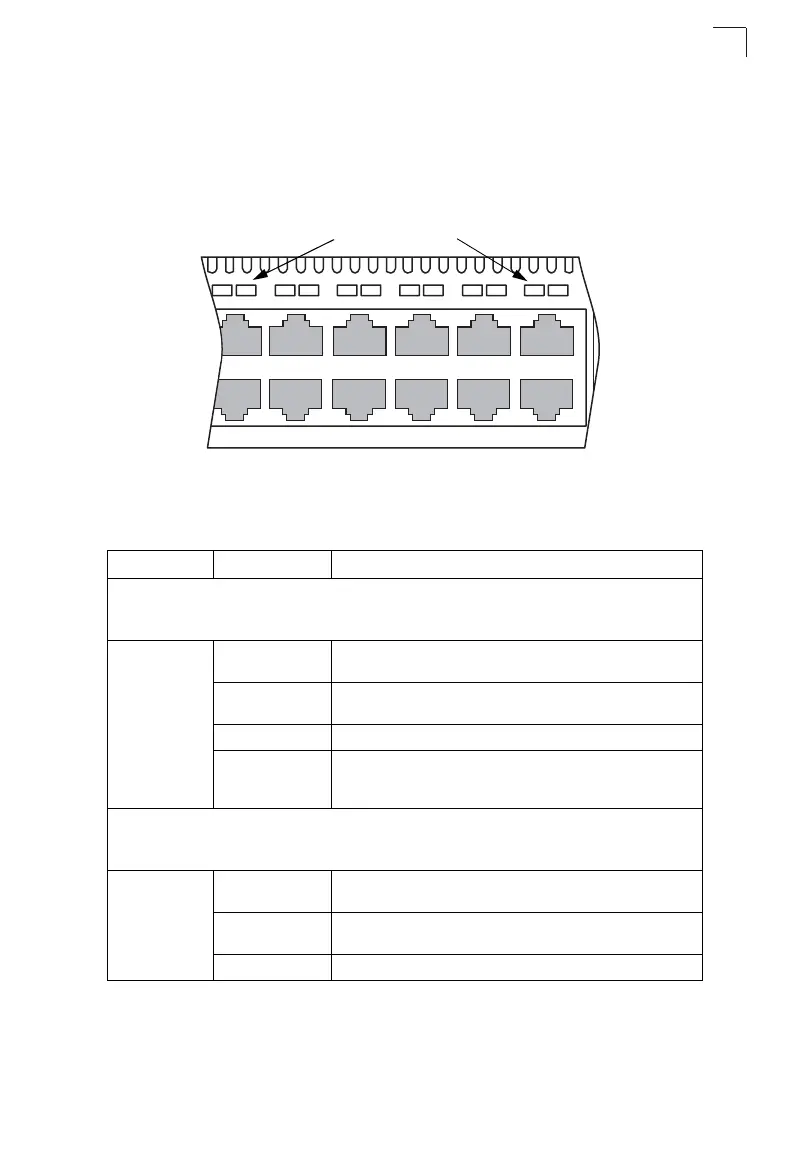
Figure 1-3 Port LEDs
Table 1-1 Port Status LEDs
LED Condition Status
Fast Ethernet Ports
ES3526YA: Ports 1-24
ES3550YA: Ports 1-48
(Link/Activity) On/Flashing
Amber
Port has established a valid 10 Mbps network connection.
Flashing indicates activity.
On/Flashing
Green
Port has established a valid 100 Mbps network connection.
Flashing indicates activity.
Off There is no valid link on the port.
Flashing Green When the “light unit” command is entered in the Command Line
Interface, the LED corresponding to the switch’s ID will flash for
about 15 seconds.
Gigabit Ethernet Ports
ES3526YA: Ports 25-26, and Ports 27-28 when stacking is not implemented
ES3550YA: Ports 49-50, and Ports 51-52 when stacking is not implemented
(Link/Activity) On/Flashing
Amber
Port has established a valid 10/100 Mbps network connection.
Flashing indicates activity.
On/Flashing
Green
Port has established a valid 1000 Mbps network connection.
Flashing indicates activity.
Off There is no valid link on the port.
1
2
3
4
5
6
7
8
9
10
11 12
Port Status LEDs



 To Next Page