AutoCal V3 User Guide
support@efilive.com - 15 - www.efilive.com
V8 Scan and Tune
Program Firmware
1. Connect AutoCal to your PC and open V8 Scan and Tune software.
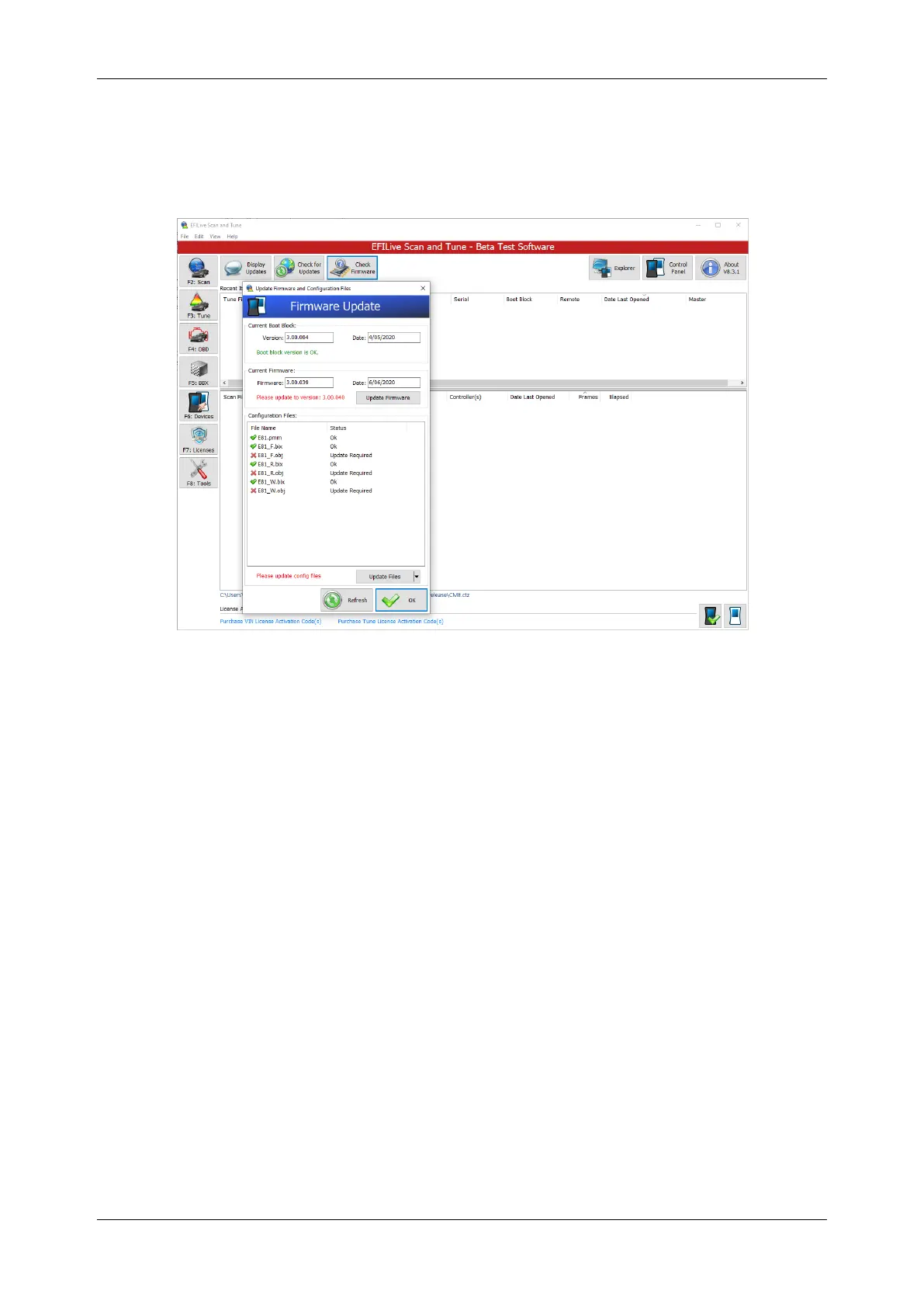
2. Select [Check Firmware].
3. Select [Update Firmware].
4. After firmware has been updated if AutoCal V3 requires a boot block
update, AutoCal V3 will display the boot block update message on the LCD
screen. Where the user does not update the boot block after firmware is
updated, the boot block update message will be displayed each time the
device is powered.
5. Select [Update Config Files] if configuration files require updating.
6. Select [OK] to close firmware window.
Program Quick Setup
The Quick Setup is the quickest and easiest way to program all files required to
make AutoCal functional. The data that is copied into the quick setup file includes:
The device settings.
The current Options.txt file which contains the controllers and PID
selections.
All required supporting configuration files (*.obj, *.pmm, *.bix and *.dtc).
Up to 5 *.ctz and/or *.coz tune files.
This method requires your tuner to send you a *.bbx quick setup file via email.
1. Save the *.bbx file your tuner sent to the folder:
\Documents\EFILive\V8\BBX
2. Connect AutoCal to your PC and open V8 Scan and Tune software.
3. Navigate in the V8 software to [F5: BBX]->[F6: Quick Setup]
4. Select [Open Quick Setup] and navigate to the directory and select the
*.bbx file your tuner sent you.
5. Do not modify any of the settings defined by your tuner unless they request
you to.


 To Next Page