AutoCal V3 User Guide
support@efilive.com - 19 - www.efilive.com
device. Once the file mainmenu.disabled exists on the device it is renamed to
mainmenu.menu to enable the custom menu.
A comprehensive GUI editor for full menu customization including background
images, icons, colour and gradients is still in development.
Standard Menu Structure
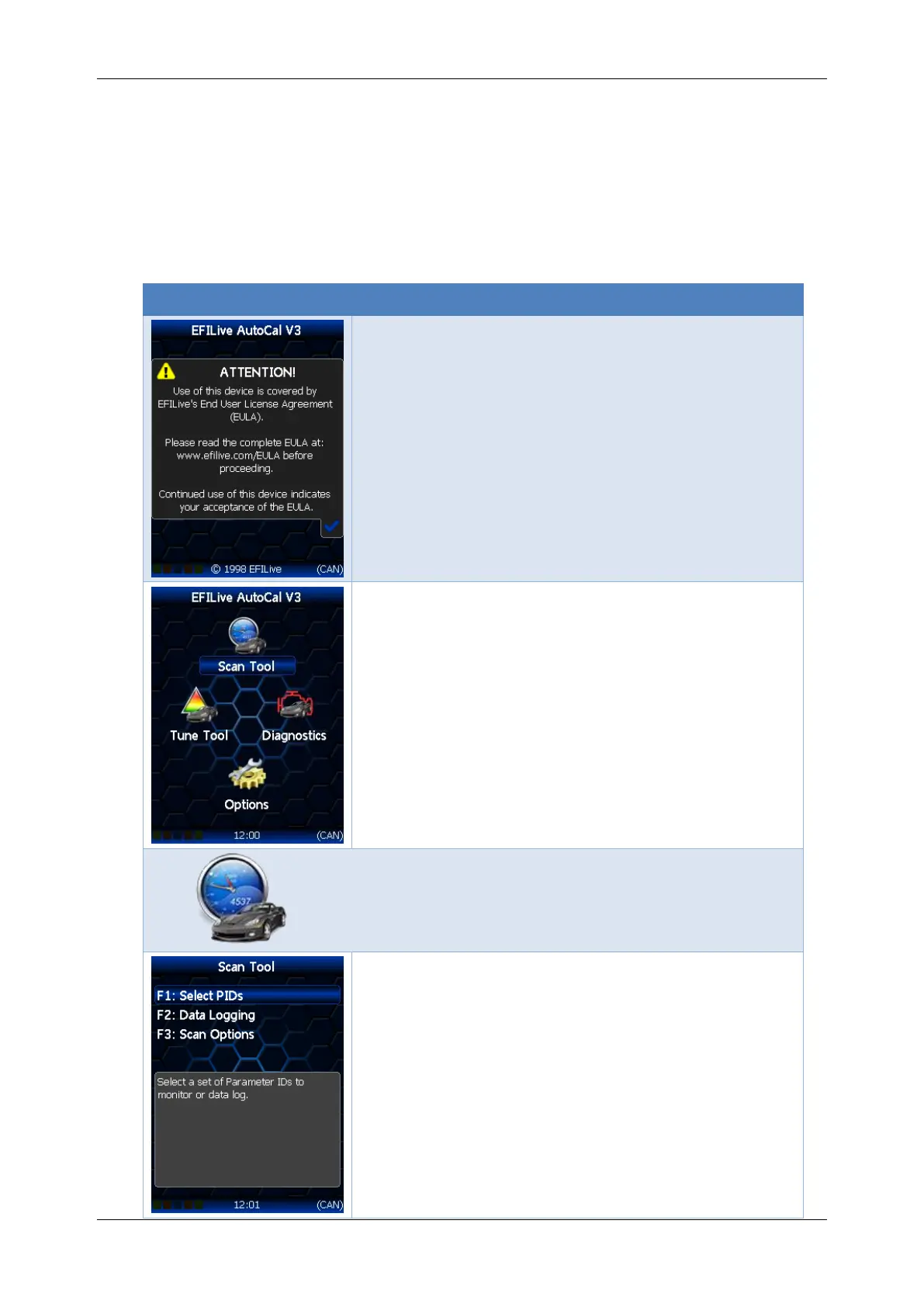
The following table describes each screen using the AutoCal V3 standard menu
structure.
The EULA is displayed on the FlashScan V3
screen each time FlashScan V3 is connected to
power. For FlashScan V3 to be functional, the
user must agree to the EULA.
Where FlashScan V3 is connected to a PC and is
being used in pass-thru mode, the device will be
functional even if the EULA is not confirmed on
the FlashScan V3 display because the EULA was
accepted during software installation.
FlashScan V3 home page. Use arrow buttons on
the AutoCal keypad to navigate to your selection,
and the Tick button to execute your selection.
F1: Select PIDs; Select a set of Parameter IDs to
monitor or data log that have been pre-
programmed to the device.
F2: Data Logging; opens Data Logging menu.
F3: Scan Options; opens Scan Options menu.



 To Next Page