Technical Manual V6.00 28 01.05.2017
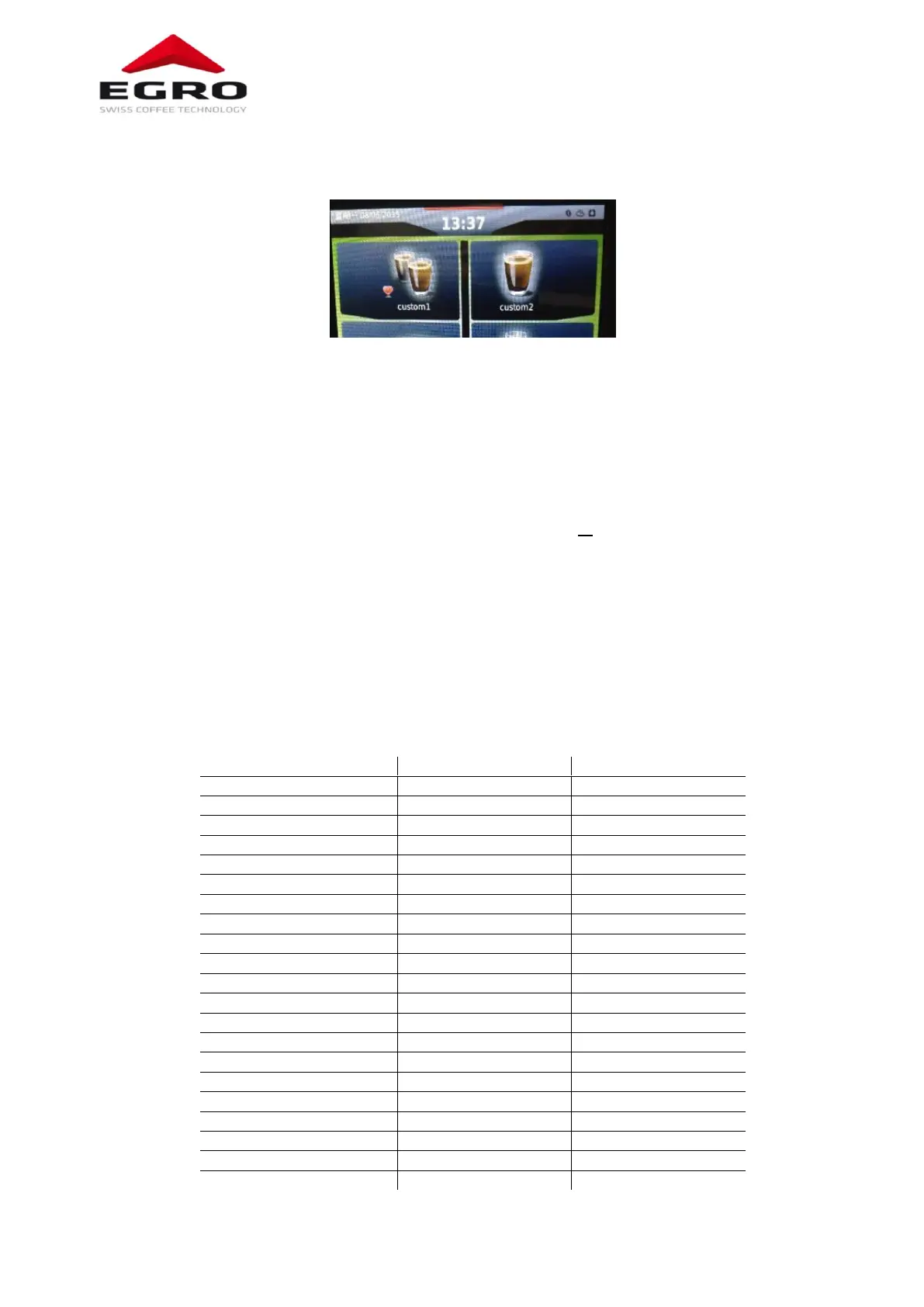
- The new product name will be displayed in the products-selection page.
5.3.5. Copy customized machine
The customization can be copied from one machine to another using the Load&Show menu:
- Download with “ONE USB” the parameters file (backup file.bck) from the sample machine
- Upload the customized products icon on the new machine (see chapter 5.3.3). This step is only necessary in case of
customized icons.
- Upload the customized messages file (modified by Egro) This step in only necessary if Egro modified the products
names in the message file.
- Upload the parameter file (backup file.bck, downloaded from the sample machine) on the new machine.
If some products are displayed without their icon it is necessary to verify that all icons have been uploaded correctly.
5.3.6. Video
To produce a suitable video for the display of the Egro ONE TOUCH it is necessary to use professional video editing software
(e.g. Adobe Premiere). With such software, several parameters can be adjusted. Do not include AUDIO in the video.
A video that shows how to set up a new video with the right settings is available on the Egro home page. This video is not
edited for the display of the ONE TOUCH!
Videos only run automatically, during the preparation of a beverage, if the ONE Touch is configured to be in the SELF-
SERVICE MODE.
Videos can be played any time in the ONE TOUCH going into the video menu.


 To Next Page