22
Recording Function
5. Press Blue button to re-arrange the sequence of the timer list by:
z Start time for the timer
z Create time for the timer
6. Press [EXIT] to exit the screen.
7. For editing the information of Timer setting:
z Press [Timer] key and selected the timer which want to edit, then press
[OK].
z An edit dialog will pump out, user can edit the information.`
PVR
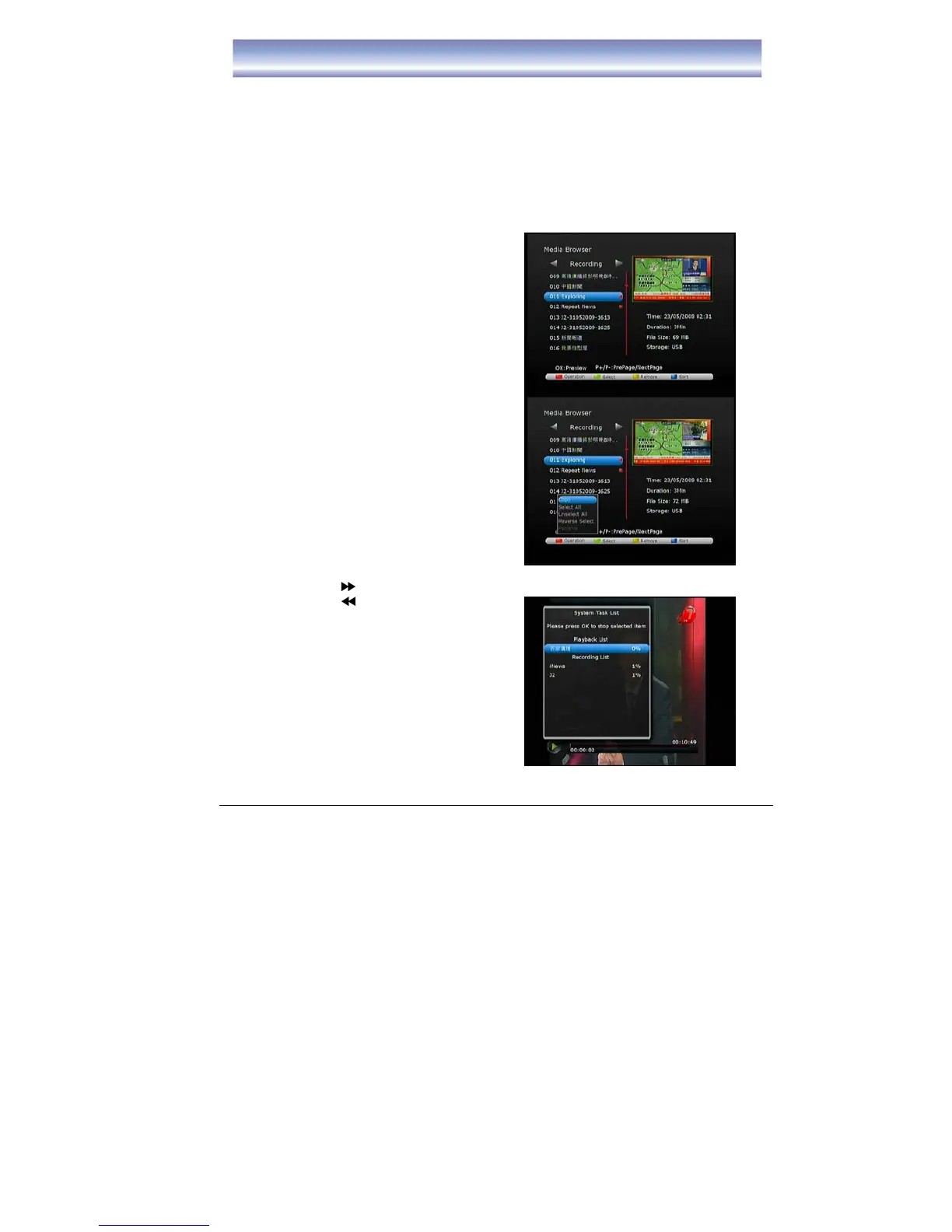
1. Open PVR Menu by pressing [PVR] in
Live TV Mode.
2. Highlight in Red dot is the media file under
recording.
3. Press [OK] to preview the media file in
small screen, press [OK] again to view the
file in full screen.
4. Press Green button to select a series of
media file for playing,
5. Press Yellow button to delete the desire
media file (except the file which under
playing or recording).
6. Press Blue button to re-organize the
sequence of the media file.
(By Record Time/File Name/Size of the
File)
7. Press [◀]/[▶] button to switch between
timer list and media file list.
8. Press [PLAY] to play the file in full screen
and proceed following functions.
z Press [INFO] to check the status of
playing
z Press [ ] button to fast forward to desire point want to start to play
z Press [ ] button to back forward to
desire point want to start to play
z Press [▲]/[▼] button to view the last
or next file.
z Press [PAUSE] button to pause
playing
z Press [FF] to circulate between 2X,
4X, 8X, 16X, 32X, 64X fast forward &
play mode.



 To Next Page