14
Chapter 2 Settings and Adjustments
●
To perform advanced adjustments
Independent setting and saving of color adjustment are available for each
FineContrast mode.
●
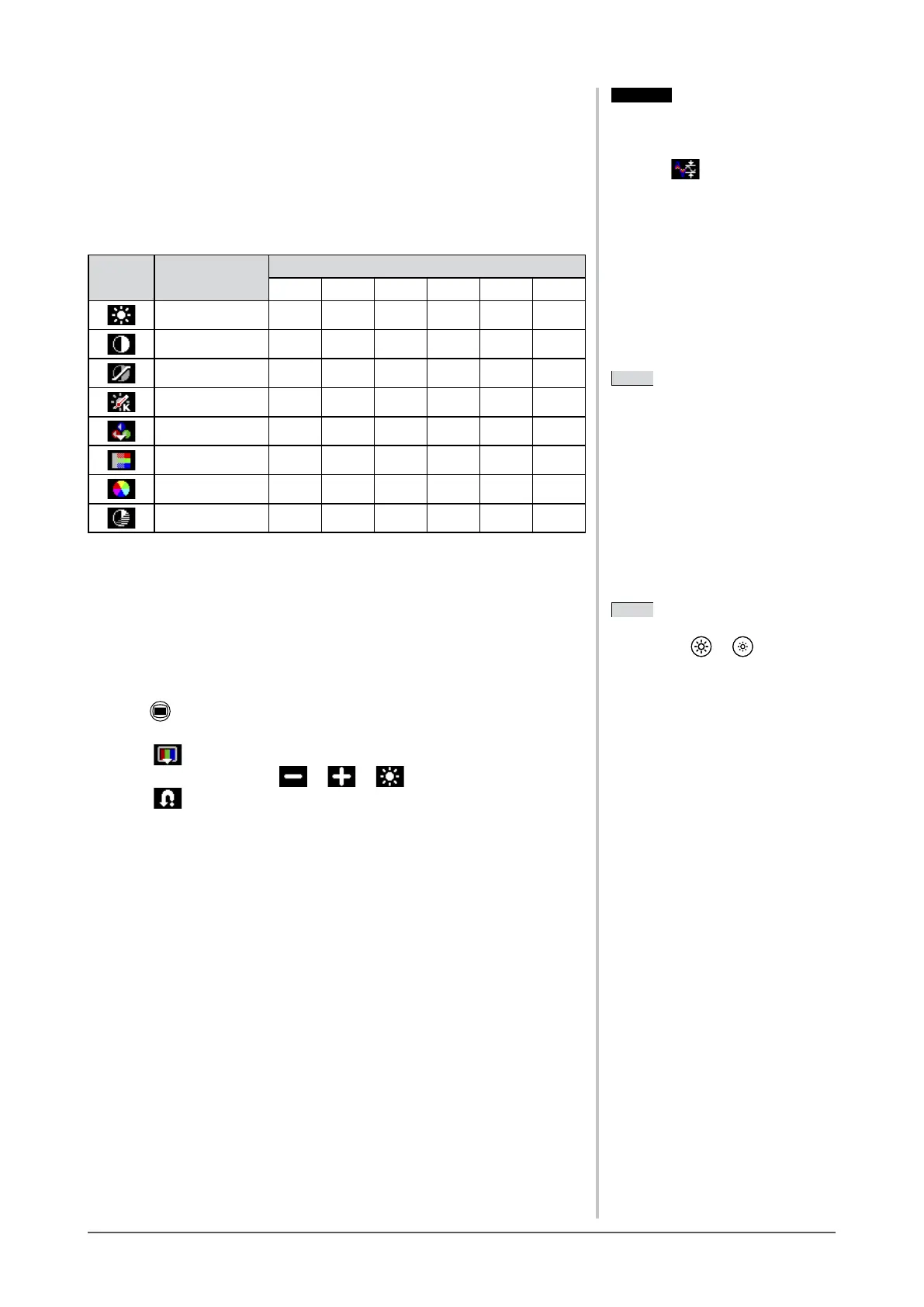
Adjustment items in each mode
According to the FineContrast mode selected, the adjustable function differs.
✓
:Adjustmentavailable−:Invalidforadjustment
Icon Function
FineContrast mode
CUS sRGB TXT PIC MOV CAD
Brightness
✓ ✓ ✓ ✓ ✓ ✓
Contrast
✓
−
✓ ✓ ✓ ✓
Gamma
✓
−
✓
− − −
Temperature
✓
−
✓ ✓ ✓ ✓
Gain
✓
− − − − −
Saturation
✓
− −
✓ ✓
−
Hue
✓
− −
✓ ✓
−
Cont Enhancer
✓
− − − − −
●
To adjust the brightness [Brightness]
The screen brightness is adjusted by changing the brightness of the backlight
(Light source from the LCD back panel).
Adjustable range: 0 to 100%
(1) Press .
The adjustment menu appears.
(2) Select (Color).
(3) Adjust the brightness with or of (Brightness).
(4) Select .
The adjustment is completed.
Attention
• Wait30minutesormorefrom
monitor power on before starting the
color adjustment.
• Perform
(AutoRange)rst
when adjusting color for analog input
signals.
(Refer to “To adjust color gradation
automatically” on
page 12).
• The same image may be seen in
different colors on multiple monitors
duetotheirmonitor-specic
characteristics.Makenecolor
adjustment visually when matching
colors on multiple monitors.
NOTE
• The values shown in “%” or “K” are
available only as reference.
• Using the “ScreenManager Pro for
LCD” allows you to perform the color
adjustment by using the mouse and
keyboard of your PC. The adjusted
status can be registered as a color data
and restore the data later. (Refer to
“Chapter 4 Color Adjustment” on the
User’s Manual for “ScreenManager
Pro for LCD”.)
Attention
• Wait30minutesormorefrom
monitor power on before starting the
color adjustment.
• Perform
(AutoRange)rst
when adjusting color for analog input
signals.
(Refer to “To adjust color gradation
automatically” on
page 12).
• The same image may be seen in
different colors on multiple monitors
duetotheirmonitor-specic
characteristics.Makenecolor
adjustment visually when matching
colors on multiple monitors.
NOTE
• The values shown in “%” or “K” are
available only as reference.
• Using the “ScreenManager Pro for
LCD” allows you to perform the color
adjustment by using the mouse and
keyboard of your PC. The adjusted
status can be registered as a color data
and restore the data later. (Refer to
“Chapter 4 Color Adjustment” on the
User’s Manual for “ScreenManager
Pro for LCD”.)
NOTE
• You can also adjust the brightness
by pressing
or without
displaying the adjustment menu.
NOTE
• You can also adjust the brightness
by pressing
or without
displaying the adjustment menu.







 To Next Page