26
Receive Audio Equalization (RX EQ)
The KX2 provides 8 bands of receive audio
equalization via the RX EQ menu entry. RX EQ can
compensate for physical acoustics (of the room,
headphones, internal speaker, external speaker),
tailoring the audio to your personal preference.
Two receive EQ setups are provided: one for CW
mode, and the other for SSB mode. RX EQ does not
apply to DATA modes.
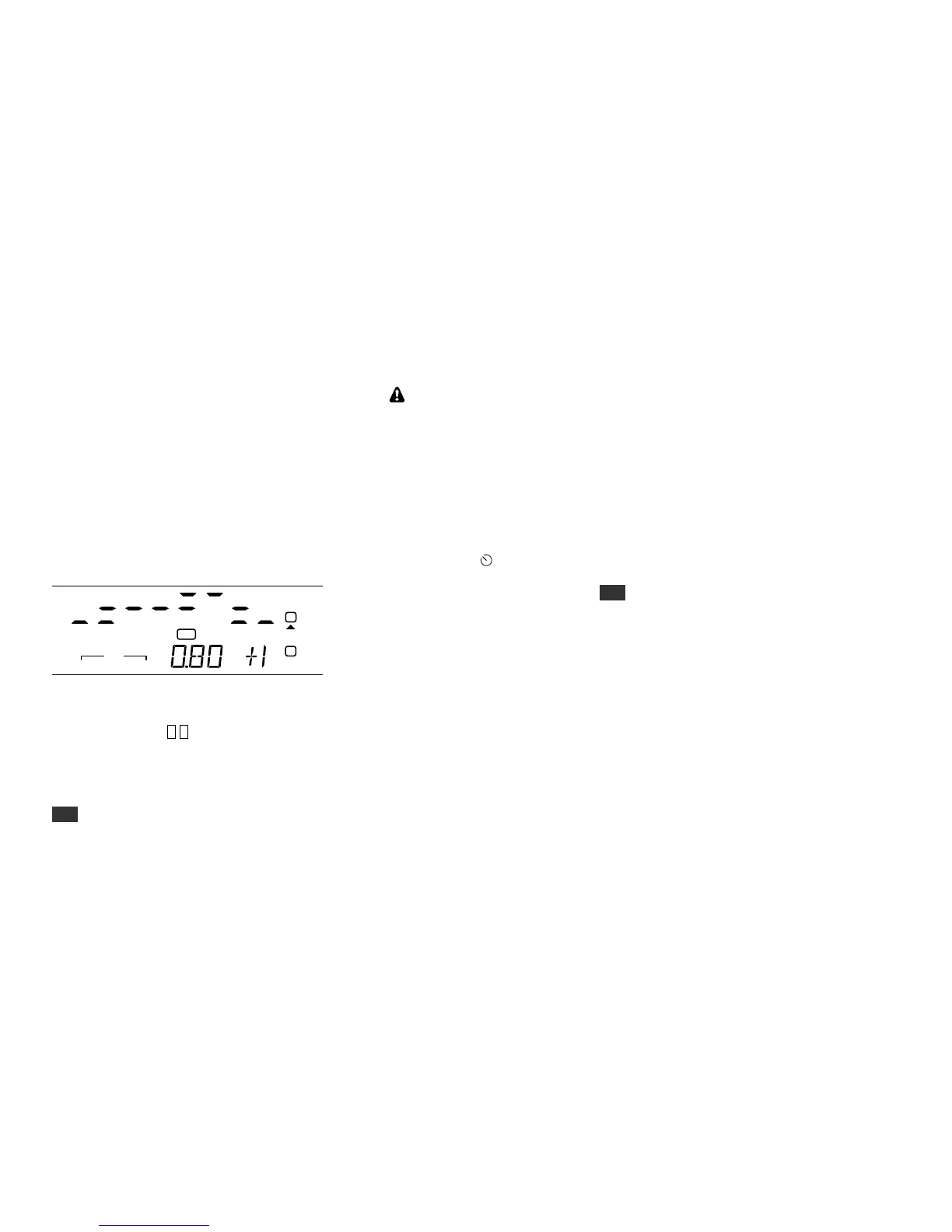
In the RX EQ menu entry, the VFO A display shows 8
individual vertical bar graphs. The example below
shows various amounts of EQ for each band.
The center frequencies of the 8 audio EQ bands are 50,
100, 200, 400, 800, 1600, 2400, and 3200 Hz. To select
a band to change, tap 0 -7 on the keypad. For example,
tapping 0 selects the 50-Hz band.
Next, rotate VFO A to specify boost or cut (+/- 16 dB).
The illustration above shows the 800 Hz EQ band
(0.80 kHz) being set to +1 dB of boost. You can hold
CLR to reset all of the RX EQ bands to 0 dB (no cut or
boost).
Transmit Audio Equalization (TX EQ)
Most microphones, including the Elecraft MH3
and the KX2’s built-in mic, will provide good audio
quality with default (flat) TX EQ. Also, excessively
high TX EQ settings can cause distortion.
If required, transmit audio equalization can compensate
for microphone and voice variations. MENU:TX EQ
works exactly the same as RX EQ (described at left)
and can be adjusted during transmit. TX EQ is not
applicable to CW or DATA modes.
While adjusting TX EQ, monitor your voice using
headphones (use MON to set the level), or listen to
your transmitted signal on another receiver. If you hear
distortion, reset all TX EQ bands using CLR. You may
also have excessive mic gain or compression.
SSB/CW VFO Offset
The KX2 can automatically offset the VFO frequency
when you switch from SSB to CW mode, so other
stations will hear the correct CW pitch. See
MENU:CW WGHT for details.


 To Next Page