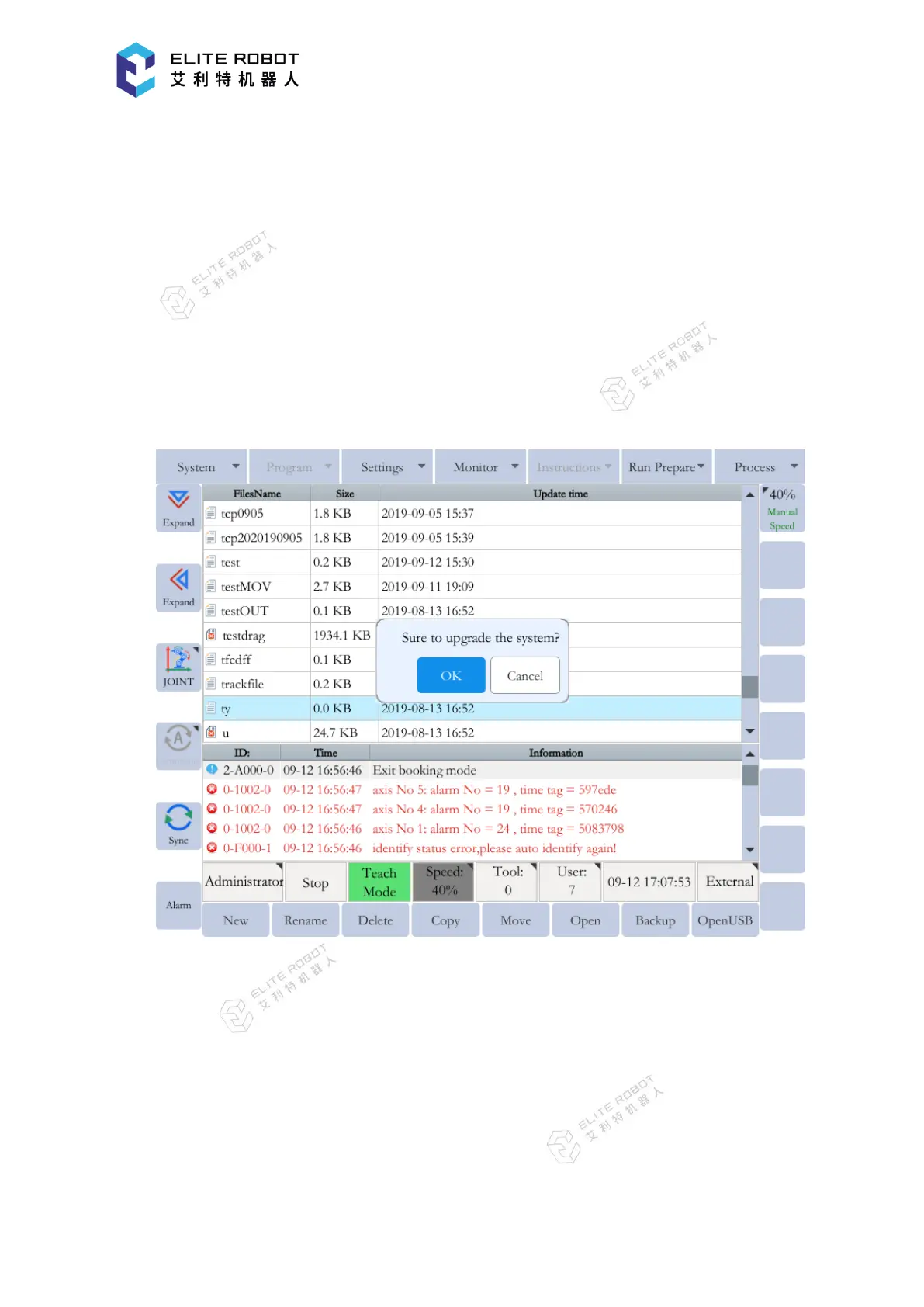
(1) Prepare a USB flash disk and copy the system upgrade file "firmware.bin" to its root
directory;
(2) Insert the USB flash disk into the USB port of the controller or the collaborative robot
cabinet;
(3) Go to "System - Save to USB" and select "User Data Backup" to back up the user data;
(4) Go to "System - System Upgrade", then press [OK] button and wait several minutes. The
system will check the firmware and be upgraded automatically. It will restart the system after
successful upgrade.
9.9.4.2 Firmware Upgrade
The firmware upgrade is peculiar to the collaborative robot and the detailed upgrade
procedures are as follows:
(1) In the root directory of the USB flash disk, create a new folder named "rbctrl" and copy
the firmware upgrade file into it;
(2) Insert the USB flash disk into the USB port of the collaborative robot cabinet, and a USB
device icon will be displayed in the coordinate area of the programming pendant screen;


 To Next Page