Each robot has a fixed mechanical zero point (the zero-point mark on each axis of the robot).
After performing the zero-return operation, please observe whether the mark of each axis
overlaps. For the specific mechanical zero return operation, please refer to Section9.8.4.1.
9.3.1.3 Program File Operations
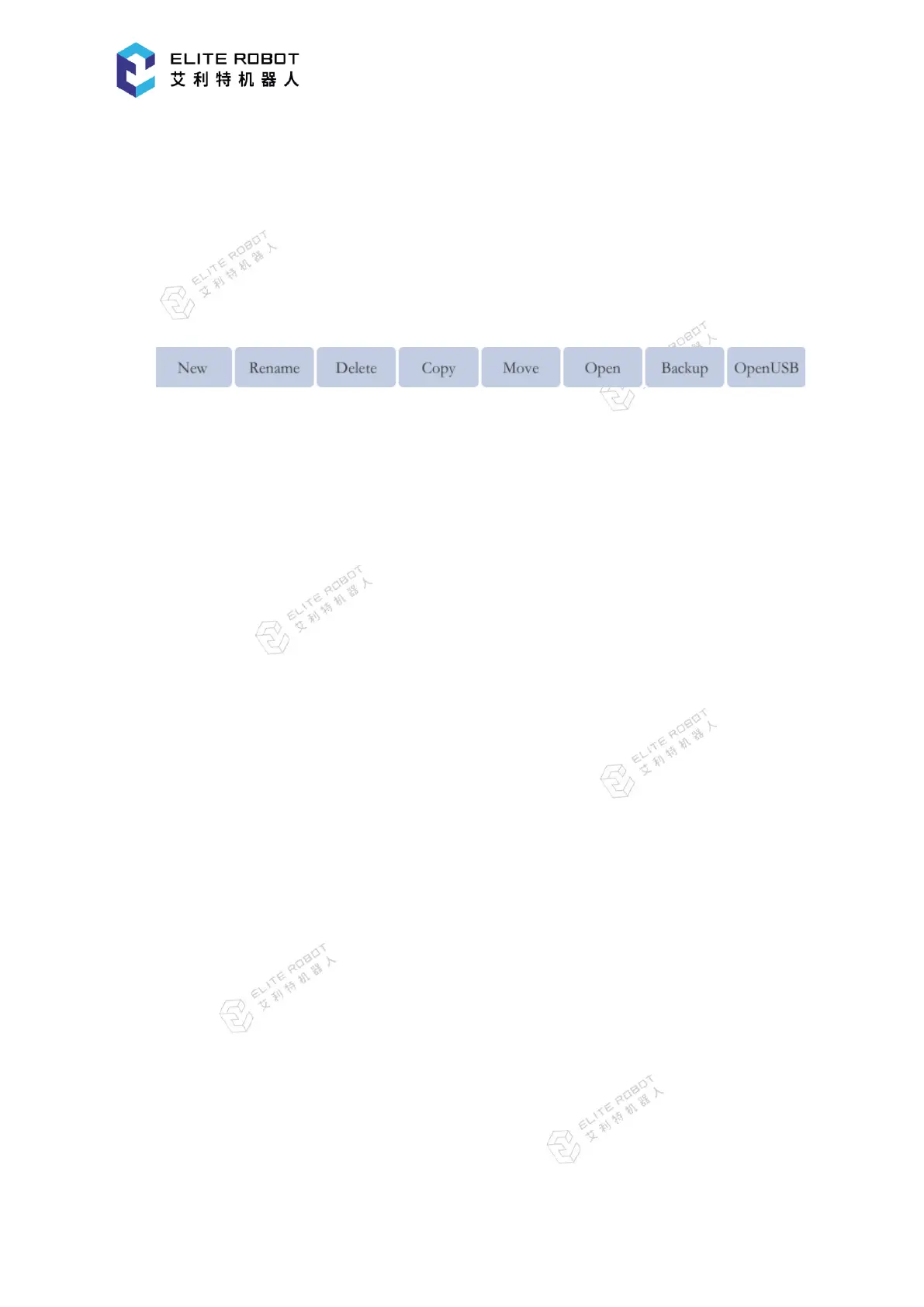
When the program list is focused in the programming pendant, the options for program file
operation appear in the submenu area, as shown below.
All points and instructions of the teaching process are stored in the program file, so you
should first familiarize with the various operations of the program file before teaching.
New: Press [NEW], the dialog box will pop up, user can select [FOLDER], [FILE] or
[CANCEL]. Press [FILE], the dialog box for inputting the file name will pop up, enter the file
name, press [OK]. The required file will be created successfully.
Rename: Select the program that need to be renamed in the program list and press
[RENAME]. Enter the required new file name in the pop-up dialog box and press [OK].
Delete: Select the program that needs to be deleted in the program list and press
[DELETE]. In the pop-up confirmation prompt box, press [OK] to delete, press [CANCEL] to
cancel deletion; the previously opened program is in activated status and cannot be deleted, you
can delete it by opening another program first.
Copy: Select the program you want to copy in the program list and press [COPY].
Enter the required new file name in the pop-up dialog box and press [OK].
Move: The move operation is to move the program file into or out of one folder. Select
the program file to be moved and press [MOVE]. Select the destination folder and press [OK].
Open: Select the program and press [OPEN] to open the program in the program
editing page.
Backup: When the controller has a USB device connection, select the program to be
backed up and press [BACKUP]. The program will be saved to the USB device.
Open USB Device: When the controller has a USB device connection, press [OPEN USB]


 To Next Page