30
◆
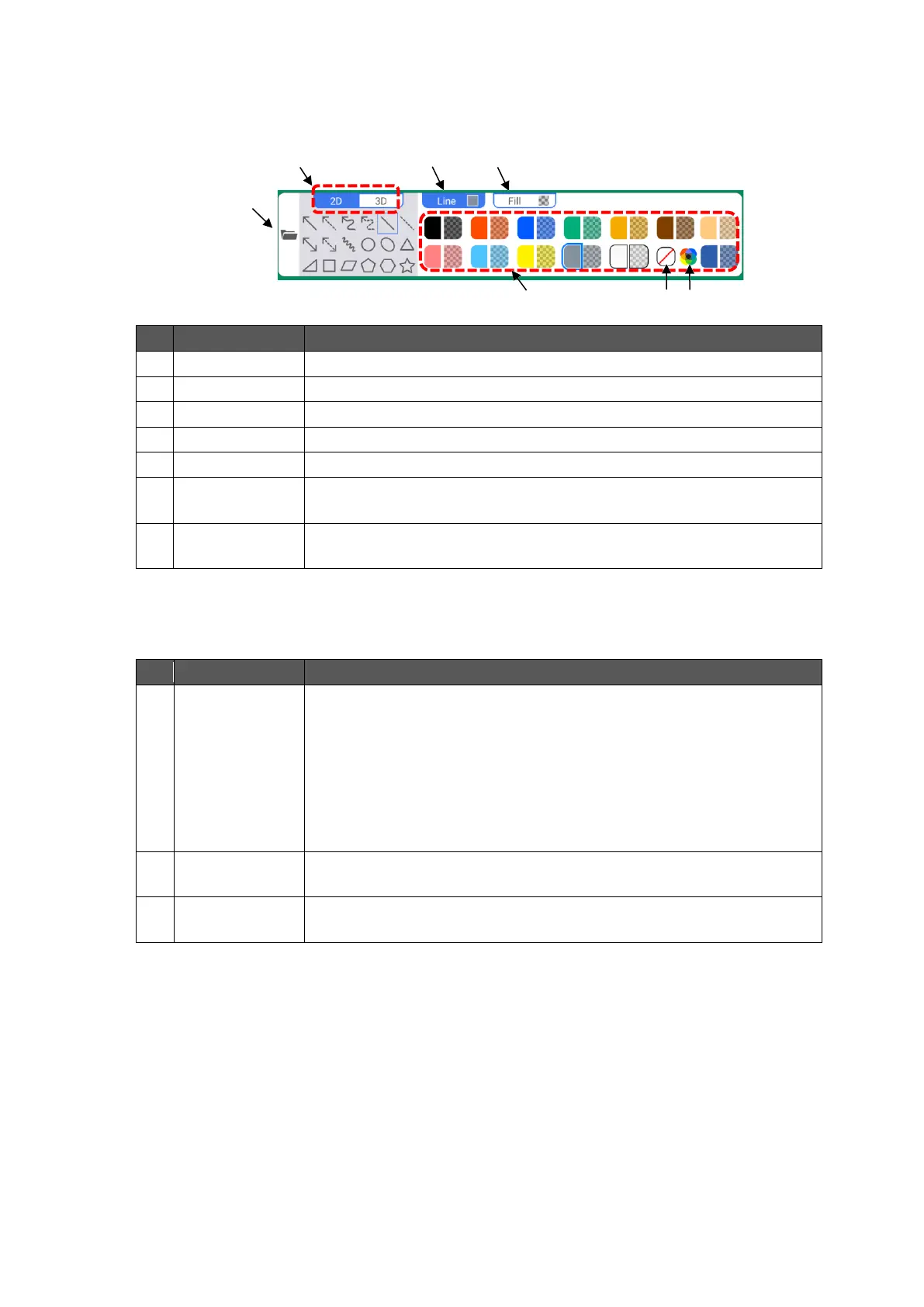
Shapes Menu
The Shapes menu will appear when the Shapes icon in the toolbar is tapped again in the
Shapes mode.
To switch between 2D and 3D for the shape.
To select the color of the line.
To select the color of the shape.
To make the color transparent.
To display the color palette.
You can select any color in the color palette.
To start the File Manager app.
You can paste images and videos onto the whiteboard.
◆
Functions Available in the Operation Mode
The product will enter the Operation mode when the Operation icon in the toolbar is tapped.
To change the magnification ratio during zoom in/out operations.
The screen will be enlarged, centering on where you originally
touched.
To enlarge the area selected by dragging operation.
Using icons “+” and “-“, you can change the magnification ratio
between 100% and 2400%.
In the Operation mode, you can change the magnification ratio
between 50% and 2400%.
To change the magnification ratio between 100% and 2400%.
+” and “-“ icons will not appear when the magnification ratio is 100%.
To scroll the enlarged area of the screen by dragging.
This function is disabled if the magnification ratio is 100% or less.



 To Next Page