32
◆
Page Operation Menu
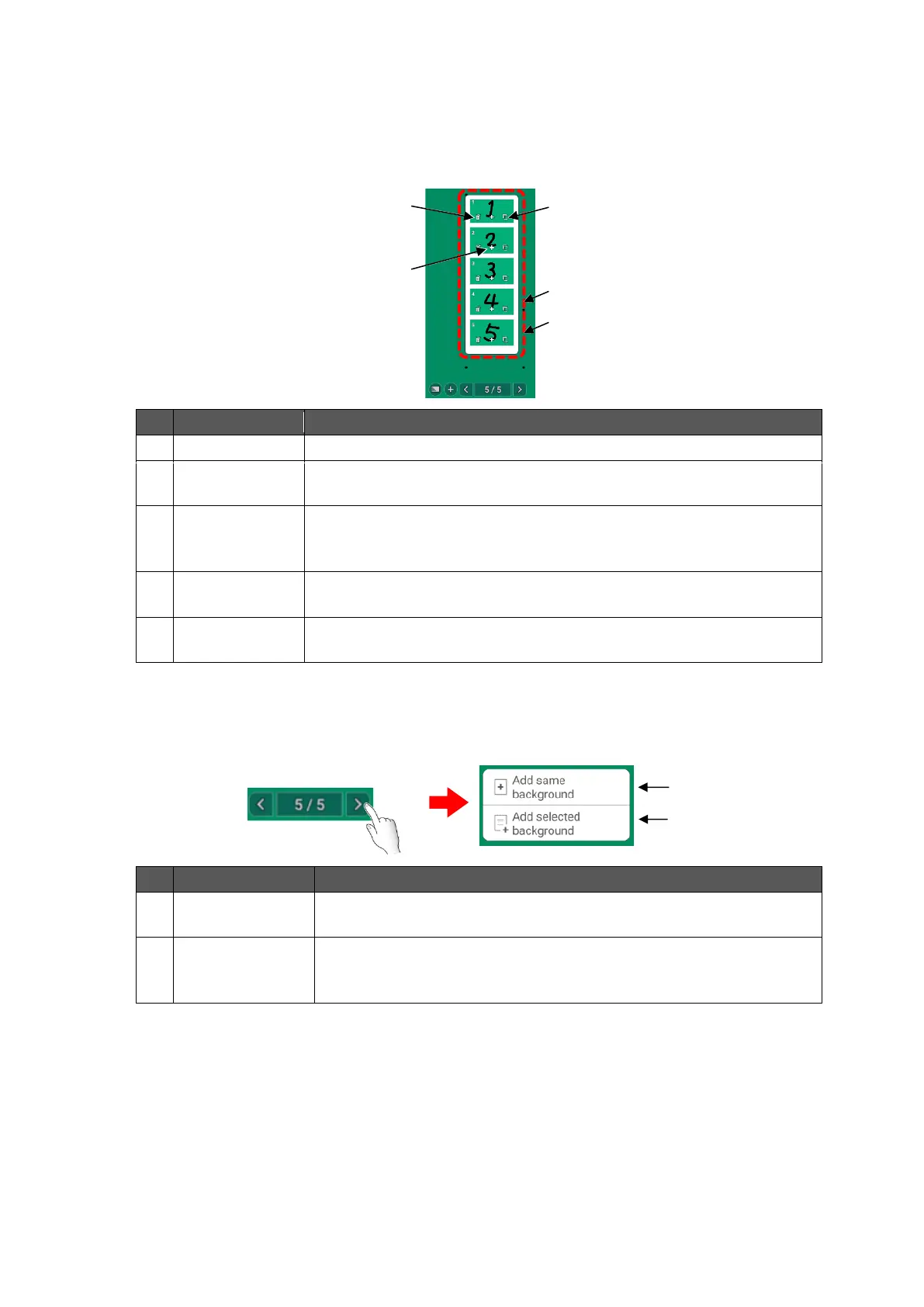
The Page operation menu will appear when the icon [ x /y ] in the toolbar is tapped.
Up to 5 pages are displayed as thumbnails at the same time. If there are more than 6 pages,
you can switch the display by scrolling the menu with a swipe action.
To delete the selected page.
To add a new page to the next page of the selected page. The same
background as the selected page will be applied to the added page.
To copy the selected page and add to the next page of the selected
page. The same background as the selected page will be applied to
the copied page.
To change the page order by drag and drop action.
To go back to the whiteboard and move to the selected page by
tapping the thumbnail.
◆
Add Page Menu
The Add page menu will appear when the Page forward icon in the last page is tapped.
Add page with
same background
To add a new page with the same background as the last page.
Add page with
different
background
To add a new page with the background selected in the Background
menu.



 To Next Page