40
Reference Manual
00809-0200-4410, Rev BC
Troubleshooting
July 2017
Troubleshooting
AMS Wireless Configurator
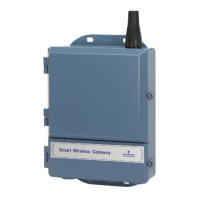
Gateway does not
appear in AMS Wireless
Configurator
1. Verify the Security Setup Utility is installed on the same PC as AMS Wireless
Configurator.
2. Setup a wireless network interface using the Network Configuration application.
See Section 4: Software Setup.
3. Verify if the wireless network interface is configured for Secure Gateway
Communications.
4. Verify secure/unsecure AMS Wireless Configurator protocol settings in the
Gateway. Log on to the Gateway and navigate to SETUP > SECURITY >
PROTOCOLS.
5. Restart AMS Wireless Configurator data server. Right click on AMS Wireless
Configurator server icon in the Windows system tray (lower right corner) and
select stop server.
Wireless devices do not
appear under the
Gateway
1. Verify wireless devices are connected to the Gateway. Log on to the Gateway and
navigate to EXPLORER.
2. Right click on wireless network and select rebuild hierarchy.
Wireless device appears
with red HART symbol
1. Install latest device support files from AMS Wireless Configurator. Go to
Emerson.com/Automation/AMS.
Device configuration
items are grayed out
1. Verify whether current or historical information is being displayed. This setting is
displayed at the bottom of each device configuration screen. Configuration
requires the Current setting.
2. For security purposes a configuration timeout is applied to sessions that have
been idle for more than 30 minutes. Log back into AMS Wireless Configurator.
Wireless field devices
Wireless device does not
appear on the network
1. Verify the device has power.
2. Verify the device is within effect communications range.
3. Verify the proper Network ID has been entered into the device.
Wireless device appears in
the join failure list
1. Re-enter the Network ID and Join Key into the device.
Wireless device appears
with service denied
1. Verify the total number of devices on the network (25 max).
2. Go to SETUP > NETWORK > BANDWIDTH and select analyze bandwidth
(Note: any changes will require the network to reform)
3. Reduce the update rate for the device.
Modbus
®
communications
Can not communicate
using Modbus RTU
1. Verify the use of RS-485
2. Verify wiring connections. See Section 3: Mounting and Connection.
3. Verify if termination or a pull up is required. See Figure 3-7.
4. Verify that Modbus serial communications setting in the Gateway match the
Modbus Host settings. Log on to the Gateway and navigate to SETUP >
MODBUS > COMMUNICATIONS.
5. Verify the Modbus address for the Gateway.
6. Verify Modbus register mapping in the Gateway. Log on to the Gateway and
navigate to SETUP > MODBUS > MAPPING.


 To Next Page
 Loading...