58
3. Management Switch Setup
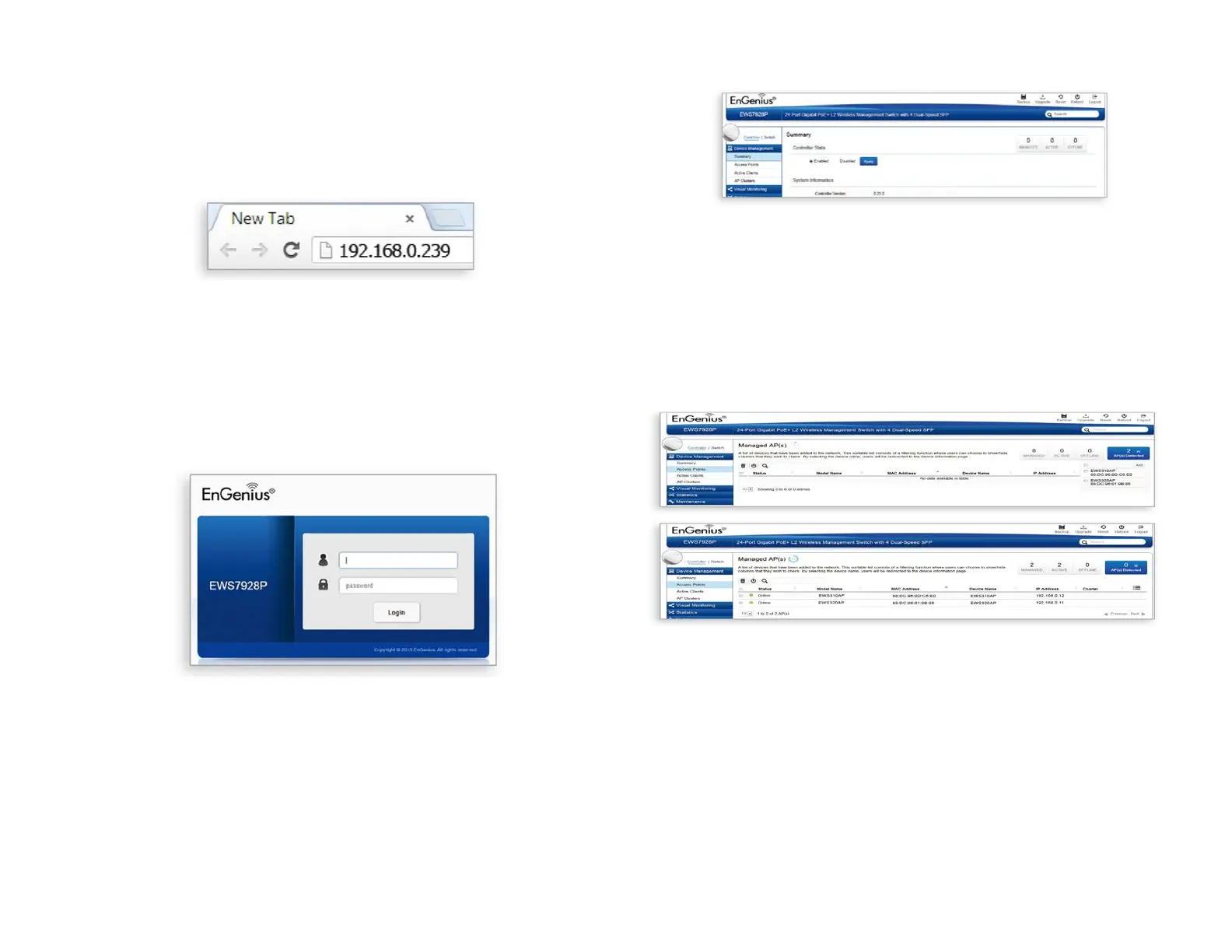
A)Openawebbrowseronyourcomputer.Intheaddress
bar of the web browser, enter 192.168.0.239 and enter.
B)Aloginscreenwillappear.Bydefault,usernameisadmin
and the password is password. Enter the current username
and password of the Wireless Management Switch and
then click Login
*Yourmodelnamemaybedifferentinthewebbrowserinterface.
C)TheEnGeniusWirelessManagementSwitchUserInter-
face will appear. Make sure the Controller State is set to
Enabled.
4. Adding Managed AP
(ThroughEnGeniusWirelessManagementSwitchGUI)
B)YoumaycongureyourManagedAP(s)afteryousuccess-
fully
connected to the Wireless Management Switch through its
GUI.






 To Next Page