Program Search
Program Search
2726
Program Search
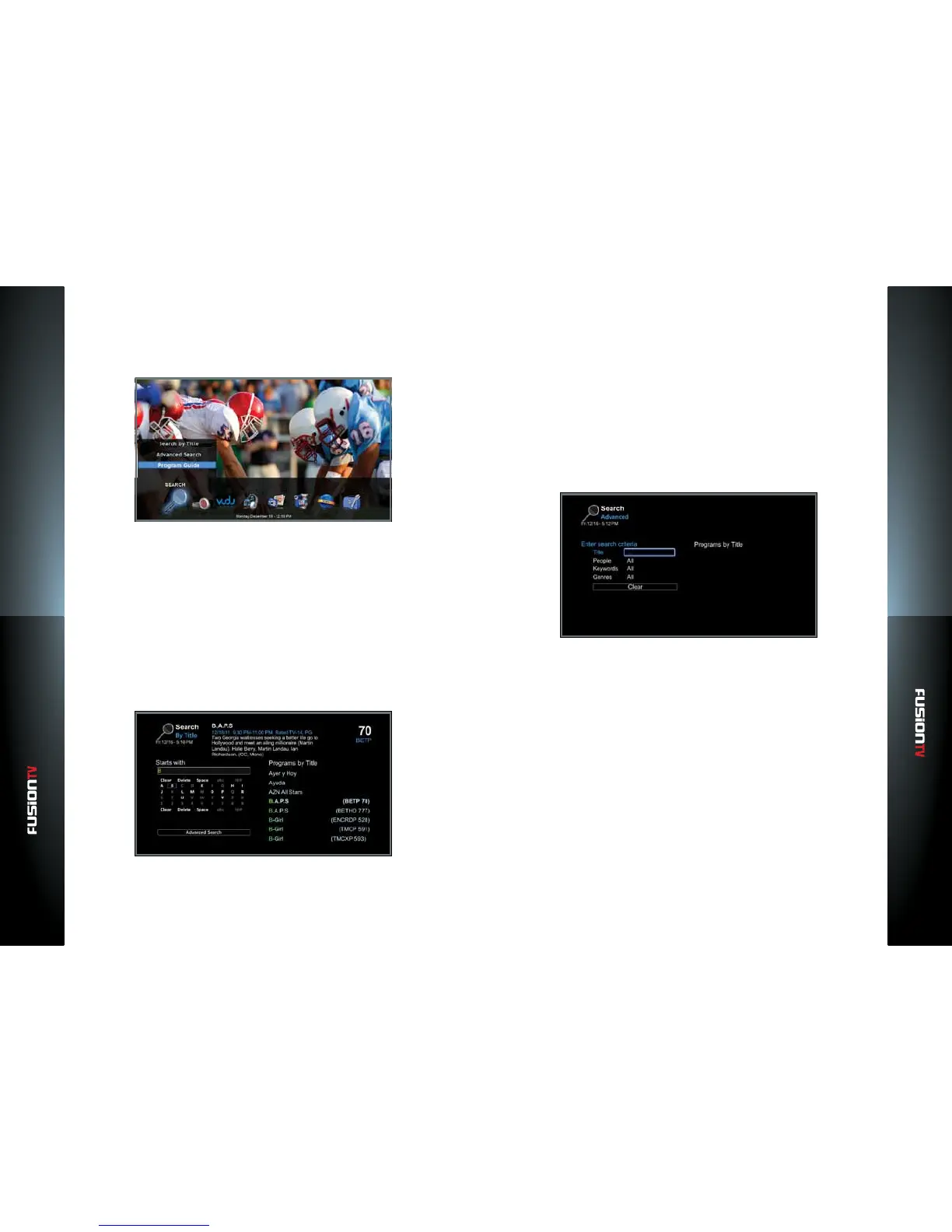
The Search icon in the Main Menu provides basic search of programs by title or
advanced search by keyword, genre or people.
1. In the Main Menu, select “SEARCH” and then press OK or press the UP
ARROW to view search options.
2. If OK is pressed, the “Search by Title” screen is displayed with “Advanced
Search” as an option at the bottom of the screen.
3. If using the UP ARROW, three options are available; “Search by Title”,
“Advanced Search”, and “Program Guide”.
Search by Title
“Search by Title” is the default option under the Search icon. Narrow your
program search based on the program title.
1. Use the ARROW KEYS to highlight a letter/number and press OK to select
the letter/number. Continue until you see your program listed.
2. If a match is found, use the ARROW KEYS to select the program, and press
OK.
3. If the program chosen is unavailable, the “Program Options” menu will
display. You now have the option to record the chosen episode, record a
series, nd other times the program is showing, or cancel and return to the
previous screen.
Advanced Search
The “Advanced Search” option oers the ability to use additional search
criterias to narrow your search. You can search by using keywords, genre, or
people.
1. Select “SEARCH“ from the Main Menu.
2. Press the UP ARROW to select “Advanced Search” and press OK.
3. Use the ARROW KEYS on your remote control to choose your search
criteria, then press OK.
4. Use the remote control ARROW KEYS and the on-screen keyboard to spell
out the keyword, genre, or a person’s name.
5. If a match is found, use the ARROW KEYS to select the program and press
OK.



 To Next Page