Settings
Settings
7776
Settings
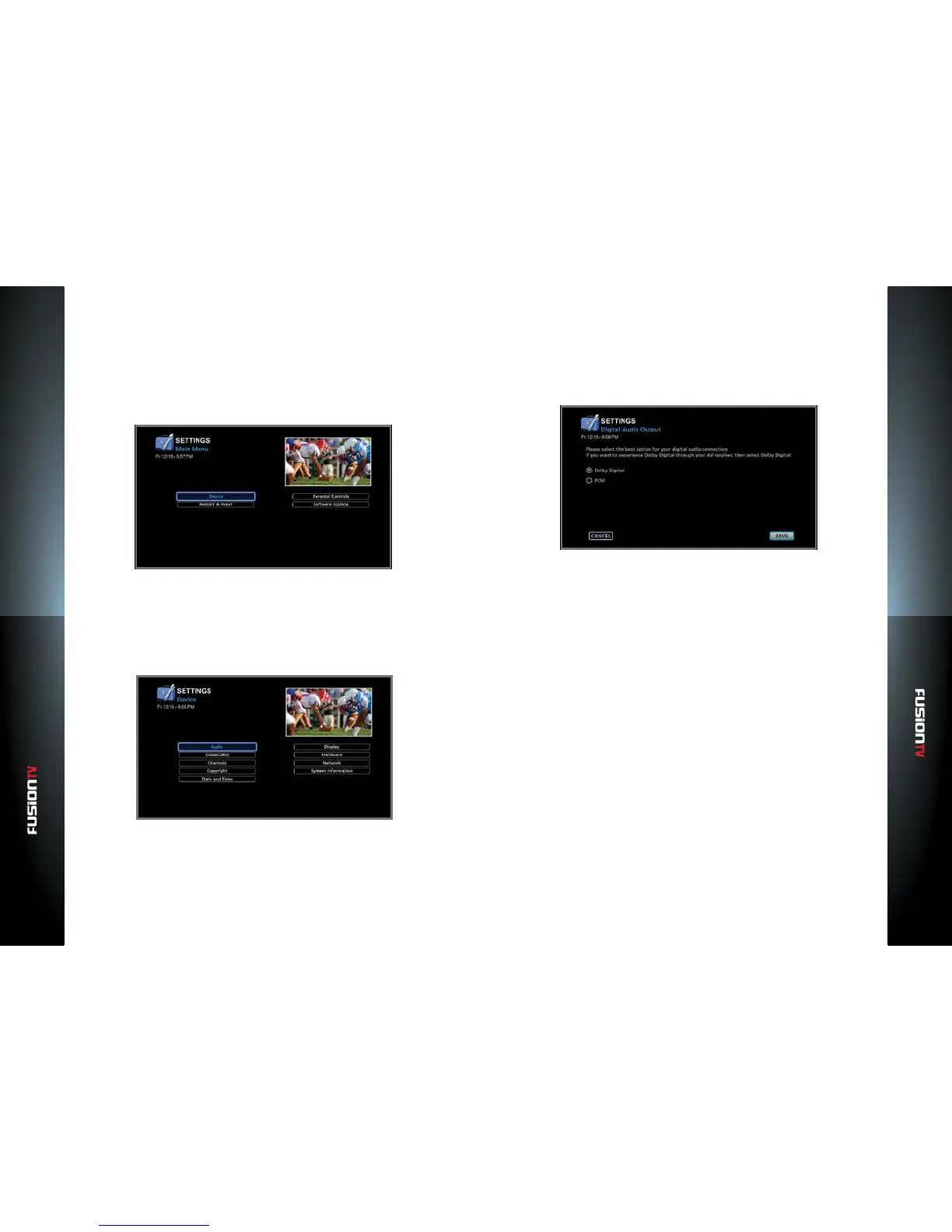
The Settings menu option allows you to customize features for your Entone
device. You can change the device settings, set parental controls, reset the
device, and manage software updates.
To view or change the device settings options, press the MENU button on
the remote control, select SETTINGS from the Main Menu, and press OK.
Device
Congure settings for your Entone device and view specic information about
the device.
To access these options, select SETTINGS > Device from the Main Menu.
Audio
The Audio setting enables you to change your audio output for your FusionTV
service. Dolby Digital gives you the capability to enjoy programs with surround
sound. In order to enjoy full, 5.1-channel surround sound, you will need an
external Dolby Digital decoder (i.e. A/V Receiver). Your Entone device uses
a HDMI port to output digital audio and video, or an optical port to output
digital audio only. The HDMI or optical connections can provide two audio data
types: Dolby Digital and Linear PCM (only Dolby Digital audio through these
connections can then be decoded to provide full, 5.1-channel surround sound).
Select one of the following, depending on your Audio mode:
There are two Audio modes available. Select the Audio mode that best ts
your entertainment setup.
— Dolby Digital (Default): Delivers 5.1 digital audio.
— PCM: Delivers a digital audio sound similar to a two channel analog
signal.
Use the ARROW KEYS to select the desired audio and press OK and select
your choice by placing a check mark.
CableCARD
Some cable service providers require a special PCMCIA card in order to receive
encrypted premium television programming. The CableCARD is available from
your local cable provider and will need to be paired with your Entone device if
it supports CableCARD. During the pairing process, you will contact your cable
service provider and provide the information about your card before you can
start receiving your premium programs.
To pair your CableCARD:
1. From the Main Menu, select SETTINGS > Device > CableCARD and press
OK.
2. Use the ARROW KEYS to select “CableCARD Pairing” and press OK.


 To Next Page