FusionLink
FusionLink
6362
Remove Single Media Files
1. Use the ARROW KEYS to select a playlist and press OK.
2. Use the ARROW KEYS to select a media le from your playlist and press the
YELLOW button to remove the highlighted le.
3. You are asked to conrm if you want to delete the le. Select “Yes” and press
OK to delete. Select “No” to cancel and return to the previous menu screen.
Delete a Playlist
1. In the Main Menu, use the ARROW KEYS to select “MUSIC” or ”VIDEOS”.
Press OK.
2. Use the ARROW KEYS to select “Playlists” and press OK.
3. Select from the list of displayed playlists. Press the BLUE button on the
remote to delete the highlighted playlist.
4. You are asked to conrm if you want to delete the playlist. Select “Yes” and
press OK to delete. Select “No” to cancel and return to the previous menu
screen.
Copy and Delete Media to the Device
To load media on to your Entone device, you will need either a USB storage
device or a memory card if your device supports it.
Copy Media to the Device
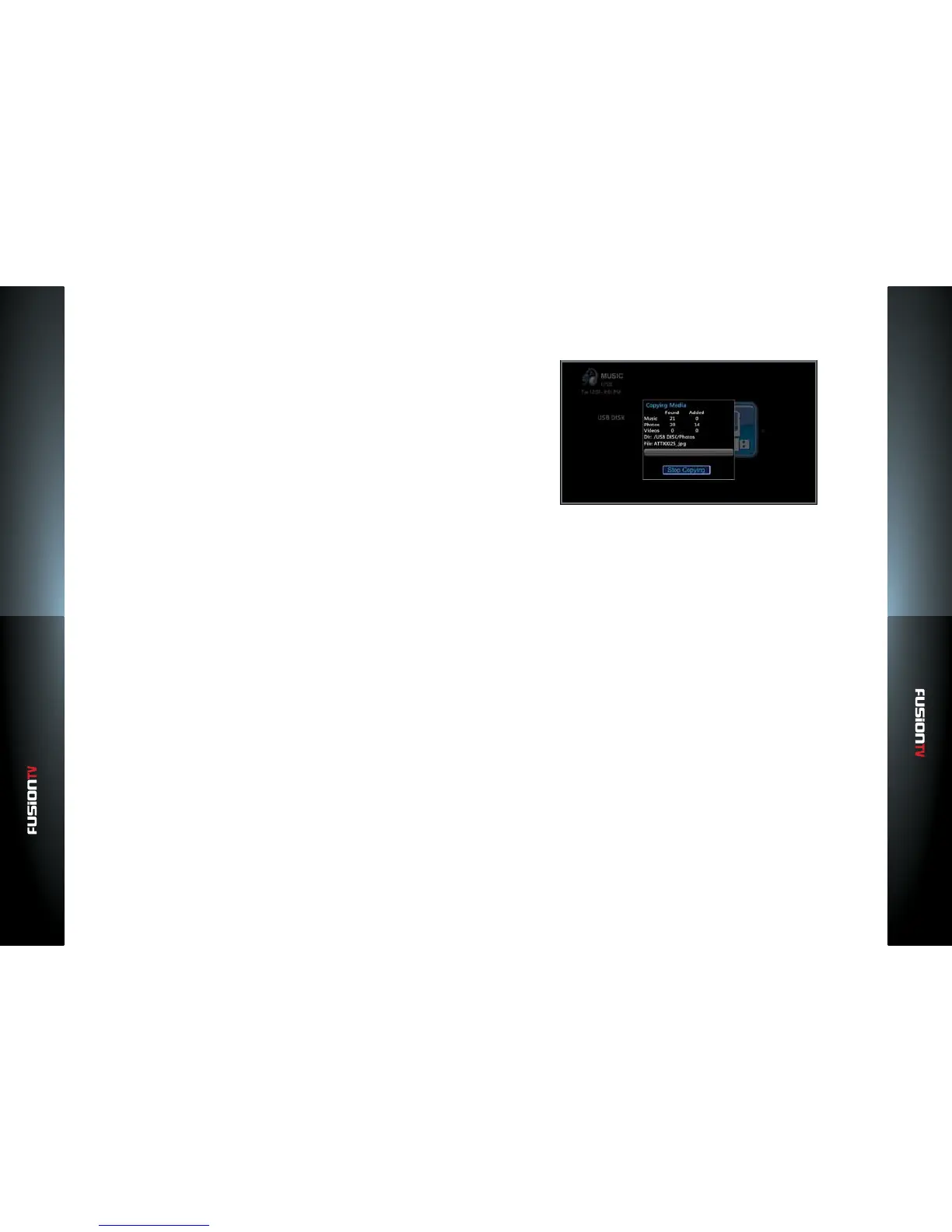
1. Plug your USB device into the USB port located on the front of your Entone
device or insert your memory card if your device supports it.
2. In the Main Menu, use the ARROW KEYS to select either “MUSIC”,
“PHOTOS”, or “VIDEO”. Press OK.
3. Select “USB”. Press OK.
4. Your USB device will be highlighted. Press OK to choose your device.
5. You can browse to nd specic songs, photos, or videos to copy or copy all
the directories on your USB device or memory card to the Entone device.
6. Use OK or the RIGHT arrow to browse the directories.
7. Select “Copy to My Media”. Press OK.
Delete Media from the Device
Deleting music, photos, or videos requires using the OPTIONS button while
located in appropriate media section.
1. From the Main Menu select “MUSIC/PHOTOS/VIDEO”, then “All”.
2. Highlight the individual item you wish to delete, and press the OPTIONS
button.
3. Select “Delete” and press OK.
Repeat this step for individual content items.
Stream Media from a PC
FusionLink is designed to connect to your Windows PC. With FusionLink, you
will be able to stream music, photos, and videos from your PC directly to your
TV.
Your PC must be available on the same network connection you are using for
the FusionTV service.
To stream content from your PC:
1. Ensure your PC is on and that Windows le sharing is enabled.
2. With the FusionTV service on, push the yellow button on your remote to
select the type of media to view and press OK.
3. Select “Other Locations” and press OK.
4. Select “PCs & Servers” and press OK.
5. You should see your PC listed on the screen. Select your PC and press OK.
6. Select “Browse This Machine”
7. Choose a media folder to open and press OK.


 To Next Page