FusionLink
FusionLink
6160
— Playlists: Imported playlists from a media storage device.
— Other Locations: Use your USB device, memory card, or your PC to view
or copy your videos to the FusionTV service.
NOTE: The following video le formats are supported (MPEG 1,2,4, H.264, WM9, DivX, AVS, MP4/
MOV, MKV, VC1).
3. Select a video from the chosen directory and press OK.
Play Media from a Playlist
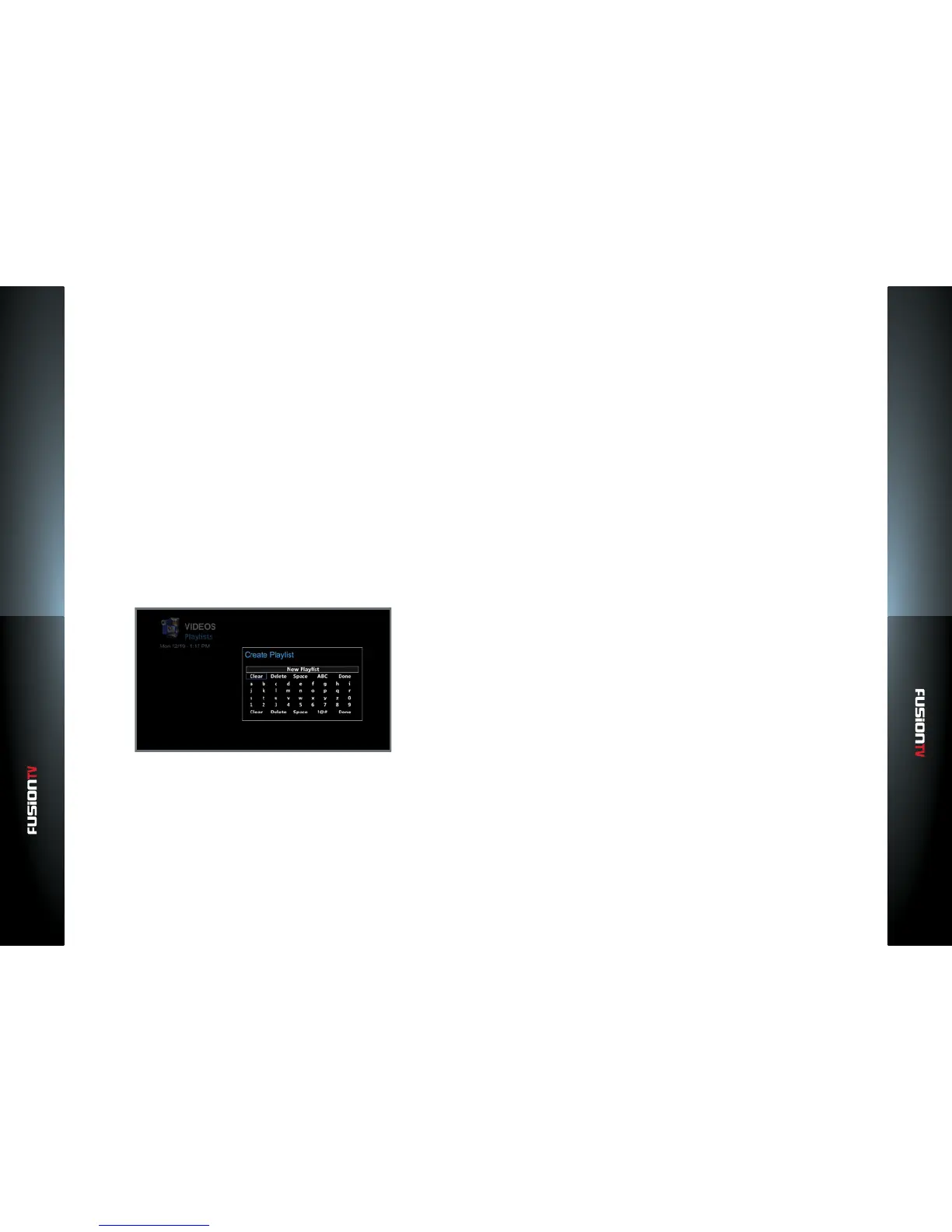
Create a Playlist
1. In the Main Menu, use the ARROW KEYS to select “MUSIC” or ”VIDEOS”.
Press OK.
2. Use the ARROW KEYS to select “Playlists” and press OK.
3. From the Playlists menu press the RED button on the remote to create a
playlist.
4. Use the ARROW KEYS, the OK button, and the on-screen keyboard to
create a name for your playlist.
5. When satised with the name you created, navigate to “Done” and press
OK.
6. Your new playlist will be listed. Press the BACK button to return to the
Music Menu.
Add Media to your Playlist
1. Use the ARROW KEYS to select a song (MUSIC) or video (VIDEOS) from one
of the menu options. For music choose between “All”, “Albums”, “Artists”,
“Genres”, or “Other Locations“ press OK.
For videos choose between “All”, “Dates”, “Folder”, or “Other Locations”.
2. Use the ARROW KEYS to select a media le and press the RED button on
the remote to add the le to a playlist.
3. A list of available playlists will be displayed. Use the ARROW KEYS to select
a playlist and press OK to add the le.
4. Repeat steps 3 and 4 to add as many media les as you want.
5. Press the BACK button to return to Music/Video Menu.
Play Media from your Playlists
1. Use the ARROW KEYS to select “Playlists” and press OK.
2. Use the ARROW KEYS to select a media le and press OK.
Rename a Playlist
1. In the Main Menu, use the ARROW KEYS to select “MUSIC” or ”VIDEOS”.
Press OK.
2. Use the ARROW KEYS to select “Playlists” and press OK.
3. Select from the list of displayed playlists. Press the GREEN button on the
remote to rename the highlighted playlist.
4. Use the ARROW KEYS, the OK button, and the on-screen keyboard to
change the name of your playlist.
5. When satised with the name you created, navigate to “Done” and press
OK.
6. Press the BACK button to return to the Music Menu.
Clear a Playlist (Remove all media les)
1. In the Main Menu, use the ARROW KEYS to select “MUSIC” or ”VIDEOS”.
Press OK.
2. Use the ARROW KEYS to select “Playlists” and press OK.
3. Use the ARROW KEYS to select from the list of displayed playlists. Press
the YELLOW button on the remote control to clear media les from the
highlighted playlist.
4. You are asked to conrm if you want to delete the les from the playlist.
Select “Yes” and press OK to remove all les. Select “No” to cancel and
return to the previous menu screen.


 To Next Page