FusionLink
FusionLink
6564
8. Select “Browse This Folder” to see a list media les to view. There may be
more folders in this location. Continue to select the folder you wish to view
until the desired media le is found.
9. Select the le you wish to stream and press OK.
10. Select “Play Song”for Music, “Play Video” for video, or “View Photo”to view
pictures.
NOTE: Streaming media is accessible only using a Windows PC. Mac is not supported.
Using PlayOn
What Is PlayOn?
PlayOn is a software program that runs on your Windows PC, giving you access
to a wide range of Internet-based on-demand content directly within FusionTV.
Examples of content sites that are available through PlayOn include YouTube,
Hulu, Netix, Comedy Central, and many others. The following information is
intended as a brief and simple overview of PlayOn and the features it provides.
Installing and Running PlayOn
PlayOn is simple to install and easy to get running and start using.
1. Download and install PlayOn on your Windows PC from www.playon.tv.
2. Ensure your PC is on and that Windows le sharing is enabled.
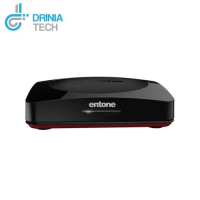
3. Turn on your Entone device and start FusionTV.
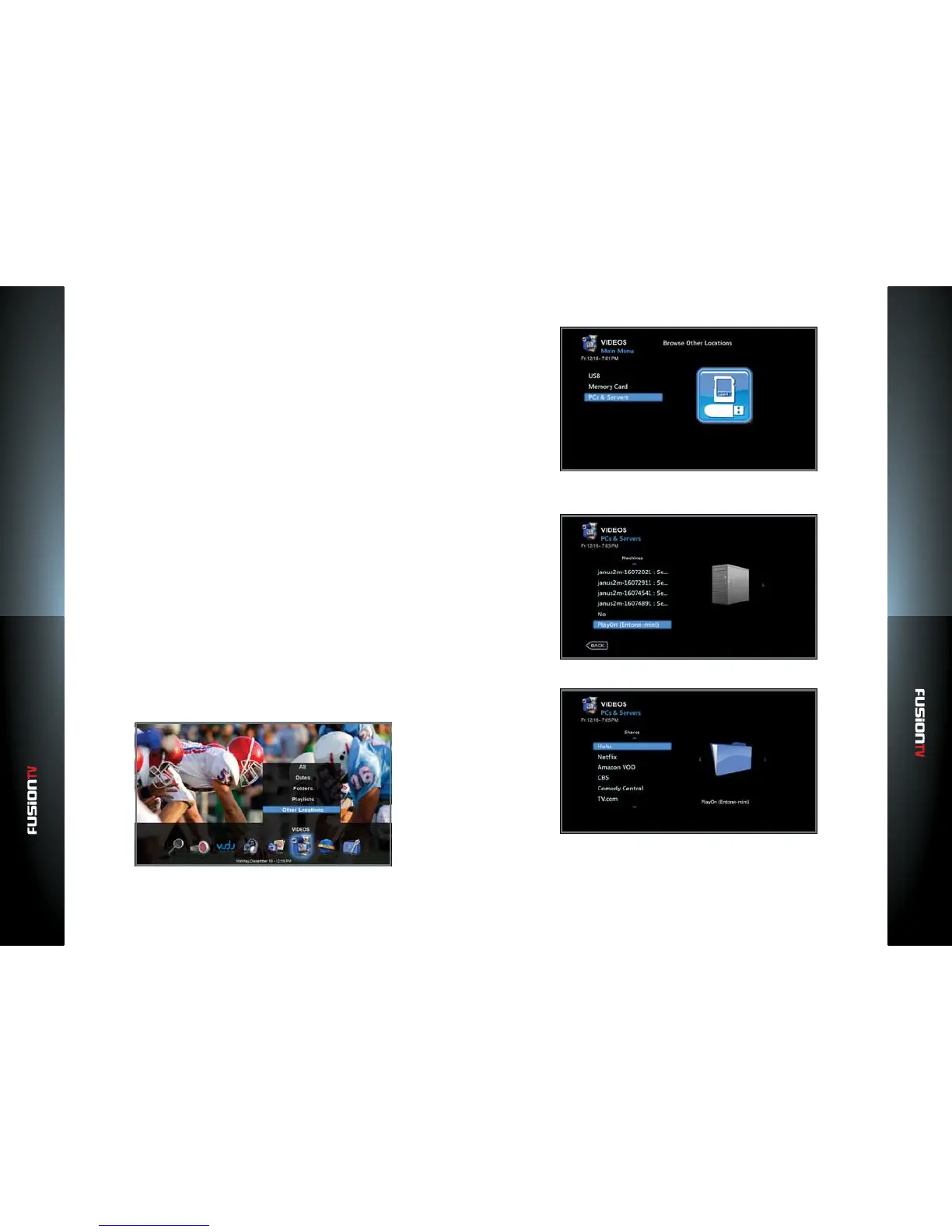
4. From the Main Menu select “VIDEOS” and press OK.
5. Select “Other Locations” and press OK.
6. Select “PCs & Servers” and press OK.
7. You should see the PlayOn PC listed on the screen. Select your “PlayOn“
and press OK.
8. Choose a channel to view and press OK.


 To Next Page