Recording TV
Recording TV
3534
Watch a Recorded Program
1. Press the DVR button on the remote control, or in the Main Menu,
select DVR.
2. Select “DVR Recordings”. Press OK to view the list of recorded programs.
3. Use the ARROW KEYS to select a program and press OK. A list of program
options will display.
4. Select “Play” and press OK.
5. Use the TRANSPORT KEYS to perform trick play functions such as rewind,
fast forward or skip as necessary.
NOTE: You can conveniently watch a program currently being recorded but you cannot skip or
fast-forward beyond the point of the live broadcast (as it has not yet been broadcasted).
Delete Recordings
You can conveniently delete recorded programs or specic episodes within a
recorded series. Deleted programs can be seen in the same list as your recorded
programs within the DVR Recordings screen. Press the GREEN shortcut button
on the remote to view the shows that have been deleted. A trash can icon next
to the program/episode name indicates that the program/episode has been
deleted.
To Delete a Specic Program:
1. Press the DVR button on the remote control or select the DVR icon from
the Main Menu.
2. Select “DVR Recordings” and press OK to view the list of recorded
programs.
3. Use the ARROW KEYS to select a program and press OK. A list of program
options will display.
4. Select “Delete Program” and press OK.
To Delete a Series Recording:
1. Press the DVR button on the remote control or select the DVR icon from
the Main Menu.
2. Select “DVR Recordings” and press OK to view the list of recorded
programs.
3. Use the ARROW KEYS to select a program and press OK. A list of program
options will display.
4. Select “Delete All Episodes” and press OK.
To Delete Programs Permanently:
1. Press the DVR button on the remote control or select the DVR icon from
the Main Menu.
2. Select “DVR Recordings” and press OK to view the list of recorded
programs.
3. Press GREEN shortcut button on your remote to show the list of deleted
programs. The programs will be identied with a trash can icon next to
them.
4. Use the ARROW KEYS to select a program and press OK.
5. Select “Delete Permanently” and press OK to remove them completely to
free up disk space.
NOTE: Once deleted, this program cannot to be recovered.
View Scheduled Recordings
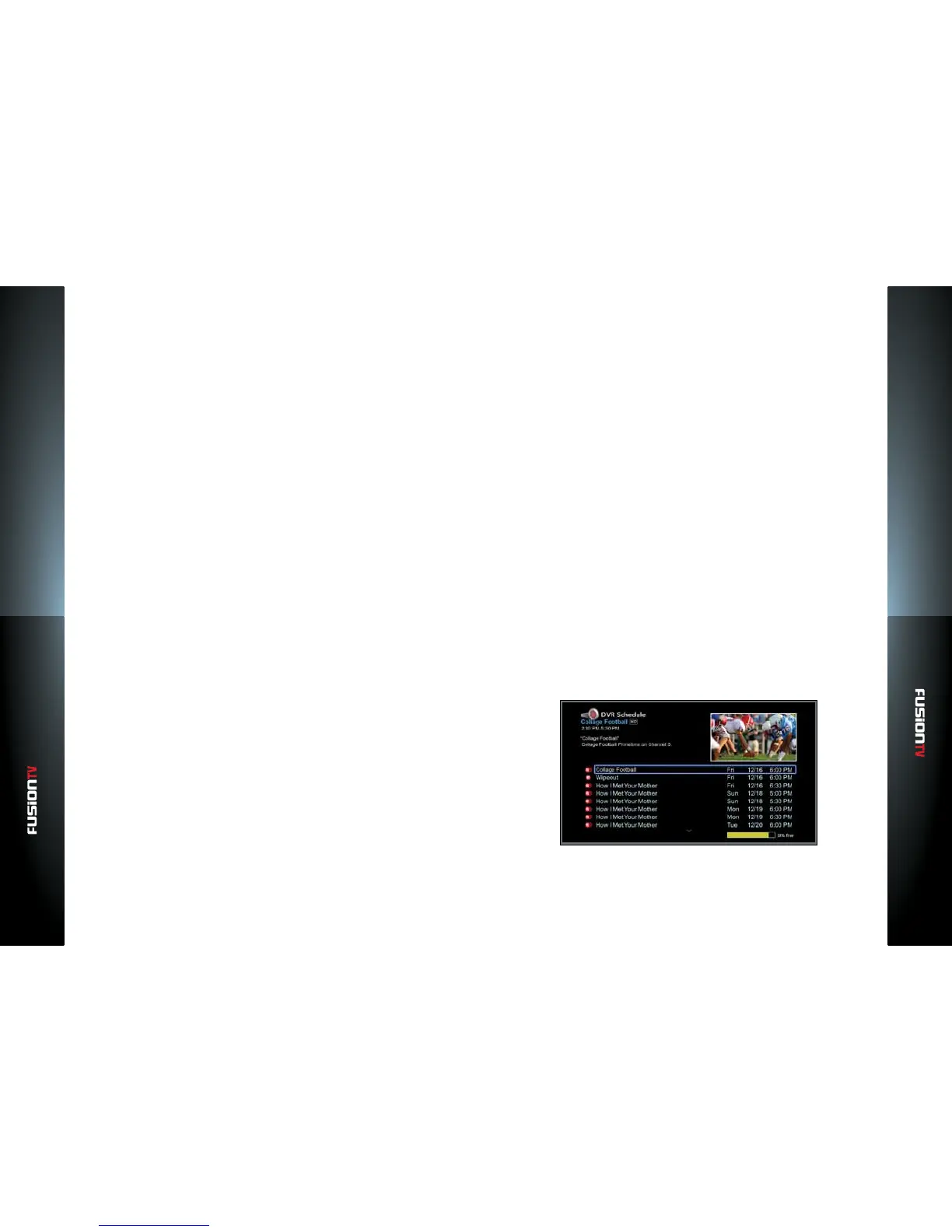
The DVR Schedule screen lists all the future programs that are scheduled for
recording. This screen also allows you to modify the settings for all scheduled
recordings. To access the DVR Schedule screen, select the DVR icon from the
Main Menu.


 To Next Page