Settings
Settings
7978
3. Use the telephone number listed on the screen to call your cable service
provider.
4. In order to pair your Entone device the cable service provider will require
the Host ID, Data, and Card Serial Number (S/N). These values should be
displayed on your screen.
5. Once the card has been paired, a message will display on your screen to
indicate that the device has been paired successfully. Press OK to continue.
Channels
When setting up your channels, you have two options: scan channels and
managing channels. This setting is useful if you are missing certain channels or
have changed your antenna position and need to re-scan your channels.
Scan Channels
1. From the Main Menu, select SETTINGS > Device > Channels and press OK.
2. Press OK to select “Scan Channels”.
3. Settings for your Program Guide will be displayed. To change the settings
select “CHANGE” and press OK.
4. Select your television source. FusionTV has built-in TV tuners that support
antenna (ATSC) and Digital Cable TV (Clear QAM) connection.
NOTE: Digital Cable TV (Clear QAM) is basic unencrypted cable.
Manage Channels
1. From the Main Menu select “SETTINGS”, “Channels”, and press OK.
2. Press OK to select “Manage Channels”.
3. You will be presented with the following options:
Disable a channel by clicking on the radio button next to the channel name.
Clear all the channels you have congured.
Edit channel info by changing a channel number or the name assignment
gured.
Cancel and not make any changes. The channel will continue to be
displayed in your Program guide.
Copyright
Display copyright information About Entone, VUDU and Opera
1. From the Main Menu select “SETTINGS”, “Device”, “Copyright”, and press
OK.
2. Use the ARROW KEYS to choose the copyright information about the
respective company and Press OK.
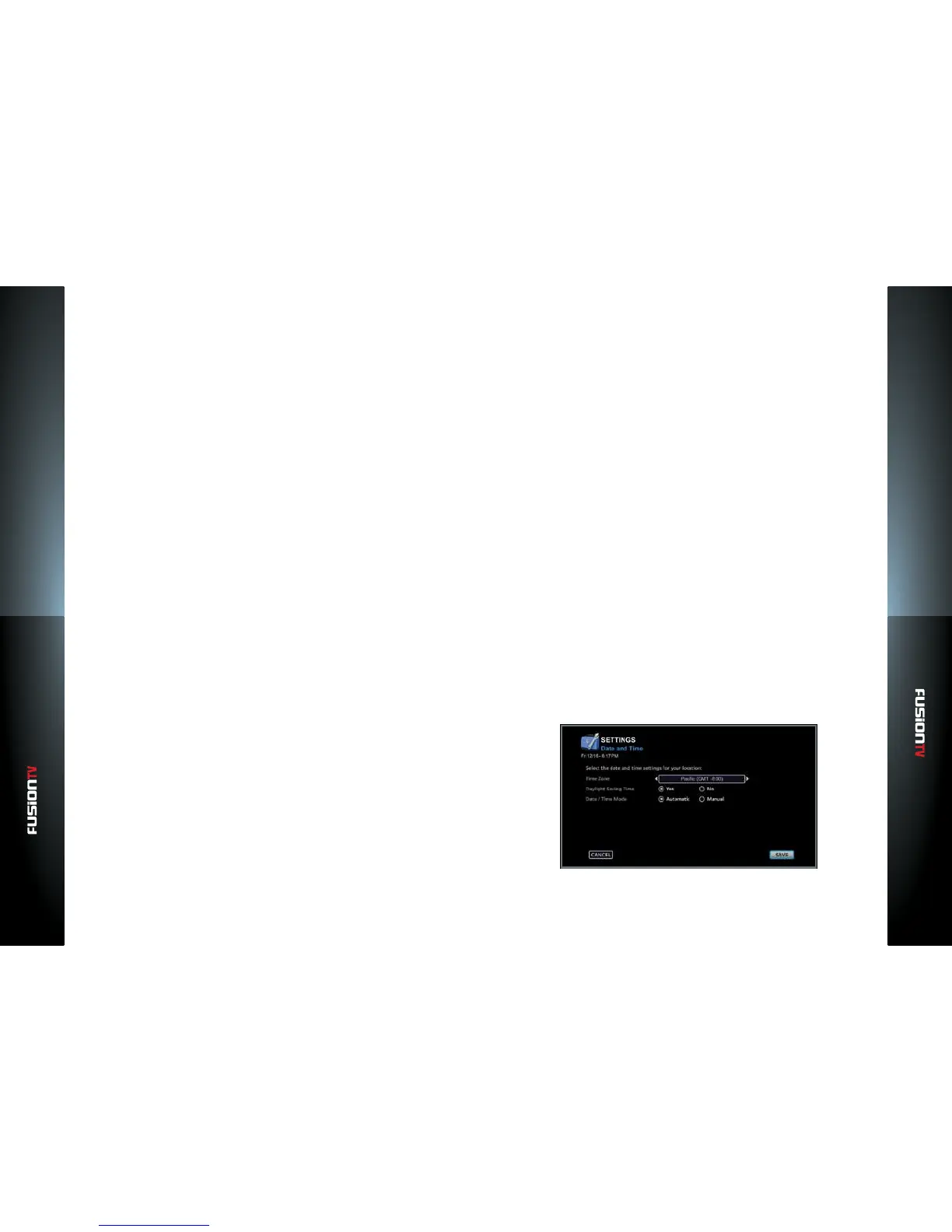
Date & Time
Choose the correct time zone for your location. This is an important step to
ensure your TV recordings are scheduled properly.
Time Zone:
1. Press OK to view a list of time zones.
2. Use the ARROW KEYS then press OK to select your time zone.
Daylight Savings Time (DST):
1. Select “Yes” if your time zone observes DST.
Select “No” if you are located in a time zone that does not observe DST.
2. Press OK to select.
Date and Time Mode:
The default mode is Automatic. Automatic mode will automatically update the
date and time each time the device is powered on. The Manual option allows
you to manually set the date and time.
1. Choose “Automatic“ or “Manual,“ select CONTINUE, then press OK.
2. Select “Automatic” (Recommended) for the device to manage the time.
The device will use your broadband connection, antenna, or cable feed
to get the most accurate time.


 To Next Page