Settings
Settings
8180
Select “Manual” to modify the date and time manually.
3. Use ARROW KEYS to select “CONTINUE“ and then press OK.
NOTE: Modifying the device time to an inaccurate value will not aect the Program guide.
This setting is used primarily for recordings and to indicate your position on the Program
guide.
Display
Congure your display for video output, closed captioning, and the RF output
channel.
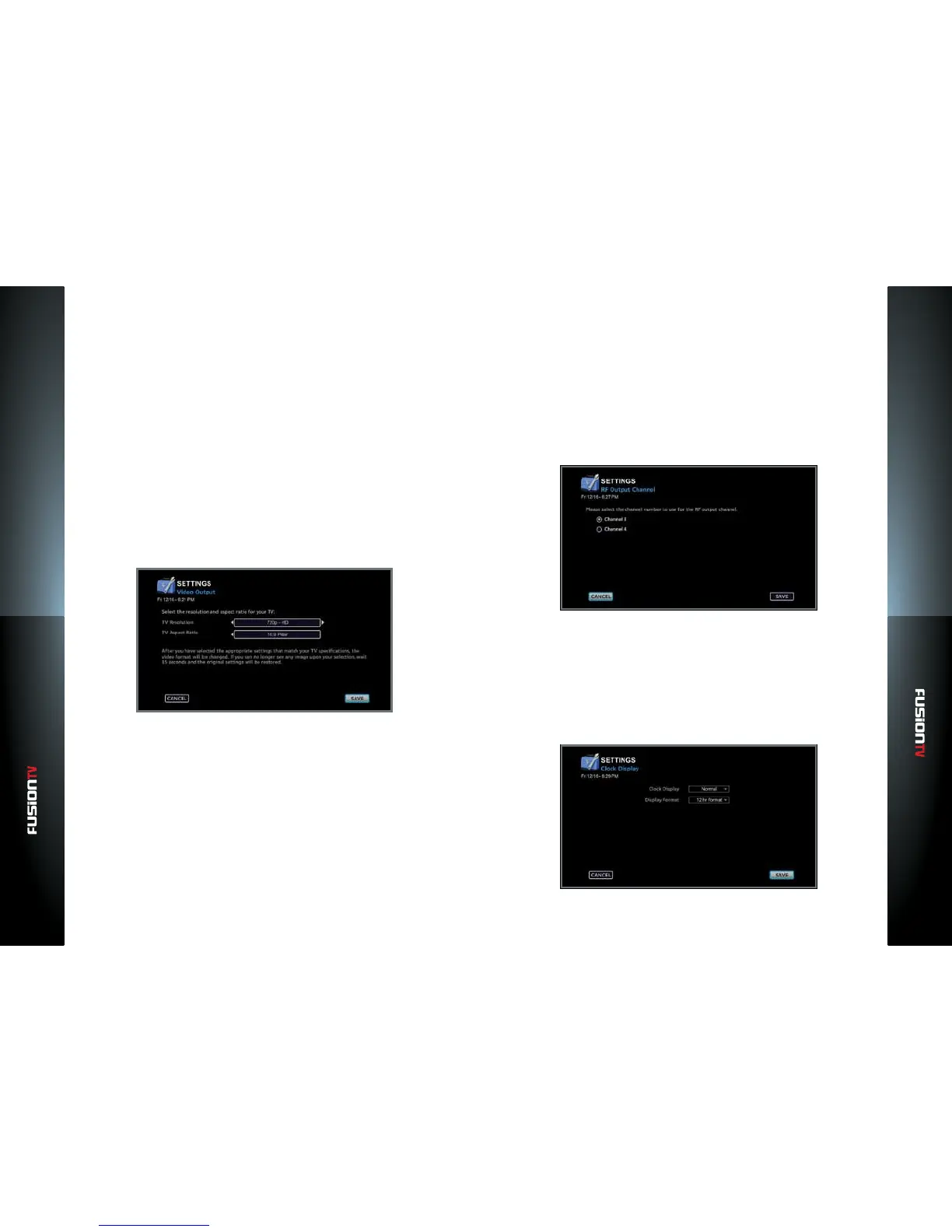
Video Output
Congure your display’s output format resolution and aspect ratio dimension
for your TV. The recommended default values for your TV should be displayed
at initial setup. To make changes to the format (Output Format) and display size
(Aspect Ratio) perform the following steps.
From the Main Menu select SETTINGS > Device > Display and press OK.
TV Resolution:
1. Press OK to view list of output format resolutions.
2. Use ARROW KEYS then press OK to select the desired resolution.
TV Aspect Ratio:
1. Choose from a list of display sizes then press OK.
2. Select SAVE and press OK.
NOTE: If you enter settings outside the range for your display, the screen may turn blank or
become unclear. Leave the controls untouched for about 15 seconds. The previous
display settings will return to their previous values.
Closed Captioning
1. The default value for closed captioning is “No”. To enable closed captioning
select “Yes” and choose the channel option that will use the closed caption.
2. Select SAVE and press OK.
RF Output Channel
When connecting a coaxial connection to your TV for video output, the RF
output channel on your FusionTV service will need to be set to either channel 3
or 4 depending on channel outputting to your TV.
Hardware
Clock Display (if device supported) allows you to set how your front clock
display works.
NOTE: Certain features may vary depending on the device. Please check with your service
provider for more details.
1. From the Main Menu select SETTINGS > Device > Hardware and press OK.


 To Next Page