Page 20
New... will create a completely blank show with no banks/presets, no fixtures
and no MIDI assignments.
Delete... will PERMANENTLY DELETE the highlighted show – after warning you
twice! For obvious reasons, use this one with caution, as there is no way to
recover a show once it has been deleted!
Note that the Manage Shows window is only available in the DMXIS standalone
application. The DMXIS plug-ins will automatically use the last show that was loaded in
the standalone app.
THE FADERS
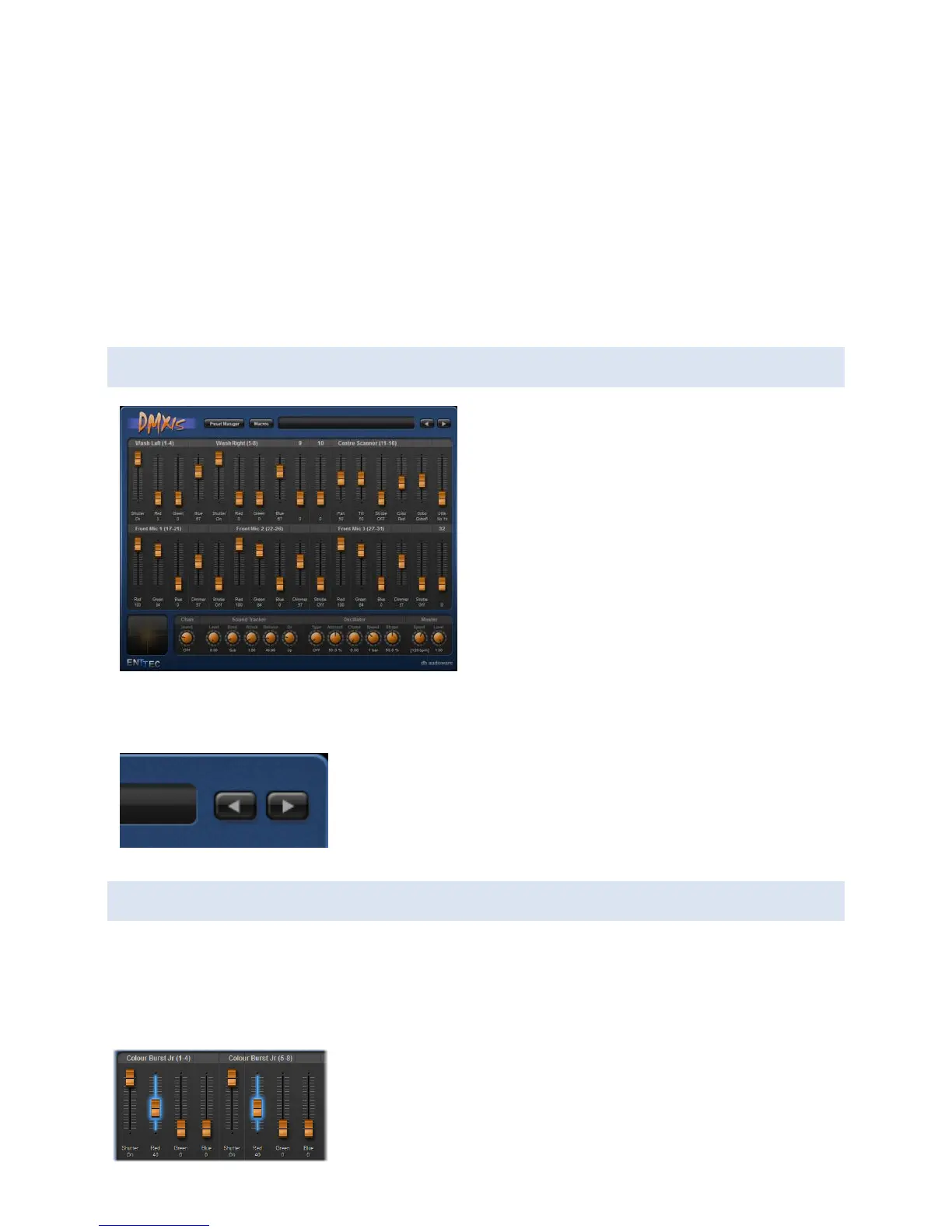
The 32 vertical faders are used to directly
manipulate individual DMX channels. The
channel number is shown above the fader,
and the channel type & value is shown
below.
To adjust a channel value, click & drag the
handle on the fader. To make fine
adjustments, press the <shift> key while
dragging.
You can click on the values under the faders and type in settings directly.
When you open DMXIS, the faders control DMX channels
1-32. To access higher channels, use the arrow buttons in the
top-right corner. For example, click once on the right arrow
to access channels 33-64.
SELECTING FADERS
Selected channels are highlighted in blue. Clicking on a fader once will select that channel.
To select a range of channels, click on the first fader then <shift>click on the last fader.
You can select multiple individual channels by <ctrl>clicking on each fader.
Double-clicking on any named channel (e.g. “Red”) will
automatically select ALL channels with that name on


 To Next Page