Page 24
To give a fixture a friendlier name (e.g. “Left Flood” instead of “PAR64”) right-click on any
channel in the fixture and select Rename Fixture.
NEW! You can unload all existing fixtures with the Show > Clear fixtures... menu option.
You can use DMXIS without loading any fixtures, but you will find it a much more pleasant
experience if you do use them!
MIDI LEARN
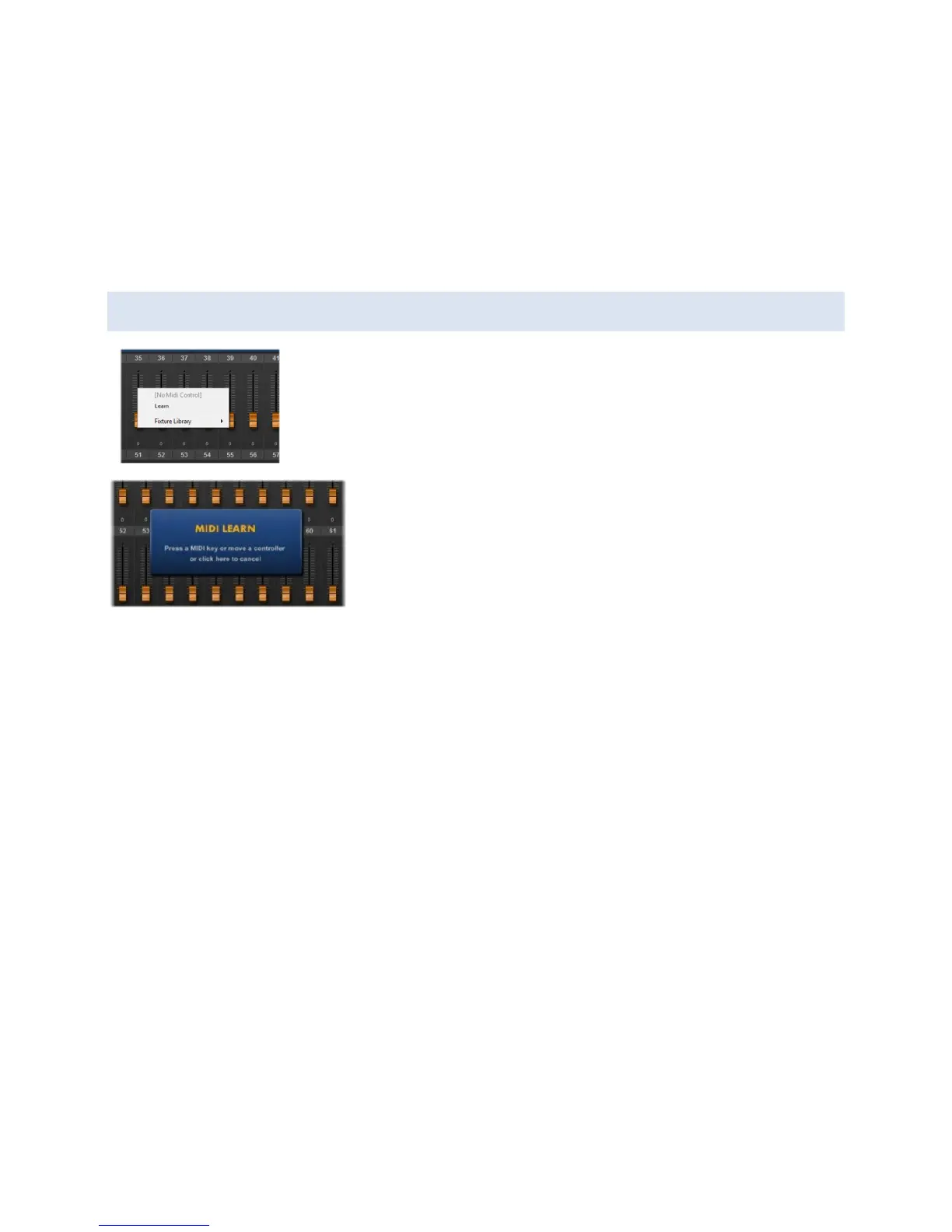
To associate a fader, dial or other DMXIS control with an external
MIDI keyboard, right-click on the control and select Learn.
When you see the MIDI LEARN message appear, move any
controller or key on your MIDI keyboard. Now, that DMXIS
control can be remote-controlled from your MIDI
keyboard. DMXIS can respond to MIDI CC messages, NRPN
messages and Note On / Note Off messages
Any MIDI Learn associations in the current show will be remembered when you quit
DMXIS. The same associations are also shared between the DMXIS standalone program
and the DMXIS plug-ins.
NEW! To clear all existing MIDI Learn associations, use the Show > Clear MIDI
Assignments... menu option.
A note on MIDI resolution
MIDI CC and Note messages have a resolution of 7 bits, (0-127). The resolution of a single
DMX channel is 8 bits (0-255). Therefore, if you control DMXIS using MIDI CCs or Notes,
you will not get the full resolution available. This could manifest itself as jerky movements
of scanners & moving heads, for example.
The solution (if available on your MIDI controller) is to use high resolution 14-bit MIDI
NRPN messages to control DMXIS.


 To Next Page