EasyManua.ls Logo

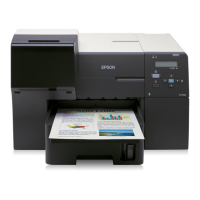
Epson B 310N - User Manual

Epson B 310N
218 pages
Print Icon
To Next Page IconTo Next Page
Loading...
User’s Guide
NPD4134-02 EN

Table of Contents

Other manuals for Epson B 310N

Questions and Answers

  • M
    mckaycalebAug 20, 2025
    Why is my Epson B 310N printing blank pages?
    • V
      Valerie MaldonadoAug 20, 2025
      If your Epson printer is printing blank pages, ensure the printer driver settings are appropriate for the paper size you are using. Also, confirm the Skip Blank Page setting in your printer driver. If the issue continues, uninstall and reinstall the printer driver.
  • H
    hoffmanmichaelAug 22, 2025
    Why is my Epson B 310N not feeding paper?
    • W
      Wesley GonzalezAug 22, 2025
      If your Epson printer is not feeding paper, make sure the paper is not curled or creased and is not too old. Ensure the paper fits under the arrow mark inside the edge guide. Avoid using coated color-laser paper. Check that the number of sheets does not exceed the limit and that paper is not jammed. Follow any special loading instructions for your paper.
  • S
    samuelguzmanAug 25, 2025
    Why is my Epson B 310N printout blurry or smeared?
    • D
      Dr. Sharon RodriguezAug 25, 2025
      To resolve blurry or smeared printouts with your Epson printer: * Use only paper recommended by Epson. * Ensure the printer is on a flat, stable surface. * Check that your paper isn't damaged, dirty, or too old. * Confirm your paper is dry and loaded correctly. * Flatten curled paper or curl it in the opposite direction. * Select the correct paper type in the printer driver. * Remove each sheet as it prints. * Use a support sheet when printing on glossy media or load one sheet at a time. * Avoid touching the printed side of shiny paper. * Run the Head Cleaning utility.
  • C
    Christopher MorrisAug 26, 2025
    What to do if my Epson B 310N Printer is printing incorrect or missing colors?
    • J
      Jeffrey TylerAug 26, 2025
      If your Epson printer is printing incorrect or missing colors: * For Windows, clear the Grayscale setting in the Advanced window of your printer driver. * For Mac OS X, change the Color setting to Color in the Print Settings dialog of your printer driver. * Adjust the color settings in your application or printer driver. * Run the Head Cleaning utility. * Check the ink cartridge status. * Replace paper as soon as possible if it runs out.
  • D
    Daniel GreeneAug 28, 2025
    What to do if printed side is smeared or scuffed on Epson B 310N?
    • S
      Sarah FranklinAug 28, 2025
      If the printed side of your Epson printouts is smeared or scuffed, flatten the paper if it's curled, or curl it slightly in the opposite direction. Clear the High Speed check box in your printer driver settings. Also, ensure the paper type selected in the printer driver matches the type of paper loaded. If the problem persists, uninstall and reinstall the printer driver.
  • V
    Vickie DickersonAug 30, 2025
    Why is my Epson B 310N Printer printing too slow?
    • K
      Kyle CruzAug 30, 2025
      To resolve slow printing speeds on your Epson printer, ensure the paper type selected in the printer driver is appropriate for the paper loaded. For Windows, clear all customized settings and select Text as the Quality Option in your printer driver’s Main window. Close any unnecessary applications. Note that continuous printing may cause temporary pauses. Ensure Low Speed Mode is not enabled. If issues persist, uninstall and reinstall the printer driver.
  • D
    daniel81Sep 1, 2025
    What to do if print head cleaning does not start on Epson printer?
    • S
      Sabrina SmithSep 1, 2025
      To start print head cleaning on your Epson printer, make sure that no error indicator lights are on and that sufficient ink remains for printing.
  • M
    mlopezSep 3, 2025
    How to fix horizontal banding on Epson printer?
    • I
      Isaac WallaceSep 3, 2025
      If your Epson printer is producing horizontal banding, ensure the paper is loaded correctly with the printable side face-up in the rear sheet feeder and face-down in the front paper cassette. Run the Head Cleaning utility to clear any clogged ink nozzles. Use ink cartridges within six months of opening and use genuine Epson ink cartridges for best quality. Check the ink cartridge status and ensure the paper type selected in the printer driver matches the paper loaded in the printer.
  • B
    breanna80Sep 5, 2025
    How to fix vertical misalignment or banding on Epson B 310N?
    • A
      April WalshSep 5, 2025
      To correct vertical misalignment or banding on your Epson printer, ensure the paper is loaded correctly, run the Head Cleaning utility, and run the Print Head Alignment utility. Also, clear the High Speed check box in the Advanced window of your printer driver (Windows) and ensure the paper type selected is appropriate for the paper loaded.
  • R
    Regina AtkinsSep 7, 2025
    How to resolve incorrect or garbled characters on Epson printer?
    • B
      Brandon GeorgeSep 7, 2025
      To resolve incorrect or garbled characters when printing with your Epson printer, turn off the printer and computer, then ensure the printer’s interface cable is securely plugged in. Clear the print job from the print queue. If the problem persists, uninstall and then reinstall the printer driver.

Summary

Copyright and Trademarks

Operating System Versions

Safety Instructions

Important Safety Instructions

Read all instructions before using the printer and follow all warnings and instructions marked on the printer.

Setting Up the Printer

Observe guidelines for setting up the printer, including vent blocking, power source, and cord usage.

Choosing a Location for the Printer

Observe guidelines for placing the printer on a stable surface, ensuring adequate space and avoiding interfering elements.

Using the Printer Safely

Follow guidelines for printer operation, including avoiding touching internal components and proper power-off procedures.

Handling Ink Cartridges Safely

Observe precautions for handling ink cartridges, including keeping them away from children and washing skin if ink contact occurs.

Understanding Warnings, Cautions, and Notes

Defines the meaning of warnings, cautions, and notes used throughout the user guide for safety and operational clarity.

Using Your Software

Printer Driver and Status Monitor Overview

Explains the printer driver's role in settings and the status monitor's function for printer health.

Accessing Printer Driver in Windows

Details how to access the printer driver from applications, the Start menu, or the taskbar in Windows.

Accessing Printer Driver in Mac OS X

Provides instructions on accessing the printer driver dialog for Mac OS X operating systems.

Using EPSON Printer Utility3

Describes how to access and use the EPSON Printer Utility3 software for various functions.

Printing Web Pages to Fit Paper Size

Explains how to use EPSON Web-To-Page to fit web pages to your paper size, with OS-specific notes.

Uninstalling Printer Software

Details the process for uninstalling the printer driver for Windows and Mac OS X operating systems.

Paper Handling

Using Special Paper Types

Guidance on achieving good results with special papers, including loading and handling precautions.

Epson Special Media Loading Capacities

Table detailing loading capacities for various Epson special papers in front cassette and rear feeder.

Storing Photo Paper

Recommendations for storing unused photo paper to maintain its quality.

Loading Paper

General steps and guidance for loading paper into the printer.

Loading Paper into the Front Cassette

Step-by-step instructions for loading paper into the printer's front paper cassette.

Loading Paper into the Rear Sheet Feeder

Step-by-step instructions for loading paper into the printer's rear sheet feeder.

Loading Envelopes

Instructions for loading envelopes into the printer, including orientation and quantity limits.

Setting the Output Tray

Details on how to set the output tray and output support tray for proper paper collection.

Selecting the Correct Paper Type

Explains the importance of paper type settings and provides a table of recommended settings for various papers.

Basic Printing

Basic Printing Introduction

This section guides users through procedures for various types of printing.

Printing Documents

Explains how to print documents on various types of paper.

Printing on Envelopes

Provides detailed steps for printing on envelopes, covering Windows and Mac OS X settings.

Printing Web Pages

Detailed steps for printing web pages to fit paper size, including software usage.

Printing Photos

Explains how to prepare print files and load paper for printing photos.

Printer Settings for Windows

Guides users through adjusting printer settings for printing documents in Windows.

Printer Settings for Mac OS X 10.5

Guides users through adjusting printer settings for printing documents in Mac OS X 10.5.

Printer Settings for Mac OS X 10.3;10.4

Guides users through adjusting printer settings for printing documents in Mac OS X 10.3 and 10.4.

Printer Settings for Windows (Envelopes)

Guides users through adjusting printer settings for printing envelopes in Windows.

Printer Settings for Mac OS X 10.5 (Envelopes)

Guides users through adjusting printer settings for printing envelopes in Mac OS X 10.5.

Printer Settings for Mac OS X 10.3;10.4 (Envelopes)

Guides users through adjusting printer settings for printing envelopes in Mac OS X 10.3 and 10.4.

Loading Paper for Web Page Printing

Refers to sections for details on loading paper for printing web pages.

Using EPSON Web-To-Page Software

Explains how to use EPSON Web-To-Page software to print web pages, with OS-specific notes.

Printer Settings for Windows (Photos)

Guides users through adjusting printer settings for printing photos in Windows.

Printer Settings for Mac OS X 10.5 (Photos)

Guides users through adjusting printer settings for printing photos in Mac OS X 10.5.

Printer Settings for Mac OS X 10.3;10.4 (Photos)

Guides users through adjusting printer settings for printing photos in Mac OS X 10.3 and 10.4.

Canceling Printing

Provides instructions on how to cancel a print job using the printer button or software.

Printing with Special Layout Options

Special Layout Printing Introduction

Introduces various printing layouts for special projects like booklets and posters.

2-Sided Printing

Enables printing on both sides of the paper, with options for standard and booklet printing.

Fit to Page Printing

Automatically resizes documents to fit the selected paper size, with manual resizing options.

Pages Per Sheet Printing

Allows printing two or four pages on a single sheet of paper.

Poster Printing (Windows Only)

Enlarges material from one page to cover multiple sheets to create a poster.

Watermark Printing (Windows Only)

Prints text or images as a watermark on each page of a printout.

Standard 2-Sided Printing

Prints odd and even-numbered pages onto opposite sides of the sheet.

Folded Booklet 2-Sided Printing

Creates single-fold booklets by printing pages in a specific order for folding and binding.

Automatic 2-Sided Printing (Windows)

Steps to print odd and even pages on opposite sides using the duplex unit in Windows.

Automatic 2-Sided Printing (Mac OS X)

Steps to print odd and even pages on opposite sides using the duplex unit in Mac OS X.

Automatic 2-Sided Printing (Mac OS X 10.3;10.4)

Steps to print odd and even pages on opposite sides using the duplex unit in Mac OS X 10.3/10.4.

Automatic 2-Sided Printing (Windows Booklet)

Steps to create a folded booklet using the duplex unit and print settings in Windows.

Fit to Page Printing Details

Explains how to use Fit to Page printing to resize documents for different paper sizes.

Printer Settings for Windows (Fit to Page)

Guides users through adjusting printer settings for Fit to Page printing in Windows.

Printer Settings for Mac OS X 10.5 (Fit to Page)

Guides users through adjusting printer settings for Fit to Page printing in Mac OS X 10.5.

Printer Settings for Mac OS X 10.4 (Fit to Page)

Guides users through adjusting printer settings for Fit to Page printing in Mac OS X 10.4.

Pages Per Sheet Printing Details

Explains how to print multiple pages on a single sheet of paper.

Printer Settings for Windows (Pages Per Sheet)

Guides users through adjusting printer settings for Pages Per Sheet printing in Windows.

Printer Settings for Mac OS X 10.5 (Pages Per Sheet)

Guides users through adjusting printer settings for Pages Per Sheet printing in Mac OS X 10.5.

Printer Settings for Mac OS X 10.3;10.4 (Pages Per Sheet)

Guides users through adjusting printer settings for Pages Per Sheet printing in Mac OS X 10.3/10.4.

Poster Printing (Windows Only) Details

Details on how to print poster-size images by enlarging one page to cover several sheets.

Printer Settings for Poster Printing (Windows)

Guides users through adjusting printer settings for poster printing in Windows.

How to Make a Poster from Your Printouts

Provides a step-by-step guide on assembling printed sheets into a poster.

Watermark Printing (Windows Only) Details

Explains how to print text-based or image-based watermarks on documents.

Creating Your Own Watermark

Guides on adding custom text-based or image-based watermarks to the watermark list.

Using the Control Panel

Control Panel Overview

Describes the printer's control panel, including its buttons, lights, and LCD display.

Understanding LCD Icons

Explains the meaning of icons displayed on the printer's LCD screen for status and errors.

Accessing and Navigating Control Panel Menus

Guides users on entering menu mode, accessing menus, and understanding the structure like Printer Settings, Test Print, etc.

Network Setting Menu

Details how to configure network settings such as IP address, subnet mask, and Bonjour.

Password Menu Settings

Covers setting and locking the LCD panel with a password for security and childproofing.

Status and Error Messages

Explains status messages and provides solutions for common error messages displayed on the LCD.

Entering the Password

Provides instructions for entering or changing the password for LCD panel lock.

Installing Options

Installing the Duplex Unit (B-310 N)

Step-by-step instructions for installing the duplex unit on the B-310N printer.

Uninstalling the Duplex Unit

Provides instructions on how to remove the duplex unit from the printer.

Replacing Consumables

Ink Cartridge Management

Guides on checking ink status, handling precautions, and replacing ink cartridges.

Maintenance Box Management

Covers checking maintenance box status, handling precautions, and replacement procedures.

Maintaining Your Printer

Auto Head Maintenance

Explains the printer's automatic system for checking and cleaning print head nozzles.

Checking Print Head Nozzles

Guides on checking print head nozzles from computer or control panel for print quality issues.

Print Head Maintenance Procedures

Covers cleaning and aligning the print head to resolve print quality issues.

Saving Power Settings

Details how to adjust the printer's auto power-off timer for energy efficiency.

Cleaning Your Printer

Provides guidelines and cautions for cleaning the printer's interior components.

Transporting the Printer

Instructions and cautions for preparing and packing the printer for transport.

Using the Printer on a Network

Setting Up Network Connection

Explains connecting the printer to a network via Ethernet and configuring interface settings.

Sharing Printer in Windows Network

Guides on setting up the printer as a shared resource for multiple Windows computers on a network.

Setting Up Each Client in Windows Network

Steps for configuring client computers to access a shared printer on a Windows network.

Sharing Printer in Mac OS X Network

Instructions for setting up the printer for sharing on a Mac OS X network using Printer Sharing.

Troubleshooting

Diagnosing Printer Problems

Outlines steps for diagnosing problems using online resources, control panel, and operation checks.

Checking Printer Status

Provides information on checking printer status, especially for shared printers in Windows environments.

Using EPSON Status Monitor 3

Explains how to access EPSON Status Monitor 3 for detailed printer status information.

Troubleshooting Paper Jams

Provides detailed instructions and cautions for clearing jammed paper from various printer locations.

Troubleshooting Print Quality Issues

Guides users to identify and resolve print quality problems by comparing output to samples.

Horizontal Banding

Troubleshooting steps for horizontal banding issues in printouts.

Vertical Misalignment or Banding

Troubleshooting steps for vertical misalignment or banding in printouts.

Incorrect or Missing Colors

Troubleshooting steps for resolving issues with incorrect or missing colors in printouts.

Blurry or Smeared Printout

Troubleshooting steps for addressing blurry or smeared printouts.

Miscellaneous Printout Problems

Addresses issues like garbled characters, incorrect print position, and slant.

Blank Pages Print

Troubleshooting steps for when the printer outputs blank pages.

Printed Side is Smeared or Scuffed

Troubleshooting steps for printouts where the printed side is smeared or scuffed.

Troubleshooting Slow Printing

Discusses factors affecting print speed and methods to increase it.

Troubleshooting Paper Feed Issues

Covers common paper feeding problems like no feed, multiple feeds, and improper loading.

Troubleshooting Printer Not Printing

Addresses issues when the printer does not respond, including power light status and connectivity.

Increasing Print Speed (Windows)

Explains how to increase print speed by adjusting settings in the Speed & Progress window.

Other Troubleshooting Problems

Covers issues like print head cleaning not starting and color ink consumption.

Where To Get Help

Technical Support Web Site

Provides links to Epson's support website for drivers, FAQs, manuals, and troubleshooting.

Contacting Epson Support

Information needed to contact Epson support for assistance with product issues.

Help for Users in North America

Details technical support services, internet support, and speaking with a representative for North America.

Help for Users in Europe

Information on contacting Epson support in Europe, referring to the Pan-European Warranty Document.

Help for Users in Australia

Provides sources for obtaining information and support from Epson Australia, including dealer contact.

Help for Users in Singapore

Lists sources for information, support, and services from Epson Singapore, including web and helpdesk.

Help for Users in Thailand

Provides contacts for information, support, and services for users in Thailand.

Help for Users in Vietnam

Provides Epson hotline and service center contact details for users in Vietnam.

Help for Users in Indonesia

Lists web, hotline, and service center contacts for users in Indonesia.

Help for Users in Hong Kong

Information on obtaining technical support and after-sales services from Epson Hong Kong.

Help for Users in Malaysia

Provides web, hotline, and helpdesk contacts for users in Malaysia.

Help for Users in India

Lists Epson India Head Office and Regional Offices contact details for support.

Help for Users in the Philippines

Provides trunk line, fax, helpdesk, and email contacts for support in the Philippines.

Product Information

Printer Parts Identification

Diagrams and descriptions of the printer's front view components.

Rear View Printer Parts

Diagrams and descriptions of the printer's rear view components.

Paper, Consumables, and Options

Information on Epson paper types, ink cartridges, maintenance boxes, duplex units, and paper supports.

System Requirements

Lists the Windows and Macintosh operating system and PC interface requirements for using the printer.

Technical Specifications

Technical Specifications: Paper

Details paper specifications, including conditions for using pre-punched paper with binding holes.

Technical Specifications: Envelopes

Details specifications for printing on various envelope sizes and types.

Technical Specifications: Ink Cartridges

Provides ink cartridge color, life, storage temperature, and caution notes.

Technical Specifications: Mechanical

Details printer dimensions, weight, and paper path specifications.

Technical Specifications: Electrical

Lists electrical specifications including voltage, frequency, current, and power consumption.

Technical Specifications: Environmental

Provides operating and storage temperature and humidity ranges for the printer.

Technical Specifications: Standards and Approvals

Lists safety, EMC, and other standards and approvals for different models.

Technical Specifications: Interface

Details the available interfaces for connecting the printer, including USB and Ethernet.

Technical Specifications: Options

Provides dimensions and weight for optional accessories like the duplex unit and paper support.

Epson B 310N Specifications

General IconGeneral
ColorYes
Maximum duty cycle10000 pages per month
Print head nozzlesD: 360, D: 360
Maximum resolution5760 x 1440 DPI
Print speed (black, normal quality, A4/US Letter)37 ppm
Print speed (color, normal quality, A4/US Letter)36 ppm
InterfaceUSB 2.0 Type B, LAN
Print technologyInkjet
Dimensions (WxDxH)480 x 420 x 312 mm
Power requirements220-240V, Rated current 0.4A
Supported media weight(s)256 g/m²
Total input capacity650 sheets
Standard media sizesA4, A5, A6, B5, LT, HLT, LGL, GLG, EXE, C6, DL, #10, custom; 50.8 - 215.9mm x 127 - 1117.6mm
Paper tray media typesPlain paper
Compatible operating systemsWindows 98SE/ME/2000/XP/XP x64/Server 2003/Server 2003 x64/Server 2008/Server 2008 x64/Vista/Vista x64/7/7x64
Internal memory32 MB
Sound power level (printing)55 dB
DisplayLCD
Country of originChina
Market positioningHome & office
Power consumption (standby)7 W
Power consumption (printing)30 W
Power consumption (PowerSave)3.5 W
Package depth570 mm
Package width510 mm
Package height415 mm
Package weight12650 g
Bundled softwareDrivers Web-To-Page EpsonNet-Print EpsonNetConfig(Win)(Web) EpsonNetEasyInstall Add Net
Quantity per pack1 pc(s)
Supported network protocolsTCP/IP: LPR, FTP, PORT2501, PORT9100, IPP, SNMP, HTTP, TELNET, DHCP, APIPA, PING, DDNS, Bonjour(mDNS), SNTP, UPnP(SSDP)
Pallet width800 mm
Pallet height1500 mm
Pallet length1200 mm
Pallet width (UK)1000 mm
Quantity per pallet10 pc(s)
Quantity per pallet (UK)20 pc(s)
Quantity per pallet layer2 pc(s)
Quantity per pallet layer (UK)4 pc(s)

Related product manuals