EasyManua.ls Logo

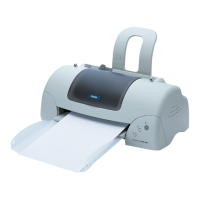
Epson 680Pro - LQ B/W Dot-matrix Printer - User Manual

Epson 680Pro - LQ B/W Dot-matrix Printer
145 pages
Print Icon
To Next Page IconTo Next Page
Loading...
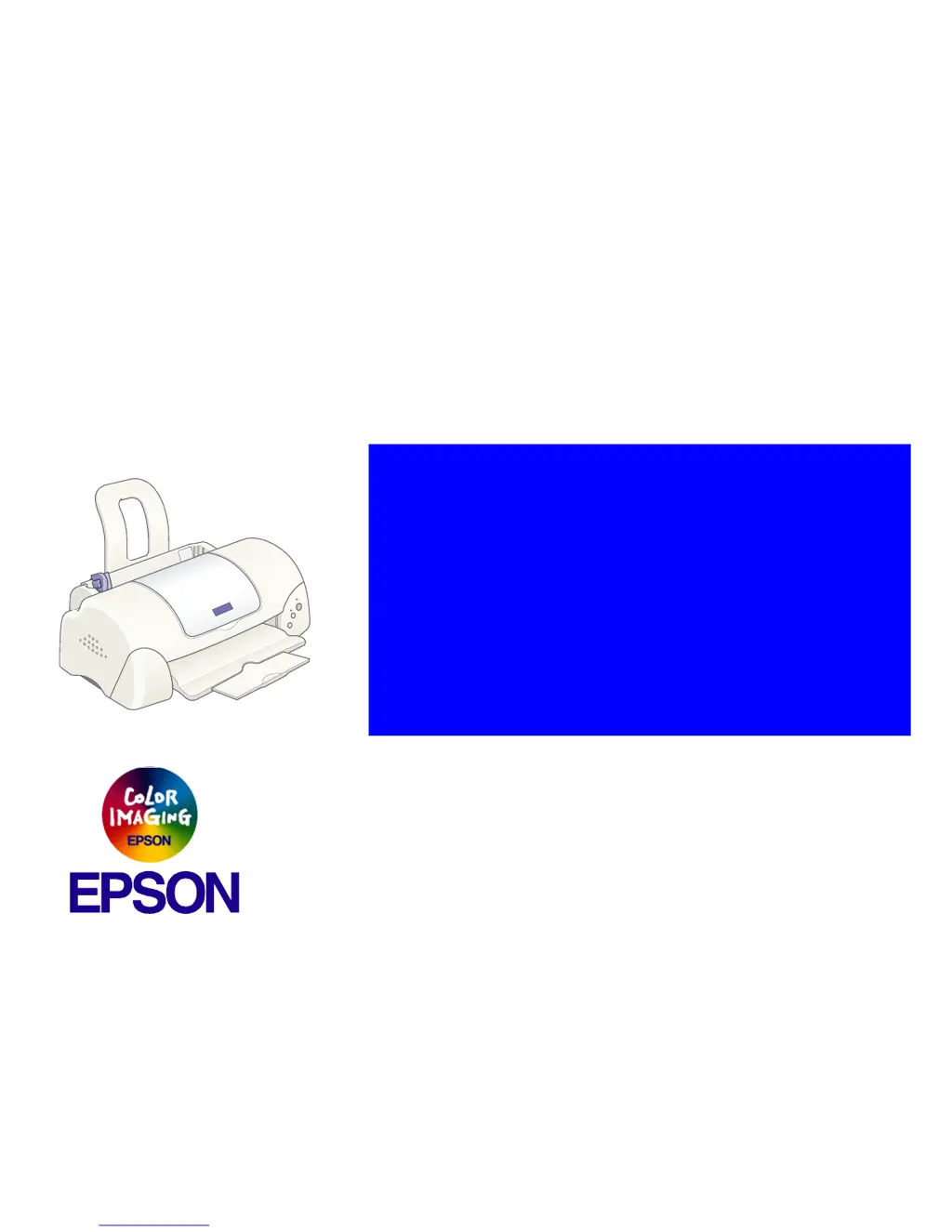
EPSON STYLUSCOLOR680/777/777i
Color Inkjet Printer
SEIJ00010
®
SERVICE MANUAL

Table of Contents

Questions and Answers

  • D
    Daniel BishopJul 26, 2025
    What to do if my Epson 680Pro - LQ B/W Dot-matrix Printer shows a fatal error indication?
    • R
      Rebecca KingJul 26, 2025
      If your Epson printer displays a fatal error, first, ensure that the HP and PE sensor levers move smoothly. If the issue persists, the HP/PE sensor, CR motor, PF motor, or main board may be defective and require replacement. Also, make sure the printer housing is secured with screws on the printer mechanism.
  • A
    Amanda BirdAug 1, 2025
    What to do if my Epson 680Pro - LQ B/W Dot-matrix Printer has a paper jam error?
    • J
      jessicacarpenterAug 1, 2025
      If your Epson printer indicates a paper jam error, first, remove the jammed paper. Then, ensure the Star wheel assembly is completely assembled in the Paper eject frame. Check that the Spur gear 15 is correctly set. Also, verify that the paper guide front is correctly assembled or replace it if damaged. Finally, make sure the PE detection lever moves smoothly.
  • J
    John DeanAug 7, 2025
    Why is the print quality not good on my Epson 680Pro - LQ B/W Dot-matrix?
    • K
      kathleenchapmanAug 7, 2025
      If your Epson printer is experiencing poor print quality, including vertical or horizontal banding, blurred prints, or ink stains, several factors could be responsible. The CR motor's accuracy might be compromised, necessitating replacement. Insufficient lubrication around the CR unit can also contribute, so apply lubricant. Ensure the I/C is securely held in the CR unit. A deformed Paper eject frame should be replaced. Clean any foreign material from around the printhead, and verify and adjust paper feed accuracy. Also, ensure that the printer driver settings are correctly configured and clean the paper path if there are any ink stains.
  • R
    Ryan Sanchez Jr.Aug 12, 2025
    How to fix a paper out error on my Epson Printer?
    • M
      Matthew RayAug 12, 2025
      If your Epson printer shows a 'paper out' error, it might be due to several reasons. The LD roller's friction could be reduced due to paper dust, so cleaning the LD roller is recommended. Alternatively, the clutch mechanism might be broken, requiring replacement. Ensure the tension spring 0.143 and compression spring 0.98 are correctly set in the clutch mechanism. Also, check for any damage to the tip of the Change lever and replace it if necessary. Finally, the PF motor could be broken, requiring replacement.
  • A
    andrewcantuSep 10, 2025
    What to do if the Epson 680Pro - LQ B/W Dot-matrix Printer has missing dots?
    • A
      Ariana ArmstrongSep 12, 2025
      If you're experiencing missing dots on your Epson printer that aren't resolved by cleaning, it could be due to several reasons. The pump unit may not be absorbing ink from the printhead, requiring its replacement. The cap unit might not be sticking completely to the printhead's surface, also requiring replacement. The printhead itself could be broken and need replacing. Check the head FFC for any damage and replace if necessary. Lastly, the main board could be defective, necessitating replacement.

Summary

SERVICE MANUAL

PRECAUTIONS

DANGER and WARNING Signals

Explains DANGER and WARNING notations for personal injury and equipment damage.

CHAPTER 1 PRODUCT DESCRIPTION

1.1 FEATURES

Lists the major features of the EPSON Stylus Color 680/777/777i printers.

1.2 SPECIFICATIONS

Details the physical, printing, electrical, and environmental specifications of the printers.

1.3 INTERFACE

Describes the USB and parallel interface capabilities and protocols used by the printer.

1.4 OPERATOR CONTROLS

Explains the printer's control panel, switches, and LED indicators.

1.5 PAPER

Covers paper specifications, handling, and printing areas for various paper types.

CHAPTER 2 OPERATING PRINCIPLES

2.1 Overview

Gives an overview of the printer's mechanism and electrical boards.

2.1.2 Printhead

Explains the printhead technology, components, and printing process.

2.1.3 Carriage Mechanism

Describes the movement and detection of the carriage unit.

2.1.4 Paper Feeding Mechanism

Explains how the paper is fed through the printer.

2.2 Electrical Circuit Operating Principles

Details the printer's electrical boards and their functions.

CHAPTER 3 TROUBLESHOOTING

3.1 Overview

Introduces troubleshooting levels and explains motor/sensor checks.

3.2 Troubleshooting with LED Error Indications

Details how to troubleshoot errors indicated by LED lights and symptoms.

CHAPTER 4 DISASSEMBLY AND ASSEMBLY

4.1 Overview

Provides an overview of disassembly procedures and related precautions.

4.2 Disassembly

Step-by-step procedures for disassembling individual printer units.

CHAPTER 5 ADJUSTMENT

5.1 Overview

Overview of adjustments needed for printer operation and quality.

5.1.1 Required Adjustment

Lists necessary adjustments based on replaced printer parts.

5.1.5 Head ID Input

Procedure for inputting the Head ID after printhead or main board replacement.

5.1.6 Bi-D Adjustment

Corrects printing position differences in bidirectional printing.

5.1.8 Head Cleaning Operation

Forcibly cleans clogged nozzles to resolve printing issues.

5.1.11 Protection Counter Check;Reset

Allows checking and clearing the waste ink counter.

CHAPTER 6 MAINTENANCE

6.1 Overview

Information on maintaining the printer's optimum condition.

6.1.2 Service Maintenance

Actions to clear print irregularities and maintenance errors.

CHAPTER 7 APPENDIX

7.1 Connector Summary

Summary of major component units and their connector pin alignments.

7.3 Exploded Diagram

Exploded diagrams illustrating printer components.

7.4 Parts List

List of printer parts with their corresponding codes.

Epson 680Pro - LQ B/W Dot-matrix Printer Specifications

General IconGeneral
Print MethodImpact dot matrix
Resolution360 x 360 dpi
ConnectivityParallel
Paper Handlingcut sheet
Noise LevelApprox. 55 dB (A)
Paper Width4 to 10 inches
Operating SystemsWindows

Related product manuals