5. Select the appropriate Size setting.
6. Select Portrait (tall) or Landscape (wide) to change the orientation of your printout.
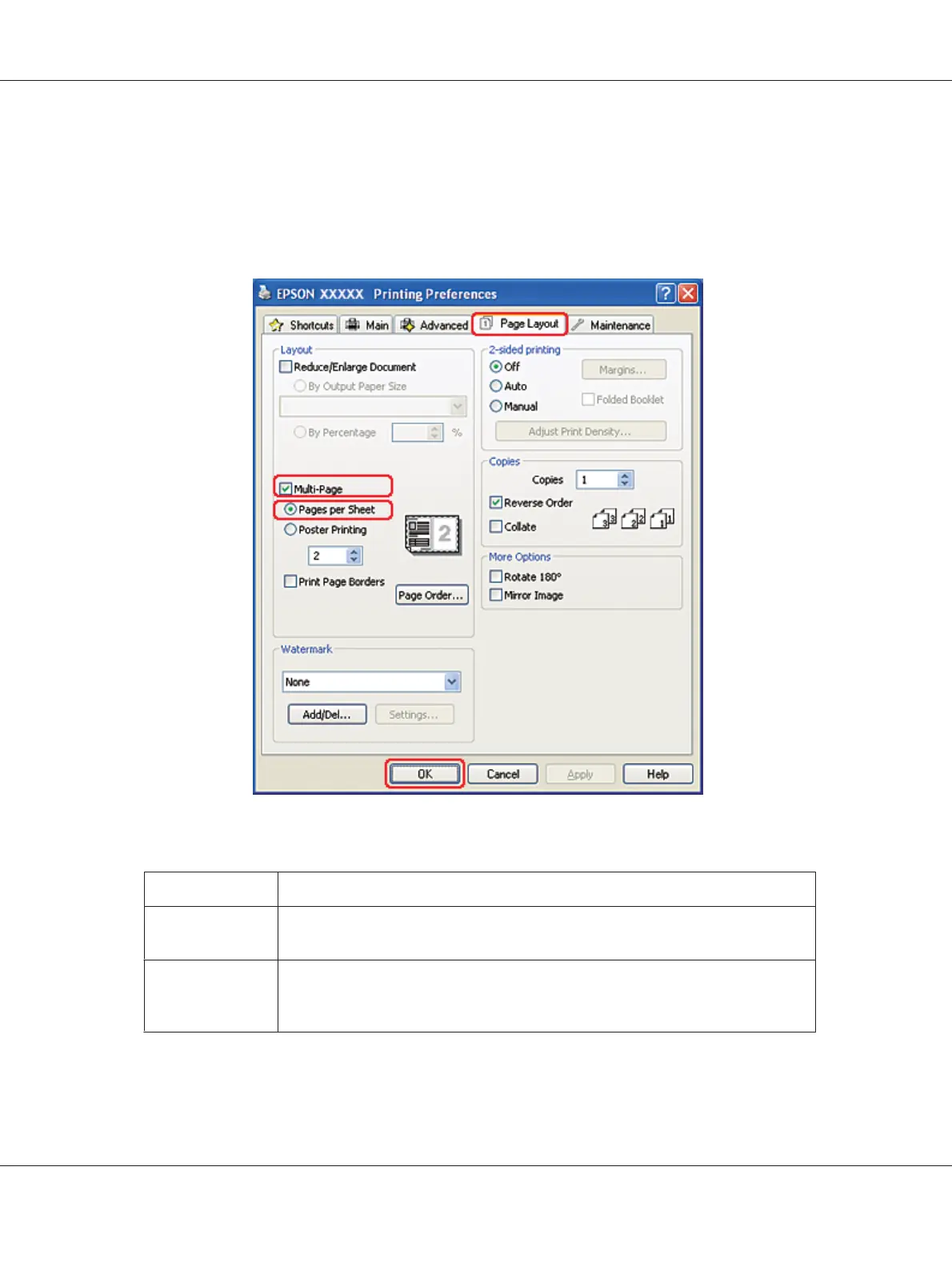
7. Click the Page Layout tab, select Multi-Page, then select Pages Per Sheet.
8. Select from the following settings for Pages Per Sheet printing:
2, 4
Prints two or four pages of your document on a single piece of paper.
Print Page
Borders
Prints frames around the pages printed on each sheet.
Page Order
Allows you to specify the order in which the pages will be printed on the sheet of
paper. Some settings may be unavailable, depending on the Orientation setting on
the Main window.
9. Click OK to close the printer settings window.
B-310N/B-510DN User’s Guide
Printing with Special Layout Options 102



 To Next Page