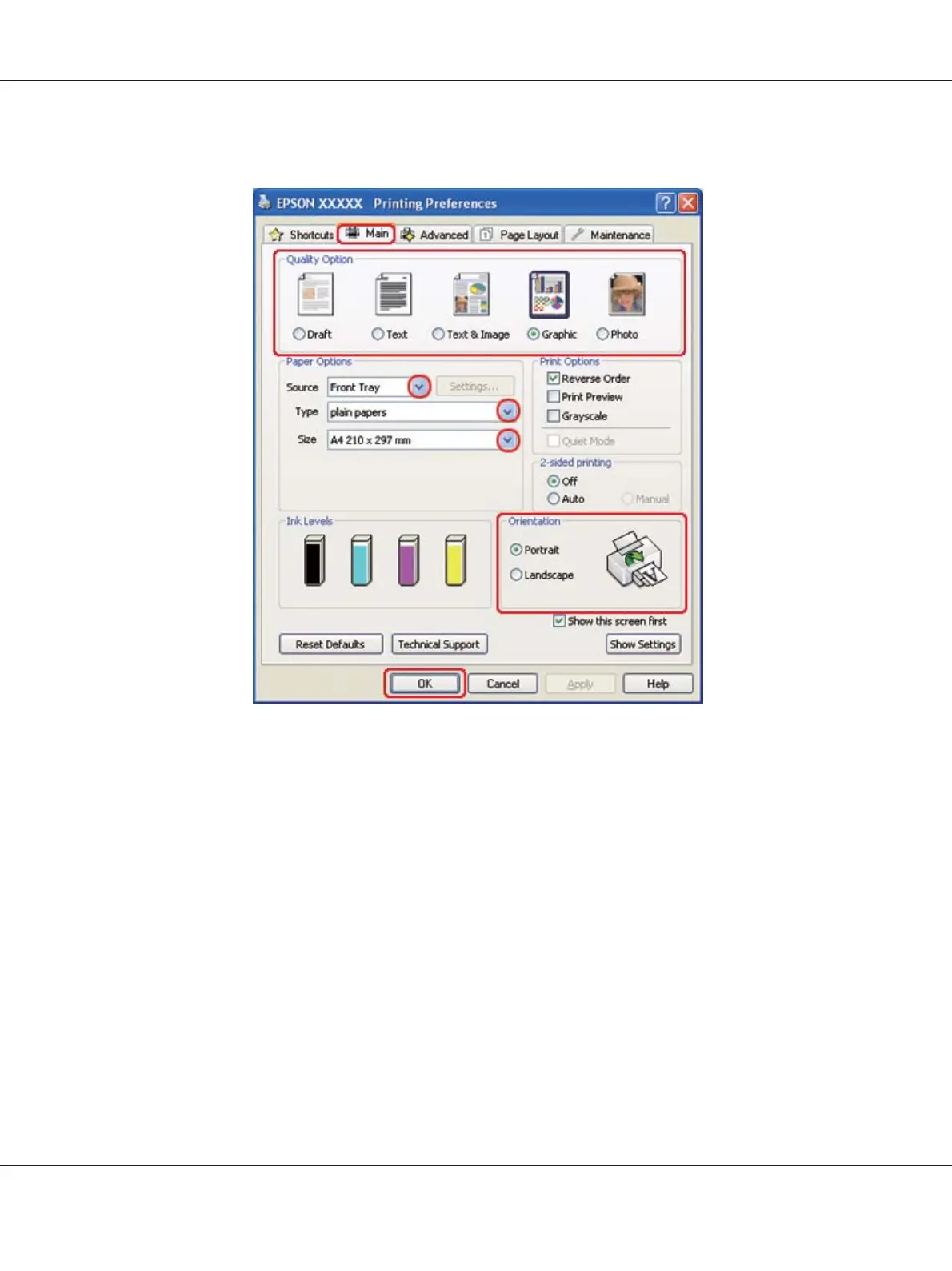
3. Right-click the printer icon and choose Printing Preferences in Windows XP and 2000.
4. Click the Main tab, then select Graphic as the Quality Option settings:
5. Select the paper source as the Source setting.
6. Select the appropriate Type setting.
& See “Selecting the Correct Paper Type” on page 34.
7. Select the appropriate Size setting. You can also define a custom paper size. For details, see the
online help.
8. Select Portrait (tall) or Landscape (wide) to change the orientation of your printout.
9. Click OK to close the printer settings window.
10. Print your page.
B-310N/B-510DN User’s Guide
Basic Printing 51



 To Next Page