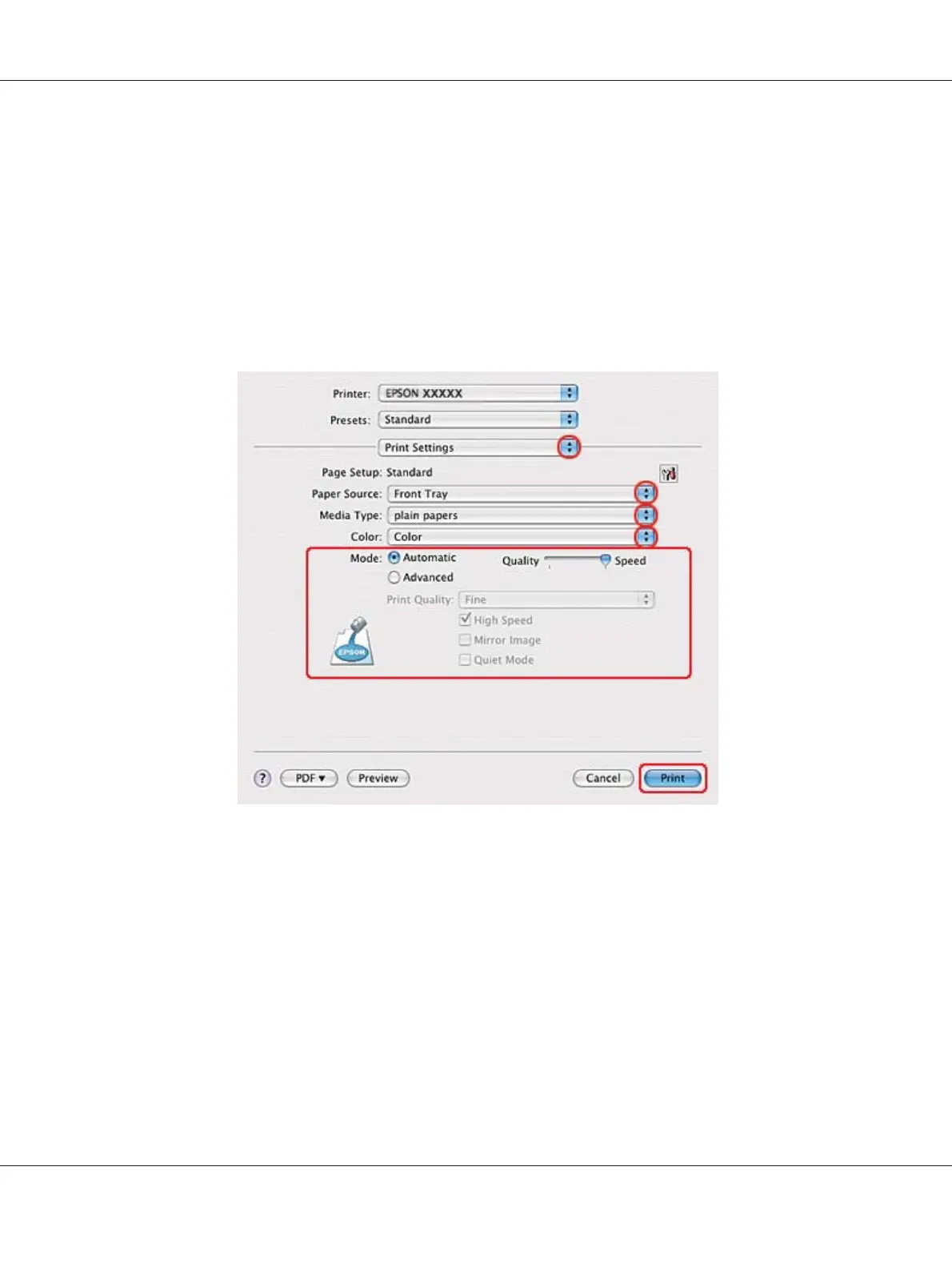
6. Select the printer you are using as the Format for setting.
7. Select A4, Letter, or B5 as the Paper Size setting.
8. Select the appropriate Orientation setting, and click OK to close the Page Setup dialog.
9. Access the Print dialog.
& See “Accessing the printer driver for Mac OS X” on page 17.
10. Select Print Settings from the pop-up menu.
11. Select plain papers as the Media Type setting.
12. Make the settings that you want to use to print. See online help for details of Print Settings.
B-310N/B-510DN User’s Guide
Printing with Special Layout Options 80



 To Next Page