113
Checking Print Status - OS X
During printing, you can view the progress of your print job, control printing, and check ink status.
1. Click the printer icon when it appears in the Dock.
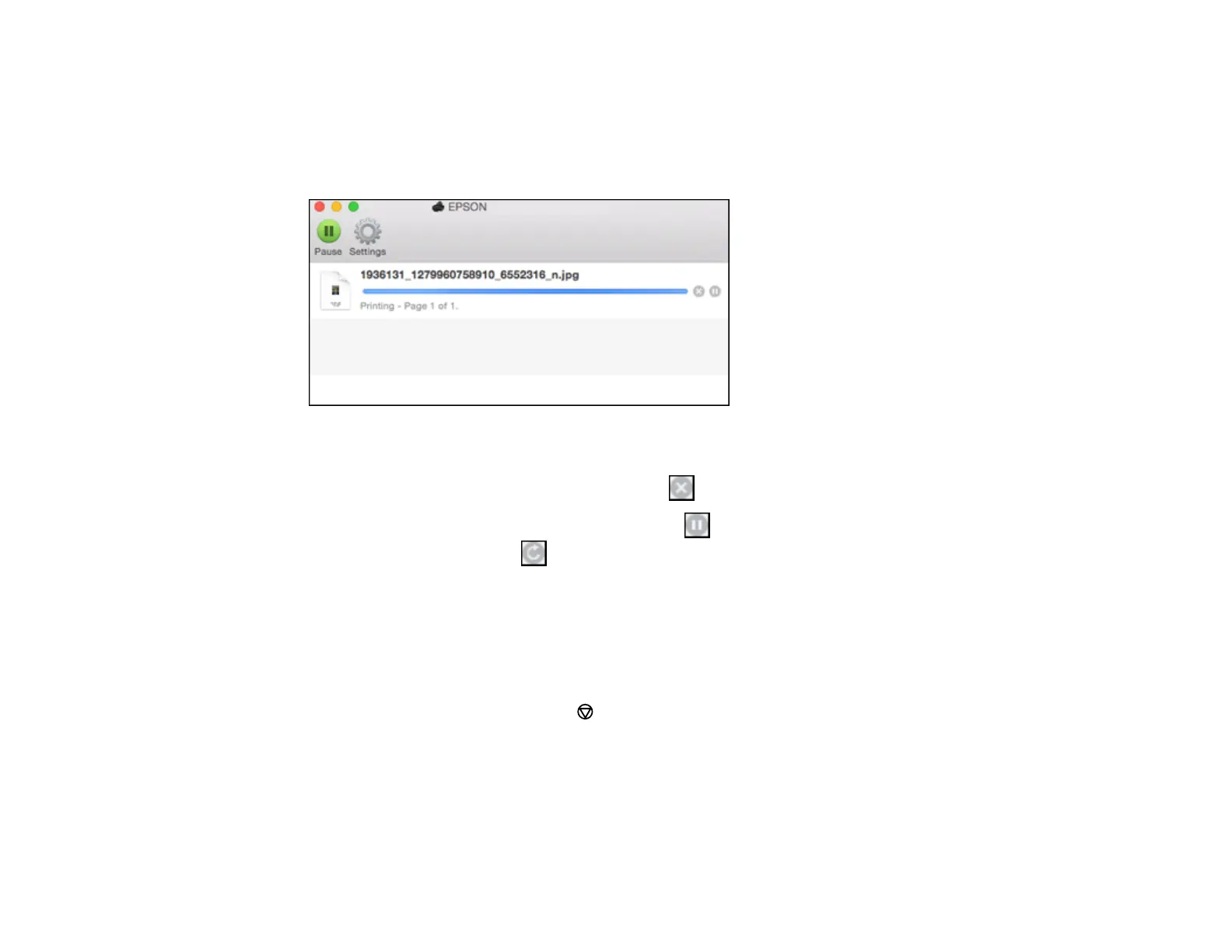
You see the print status window:
2. Select the following options as necessary for your version of OS X:
• To cancel printing, click the print job and click or Delete.
• To pause a print job, click the print job and click or Hold. To resume a print job, click the
paused print job and click or Resume.
• To pause printing for all queued print jobs, click Pause or Pause Printer.
• To display other printer information, click Settings or Supply Levels.
Parent topic: Printing Your Document or Photo - OS X
Cancelling Printing Using a Product Button
If you need to cancel printing, press the Stop/Reset button on your product.
Parent topic: Printing from a Computer















 To Next Page