C
Select 3 minutes, 5 minutes, or 10 minutes as the Sleep Timer setting.
D
Click the Apply button.
Using the control panel
A
Enter Eco Mode mode from the Home menu.
B
Select Sleep Timer.
C
Select 3minutes, 5minutes, or 10minutes.
Cleaning the Product
Cleaning the exterior of the product
To keep your product operating at its best, clean it thoroughly several times a year by using the following instructions.
c
Important:
Never use alcohol or thinner to clean the product. These chemicals can damage the product.
Note:
Close the rear paper feed slot after you use the product to protect the product from dust.
❏ Use a soft, dry, clean cloth to clean the touch panel/touchpad. Do not use liquid or chemical cleaners.
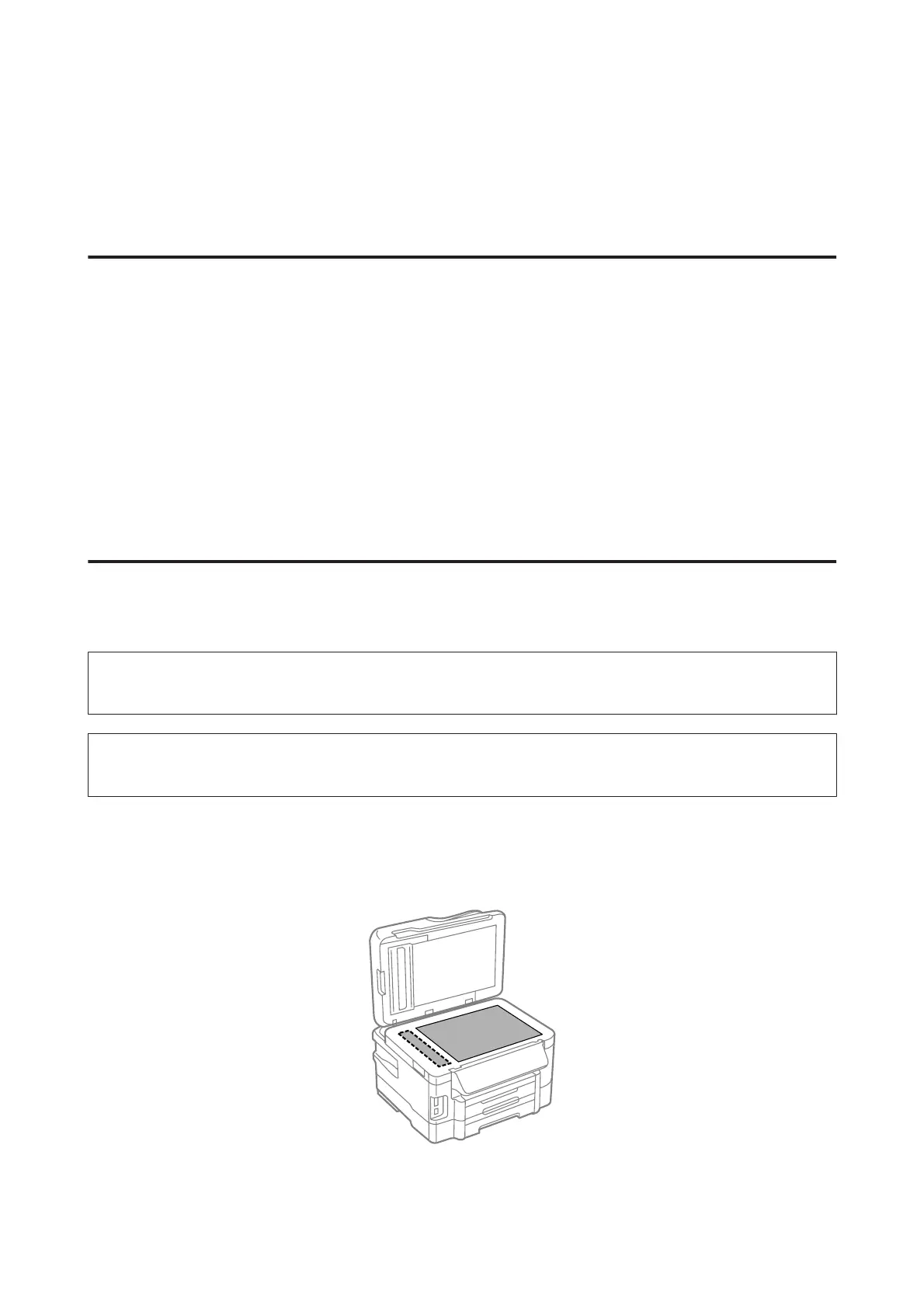
❏ Use a soft, dry, clean cloth to clean the surface of the scanner glass.
If straight lines appear in the printout or the scanned data, clean the small scanner glass on the left carefully.
❏ If the glass surface is stained with grease or some other hard-to-remove material, use a small amount of glass
cleaner and a soft cloth to remove it. Wipe off all remaining liquid.
User’s Guide
Maintaining Your Product and Software
124








 To Next Page