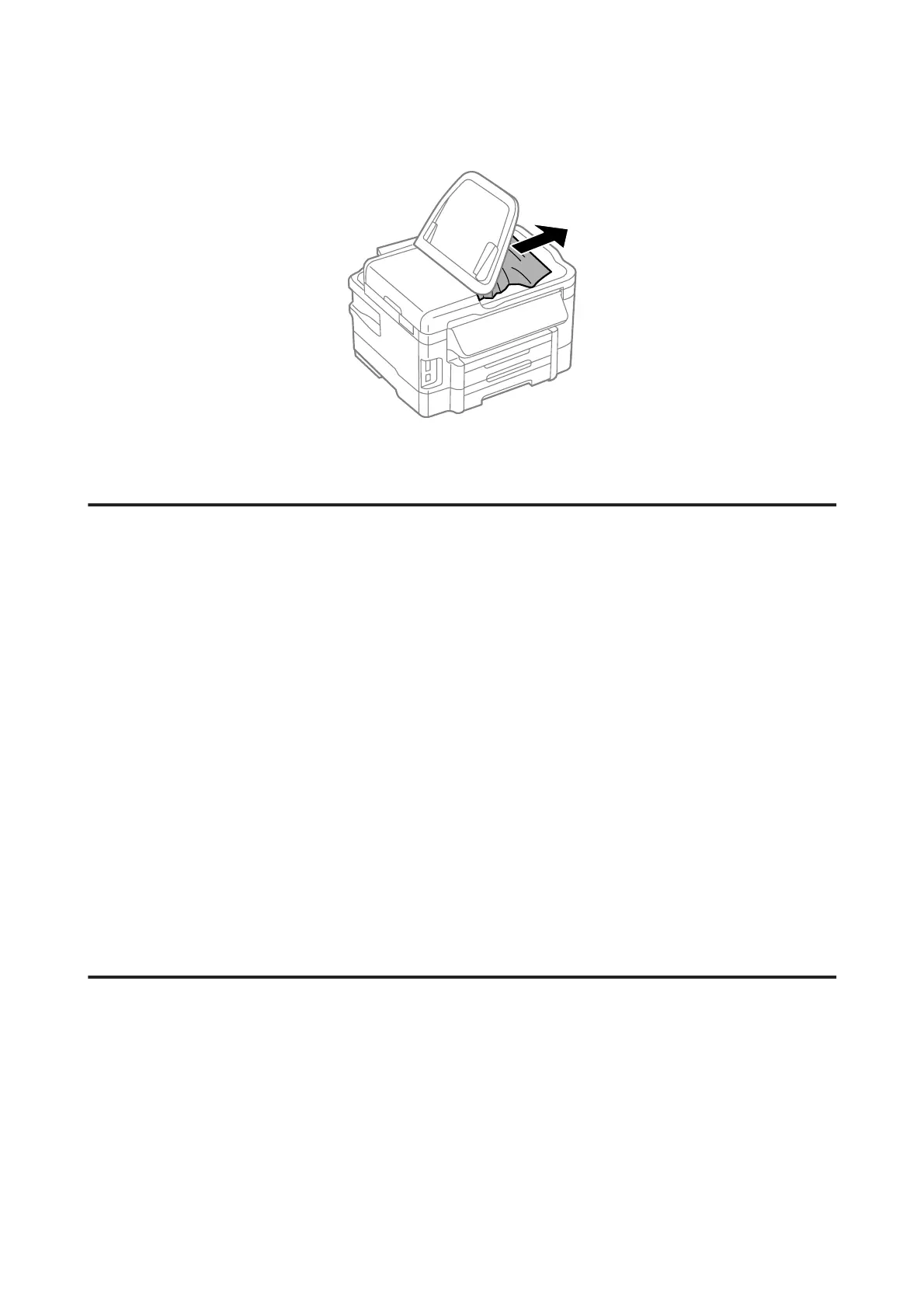
I
Carefully remove the jammed paper.
J
Return the ADF input tray to its original position.
Preventing paper jams
If your paper jams frequently, check the following.
❏ The paper is smooth, not curled or wrinkled.
❏ You are using high-quality paper.
❏ The printable side of the paper is face down in the paper cassette.
❏ The printable side of the paper is face up in the rear paper feed slot.
❏ The paper stack was fanned before loading.
❏ For plain paper, do not load paper above the line just under the H arrow mark inside the edge guide.
For Epson special media, make sure the number of sheets is less than the limit specified for the media.
& “Selecting Paper” on page 20
❏ The edge guides are snug against the edges of the paper.
❏ The product is on a flat, stable surface that extends beyond the base in all directions. The product will not operate
properly if it is tilted.
Reprinting after a paper jam (for Windows only)
After you cancel the print job because of a paper jam, you can reprint it without reprinting pages that have already been
printed.
A
Solve the paper jam.
& “Paper Jams” on page 139
B
Access the printer settings.
& “Accessing the printer driver for Windows” on page 42
User’s Guide
Troubleshooting for Printing/Copying
148








 To Next Page