Message Description
Connection test failed. Check the One of the following has occurred:
settings.
• The email server address or port number is incorrect
• A timeout has occurred
Cannot access the printer until The product is busy.
processing is complete.
Parent topic: Using an Email Server
Configuring Email Notification
You can configure email notifications using Web Config so you can receive alerts by email when certain
events occur on the product, such as running out of paper. You can register up to 5 email addresses and
select the events for which you want to be notified.
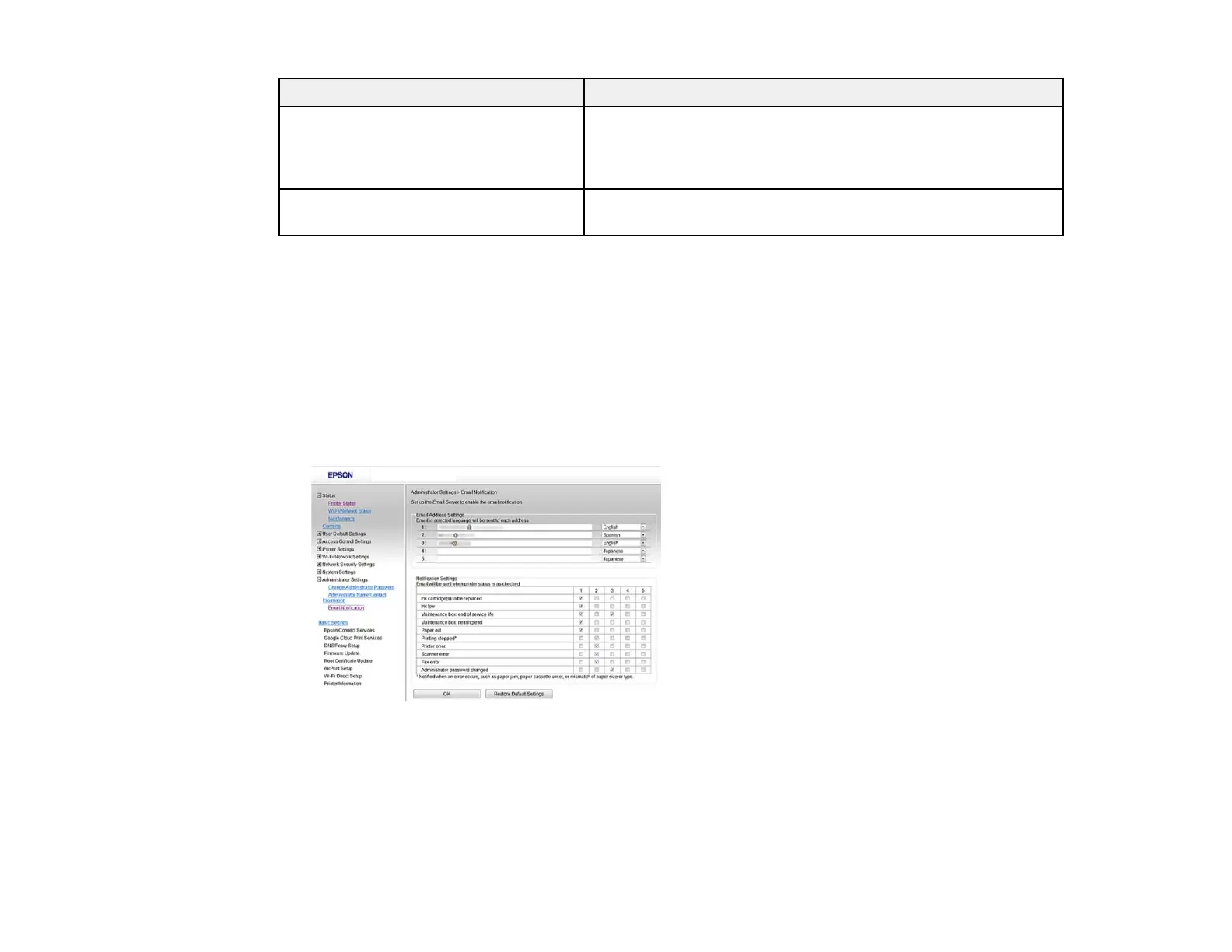
1. Access Web Config and select Adminstrator Settings.
2. Select Email Notification.
You see a window like this:
3. Enter an email address in the 1 field.
4. Select the language in which you want to receive the email notifications from the drop-down menu
for the first email address.
5. Enter additional email addresses in fields 2 through 5 as necessary, and select a language for each.
42











 To Next Page