7.3.1.3 Vessel Properties Tab: Vessel properties are used to describe the assay being
scheduled (refer to Table 3). These properties will be used when searching for
and viewing scanned vessels.
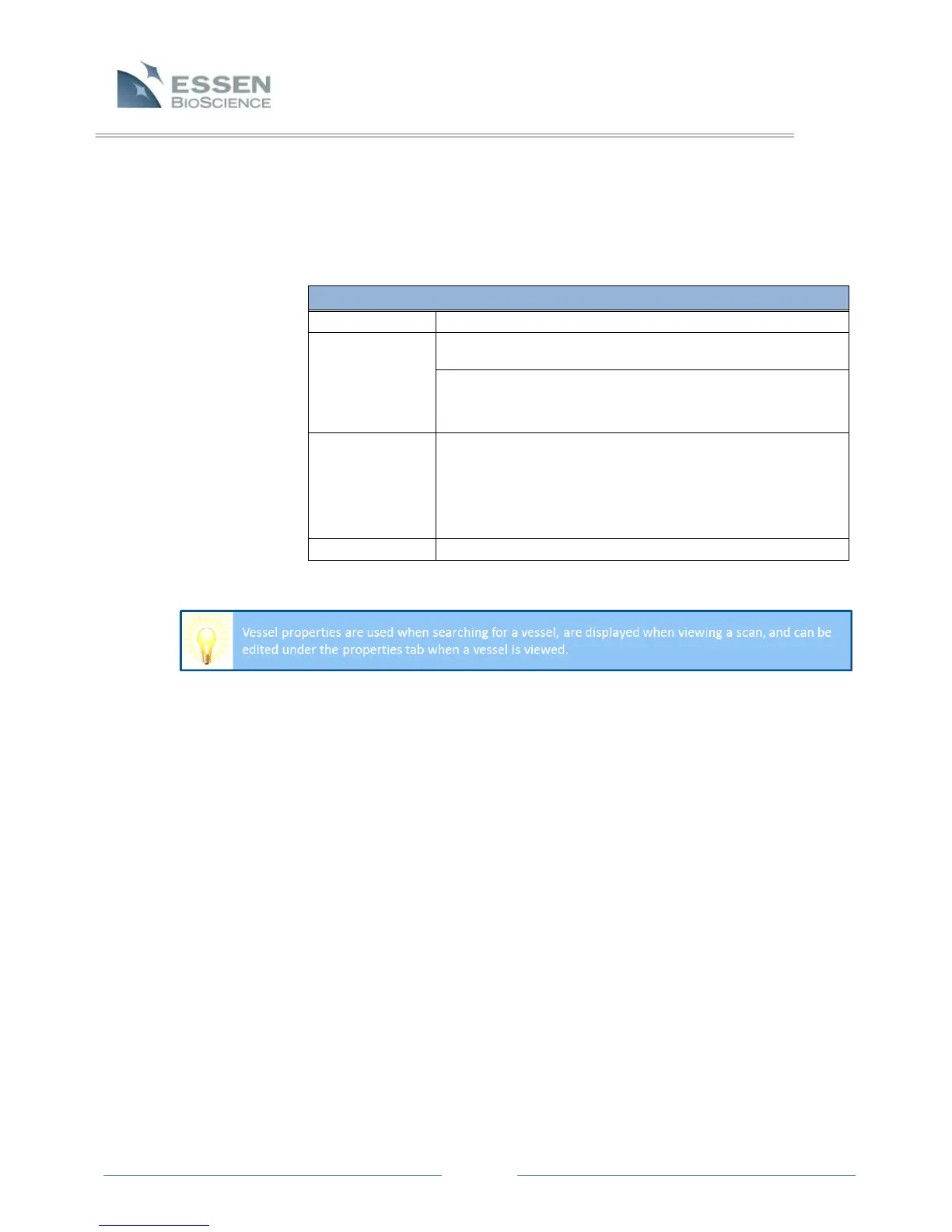
Table 3. The Vessel Properties Tab
Cell type used in the vessel.
Passage number of the cells can be selected by scrolling
up and down, or a number can be typed directly into the
passage box.
Use this button to open the Plate Map Editor and create
a plate map for microplates. Once a plate map has been
created and applied to a vessel, a small plate map icon
will appear next to the plate map button. Refer to
section 7.9 Plate Map Editor.
Any extra information desired.
7.3.1.4 Scheduling Identical Assays: When scheduling identical vessels that have
the same Scan Setup and vessel Properties, simply complete information that
defines one vessel and use the “Copy Vessel” and “Paste Vessel” buttons.
1. Complete the Scan Setup and Properties of one vessel. Highlight
the vessel in the Drawer Setup pane and click the “Copy Vessel”
button. Click on an empty tray position that you would like to copy
that vessel to, and then click on the “Paste Vessel” button.
2. The vessel type, Scan Setup, and Properties have now been
duplicated.
NOTE: Users have the option to modify the Properties or Scan
Setup.



 To Next Page